Session recordings and heatmaps on Shopify with Vitals: features, pricing and setup
Last updated on October 31, 2026
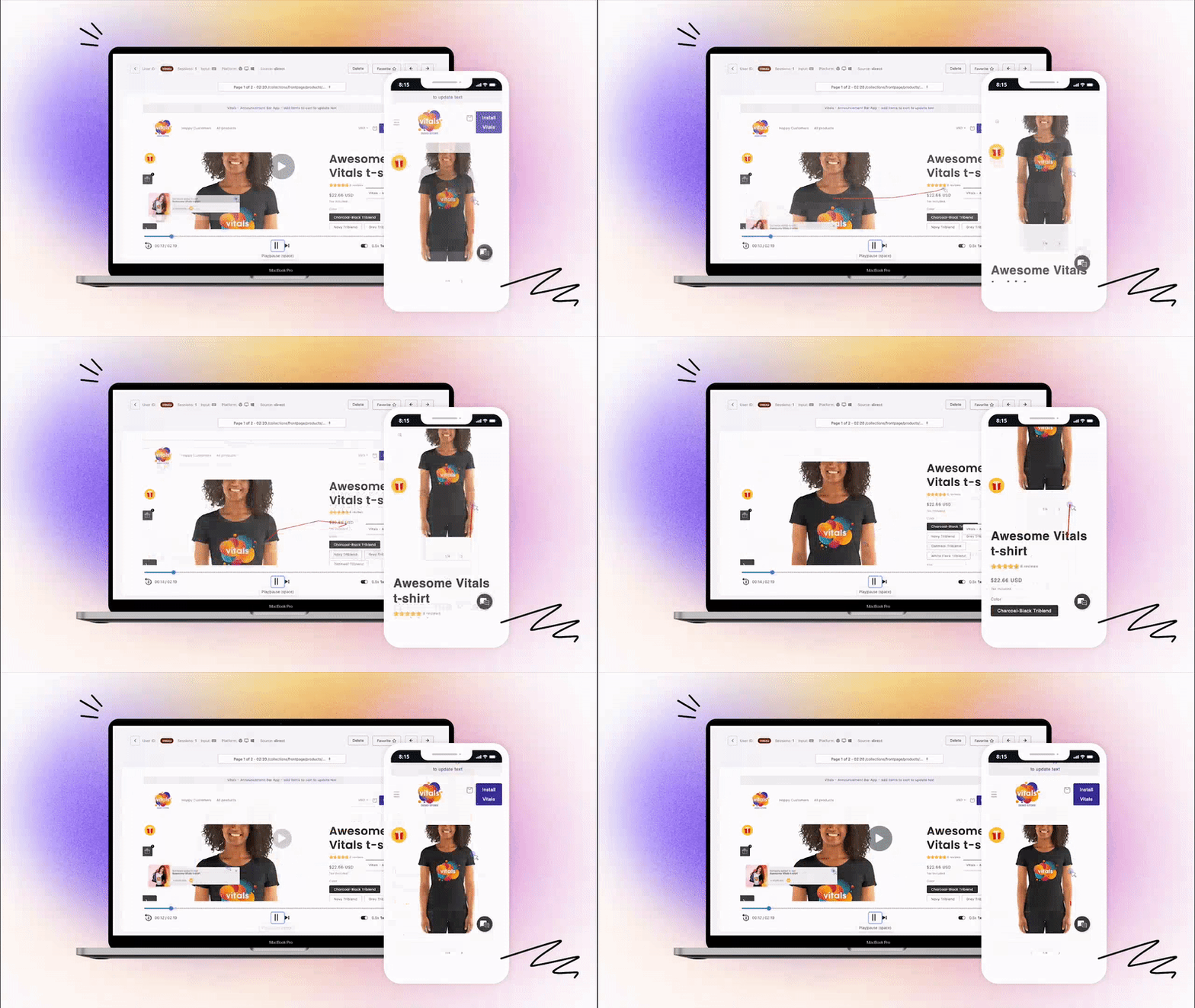
Yes, Vitals does session recordings and heatmaps on Shopify. The Vitals app (Vitals: Reviews, Bundles & 40+ on the Shopify App Store) includes Visitor Recordings (also called Visitor Replays), which records real shopper sessions so you can replay how visitors browse, scroll and click, watch live visitors, and build click, scroll, attention and revenue heatmaps from the same recordings. It comes in the same plan as product reviews, bundles, pop-ups and 40+ other apps, so you do not need a separate session replay app.
🎥 Visitor Recordings at a glance
| Question | Answer |
|---|---|
| Session recordings | Replays of real visits, rebuilt from the page and the visitor's mouse movement, scrolling, clicks and touch. A Live now tab shows visitors on your store right now. |
| Heatmaps | Click maps (with rage clicks and dead clicks), scroll maps, attention maps and revenue maps, built from your recordings with nothing extra on the storefront. A page needs 25 recorded sessions, and you can save up to 25 heatmaps. See Using Heatmaps. |
| AI summary | Each recording can be summarised by AI so you can see what happened without watching it. See Using the AI Summary. |
| Finding the right sessions | Automatic tags such as Product added to cart, Checkout initiated and Order completed, filters by date, tag, traffic source, page count and country, and saved Views |
| Export recordings | Export the recordings shown in the Recordings list to CSV from Export → Download CSV. The file includes recording details, tags, orders, replay links and AI summaries where available. Video downloads and combined AI-summary exports are not available. |
| Privacy | Text typed into fields is masked, you can exclude page elements by CSS selector, and a Require cookie consent before recording setting makes recording wait until visitors who need to give consent (for example in the EU) accept cookies |
| Bots | Likely bot and crawler visits are filtered out so they do not use your page views |
| How long recordings are kept | About a month (31 days), then deleted automatically |
| Recording volume | Usage is counted in page views, not recordings (one recording can contain several pages). Recording pauses at your page view limit, 10,000 a month by default. You can set it to 1,000, 10,000, 30,000, 60,000, 100,000, 200,000 or Unlimited in Visitor Recordings → Settings. The count resets every month. The free trial includes 10,000 page views. |
| Pricing | Included in the Vitals All-in-One plan, $29.99/month, with a 7-day free trial. The first 1,000 recorded page views each month are free. Above that, a monthly usage charge applies by tier: 1,000 to 10,000 page views $16, 10,000 to 30,000 $40, 30,000 to 60,000 $65, 60,000 to 100,000 $90, 100,000 to 200,000 $150, then $70 for every extra 100,000 (vitals.app/pricing, The Vitals All-in-one Plan). See the Shopify App Store listing for current pricing. |
When Visitor Recordings is not the right fit
- You need recordings older than a month. Recordings are deleted 31 days after they are made, and heatmaps cover up to the last 30 days.
- You need to see content inside iframes. Embedded video players, chat windows, payment pages and third-party forms show as blank boxes in a recording, and custom fonts are replaced with default fonts.
- You want every visit on a high-traffic store recorded at no cost. Recording is metered by page views above the first 1,000 a month, so a large store either sets a page view limit or pays the usage tier it reaches.
💡 Can’t find the Visitor Replays app?
We’ve renamed it — you’ll now see it listed as the Visitor Recordings app.
Everything still works the same — just under a new name.
This app comes as a natural extension to some of our other apps that improve the store's overall experience and increase sales. You'll be able to watch actual recordings of your visitors on your store, see how they are interacting with your store, how long they are staying on one particular page, why they are hesitating to buy, and what you can improve upon your sales funnel.
💡 The app doesn't record the session like a screen recording. Instead, it captures the original HTML shown to the visitor and any changes to the DOM plus user input like mouse movement, scroll, and touch events. These are combined into a single recording that can simulate the interaction a visitor had with your store. For this reason, some HTML elements may look incorrectly rendered, while on the live store, their look & feel are just ok 👌.
To start recording, open Visitor Recordings and click Activate app. You will then start seeing recordings showing up in the app's dashboard - you'll even be able to see live visitors browsing your store.
Interacting with the Visitor Recordings app's interface
Once you open the Visitor Recordings app in the Vitals App User Admin, the list of recordings will be seen immediately, each with its own information.
Below are the common sections of the app's interface:
- Recordings, Live now, Heatmaps and Settings tabs
You can change your view of the app's interface by clicking their respective tabs:
- Recordings - the default view and will let you see the list of recordings
- Live Now - if there are active live users viewing your store, you can see how their session here right away
- Heatmaps - click, scroll and attention maps built from your recordings
- Settings - different settings of the Visitor Recordings app, like how to exclude your own visits
- Pages recorded
This shows how many page views have been recorded in your current billing period. Recording pauses when it reaches the page view limit set in Settings.
- Filter and View options
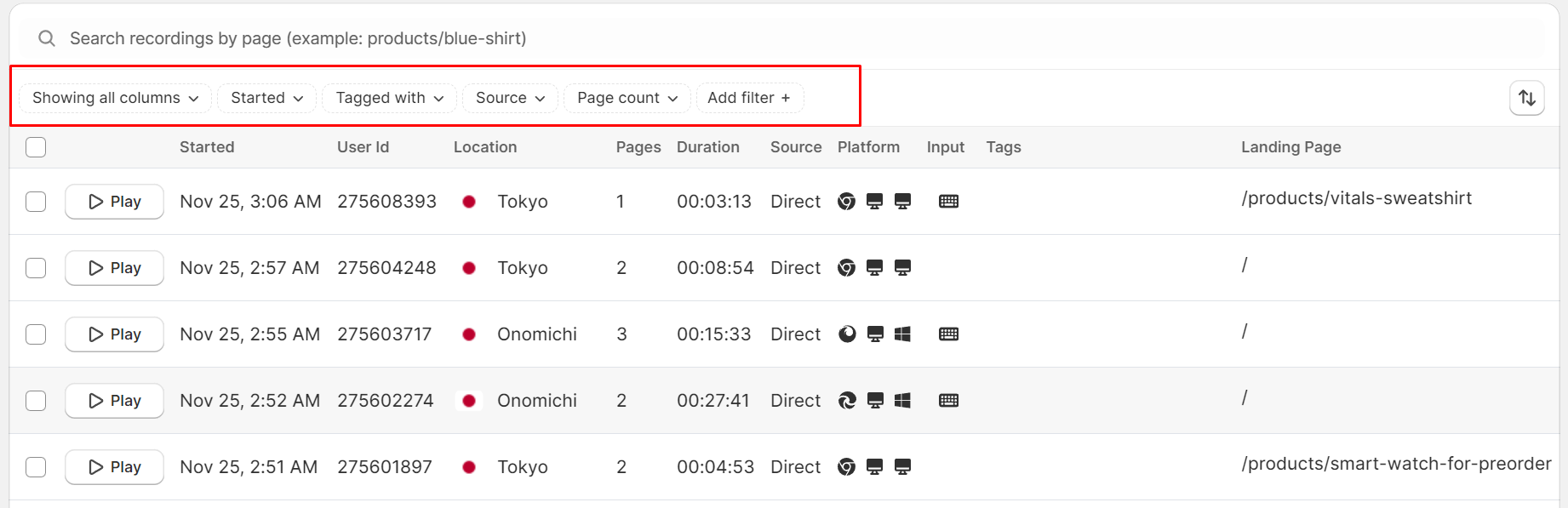
By default, all columns that contain different information about each recording are displayed in a table form. However, you can remove columns that contain information you do not need to simplify your view and only see information that matters.
Some of the important columns/fields worth mentioning are the following:
| Column | Description |
|---|---|
| User ID | A unique User ID is assigned for each unique visitor. |
| Location | The visitor's geographical location/region |
| Source | Where the visit came from in the World Wide Web (Google Ads, Facebook, Direct, Tiktok, Instagram, etc) |
| Platform | The browser, device and OS platform that the visitor used during the visit |
| Tags | We made it easier for you to view important recordings. Tags such as "Product added to cart", "Checkout initiated", "Order completed", and other tags will be automatically added here, informing you the recordings that experienced important store events |
| Landing Page | The first page that they have visited /the page that they started from. |
You can also use the Filter function to control the number of recordings that you would like to view. Below are the common filters you can use:
| Filter | Description |
|---|---|
| Started | Use this if you would only like to see recordings that either happened today, yesterday, or within a specified range. |
| Tagged with | Use this filter if you would like to see only the recordings that received specific actions, such as recordings where products were added to cart, recordings where orders were completed, and other types of interactions. |
| Source | Use this filter if you would like to only see recordings from a specific source like Google Ads, Tiktok, etc. Useful if you would like to verify if your triggered ads provide organic visits. |
| Page Count | Use this filter if you would like to see recordings with X number of pages visited. |
| Country | Use this filter if you would like to see recordings only made from a specific country. |
Additionally, you can leave your own visits out of the recordings: turn on Don't record my own visits in Visitor Recordings > Settings, then open your live store from Shopify admin using the eye icon (see these instructions). That browser will be excluded on that visit and future visits, even if you later log out or use a VPN. Repeat this on each device you use. Theme-preview visits are excluded for that visit.
New Setting - Require cookie consent before recording
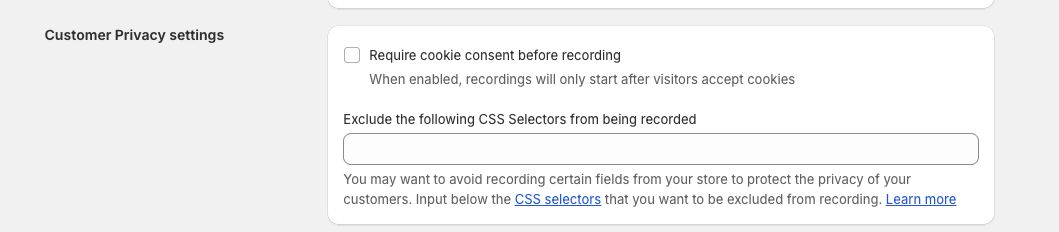
Use this setting to control when Visitor Recordings starts recording a visitor session (for EU visitors).
- Enabled: Visitor Recordings starts only after the visitor accepts cookies. This preserves the previous behavior.
- Disabled: Visitor Recordings can start recording without waiting for the visitor to accept cookies.
This setting is useful if you want more flexibility in how Visitor Recordings behaves alongside your store’s privacy and consent setup.
Frequently Asked Questions
Does Vitals have a session recording app for Shopify?
Yes. Visitor Recordings (Visitor Replays) is part of the Vitals app. It records real shopper sessions you can replay, shows live visitors, and builds heatmaps from the same recordings.
Does Vitals have heatmaps?
Yes. Click maps (with rage clicks and dead clicks), scroll maps, attention maps and revenue maps are in the Heatmaps tab of Visitor Recordings, with no extra setup.
How much do Vitals session recordings cost?
Visitor Recordings is included in the Vitals All-in-One plan at $29.99/month, with a 7-day free trial. The first 1,000 recorded page views each month are free, then usage tiers apply, starting at $16 for 1,000 to 10,000 page views. You can cap page views in Settings to control the cost. Check the Shopify App Store listing and vitals.app/pricing for current pricing.
How many sessions can Vitals record?
As many as your page view limit allows: 10,000 page views a month by default, adjustable up to 200,000 or Unlimited. One recording includes every page the visitor viewed, so 10,000 page views usually means fewer than 10,000 recordings.
Can Vitals wait for cookie consent before recording?
Yes. Turn on Require cookie consent before recording in Settings, and visitors who need to give cookie consent (for example in the EU) are recorded only after they accept cookies.
More answers: Visitor Recordings FAQs