Using Views in Visitor Recordings App
Last updated on June 25, 2026
Saved filter sets you can reapply to your recordings list with a single click.
Is this for me?
If you keep rebuilding the same filters every time you open Visitor Recordings — "added to cart," "came from ads," "reached checkout" — Views save you that work. A View is a saved set of filters that lives as a tab above your recordings list. Click the tab and the list instantly narrows to that kind of session. No more setting the same filters from scratch each visit.
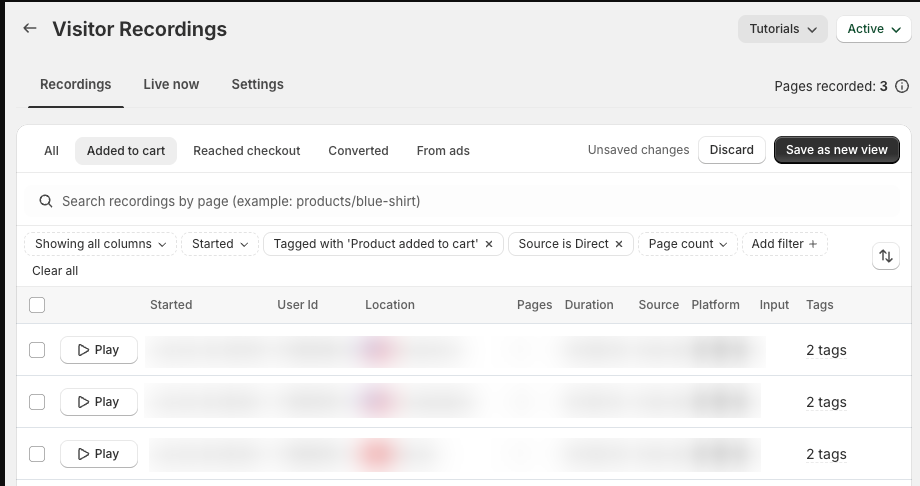
A typical use: every morning you want to watch only the sessions that added something to the cart but never checked out. Build that filter once, save it as a View, and from then on it's one click away.
Before you start: Your store comes with four built-in Views ready to use — there's nothing to set up. You only need to create your own Views if you want to save filter combinations beyond the four defaults.
How Views work
Views appear as tabs at the top of your recordings list. The first tab, All, shows every recording with no filters applied. Next to it sit your saved Views — both the built-in ones and any you create. Clicking a tab applies that View's filters immediately, exactly as if you'd set them by hand.
The four built-in Views
Every store gets these four out of the box. They're read-only — you can use them anytime, but you can't rename, edit, or delete them.
- Added to cart — sessions where the visitor added a product to their cart.
- Reached checkout — sessions that made it to the checkout step.
- Converted — sessions that completed an order.
- From ads — visitors who arrived from a paid ad.
Creating your own View
- From the recordings list, apply any filters you want — tags, traffic source, page count, date started, and so on.
- When your filters differ from the current View, an Unsaved changes indicator appears, along with Discard and Save as new view.
- Click Save as new view, give it a name, and it appears as its own tab alongside the built-in Views.
- Click Discard instead if you'd rather drop the filter changes without saving.
Your saved View now sits in the tab bar, ready to reapply in one click.
Managing your Views
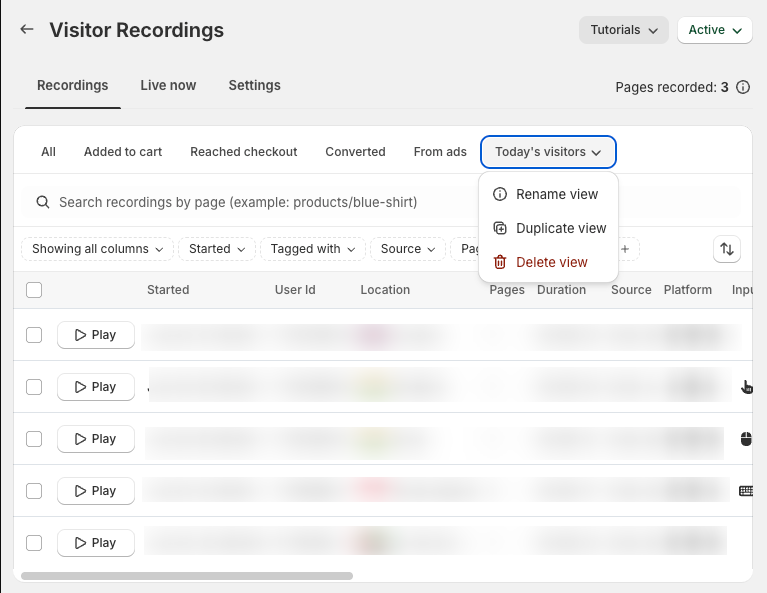
Open a View you created and click the small arrow on its tab to manage it. You get three options:
- Rename view — change the View's name.
- Duplicate view — copy it to a new View, handy when you want a variation of an existing filter set.
- Delete view — remove the View entirely.
These actions apply to Views you create. The four built-in Views stay read-only — they can't be renamed or deleted.
Tips for getting the most out of Views
- Save the filters you reach for daily. If you check "abandoned checkout" or "mobile visitors from one country" most mornings, save it once and skip the rebuild every time.
- Duplicate before you tweak. Want a near-copy of a View with one filter changed? Duplicate it and adjust the copy, so your original stays intact.
- Start from a built-in View, then refine. Open From ads, add a tag or source filter, and save the result as your own View for paid-traffic deep-dives.
- Use All to reset. If your filters get tangled, click the All tab to clear everything and start fresh.
FAQ
What is a View?
A View is a saved set of filters for your recordings list, shown as a tab above the list. Click it to reapply those filters in one click instead of setting them up again each time.
What are the four built-in Views?
Added to cart, Reached checkout, Converted, and From ads. They're ready the moment you open the app and need no setup.
Can I edit or delete the built-in Views?
No. The four built-in Views are read-only — you can use them anytime, but you can't rename, edit, or delete them. You can create your own Views with whatever filters you like.
How do I create my own View?
Apply any filters to the recordings list. When your filters differ from the current View, a Save as new view button appears. Click it, name the View, and it shows up as its own tab.
Can I rename, copy, or remove a View I created?
Yes. Open the View and click the arrow on its tab for Rename view, Duplicate view, and Delete view.
What does "Unsaved changes" mean?
It means you've changed the filters on the current View without saving. You can keep the changes by choosing Save as new view, or drop them with Discard.
How do I see all recordings again?
Click the All tab at the start of the tab bar. It clears every filter and shows all recordings.