
Creating Related Products Upsell Offers
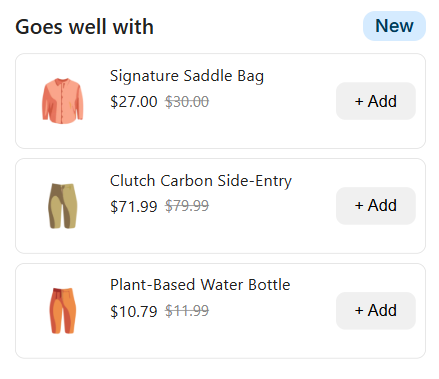
Related Products is an Upsell Builder offer type that helps you increase average order value by recommending complementary products on your product page and in your cart.
Unlike Product Bundles, which group products into a single offer, Related Products displays individual product cards that shoppers can add independently. You can also apply an optional discount to each related product.
Why use Related Products?
- Increase average order value with relevant cross-sell recommendations
- Show hand-picked, collection-based, or automatically matched products
- Let shoppers add recommended products individually
- Apply an optional discount to each suggested product
- Display recommendations on both the product page and the cart
How to create a Related Products offer
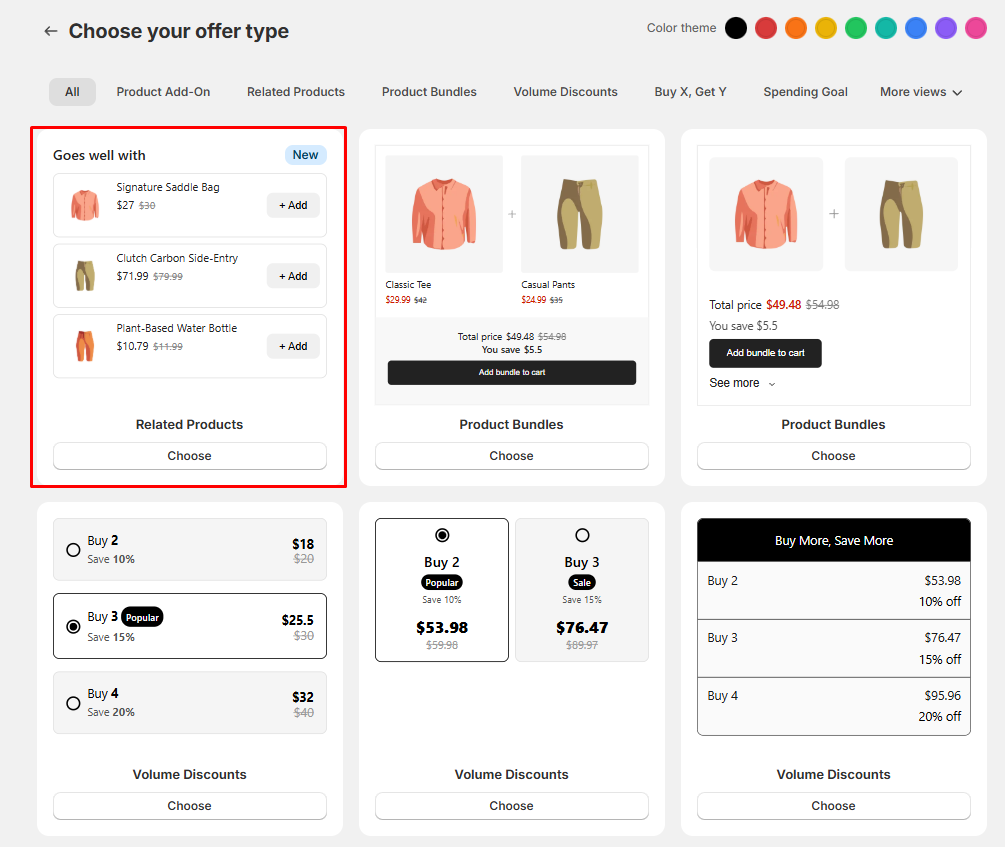
Go to Upsell Builder > Create Offer > Related Products, and click the Choose button.
Step 1: Select Products
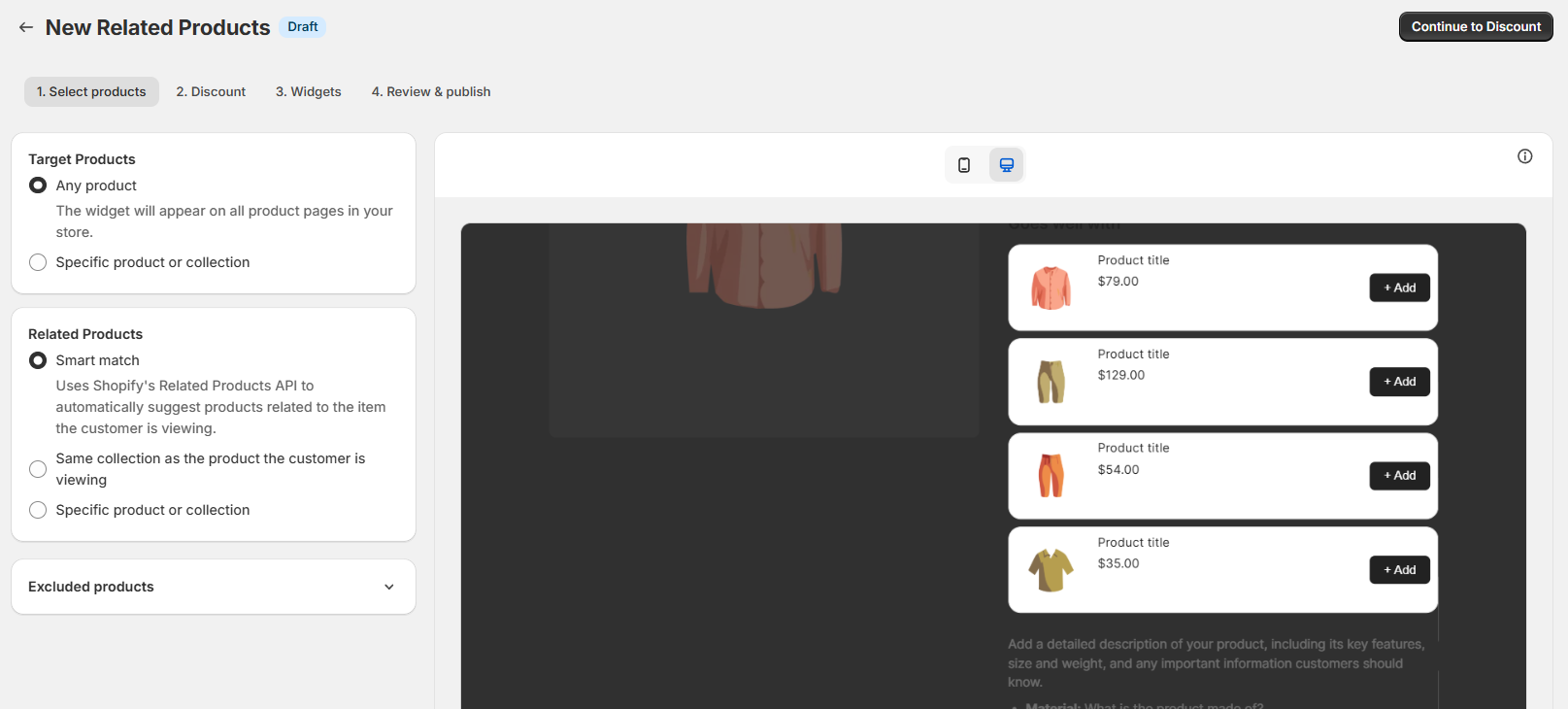
In this step, choose which products trigger the offer and which products should be recommended.
Target products
Select the products that should trigger the offer. These are the product pages where the Related Products widget can appear.
Related products
Choose the products you want to recommend. You can use one of the following methods:
- Specific products: Select up to 10 products
- Collections: Recommend products from one or more collections
- Smart Match: Let Vitals automatically find related products
- Same Collection: Show products from the same collection as the current product
You can also exclude specific products to prevent them from appearing in the recommendations.
Step 2: Discount
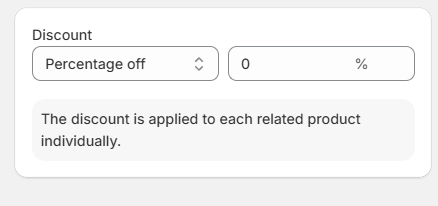
Adding a discount is optional.
If you enable a discount, it is applied to each related product individually when the shopper adds that product through the offer.
You can choose from:
- Percentage discount
- Fixed amount discount
Step 3: Widgets
Related Products supports two placements:
-
Product Page
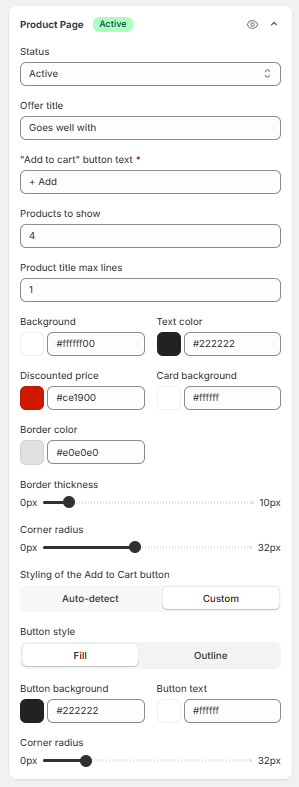
For the product page widget, you can customize:
- Offer title
- Add to cart button text
- Number of products shown at a time
- Maximum title lines
- Widget styling
- Add to cart button styling
-
Cart Page
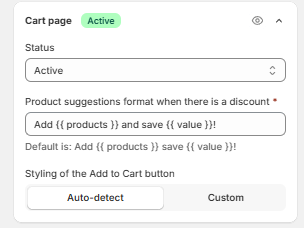
Related Products can also appear as upsell suggestions in the cart, helping shoppers discover complementary items before checkout.
Step 4: Review & Publish
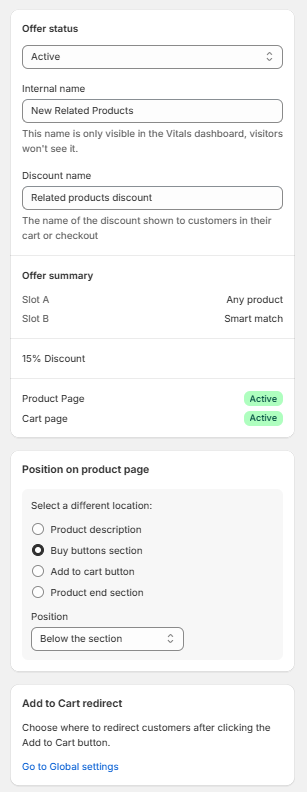
Review your settings previously made, or add an internal name for easier identification, and choose whether the offer should be Active or Draft, then publish when ready.
How Related Products works on your storefront
When a customer visits an eligible product page, Vitals loads the Related Products offer and displays the configured recommendations.
Depending on your setup, the offer can show:
- Hand-picked products
- Products from selected collections
- Products from the same collection
- Automatically matched related products
If a recommended product has multiple variants, the shopper can choose a variant before adding it to the cart.
💡 If the product in the Related Products upsell has a discount, it can be added individually by the customer. Since the Related Products Upsell's purpose is to recommend other products related to the product being viewed, they can be added separately.
If you are looking for an upsell offer that requires the main product to be added together with the related product, you can use the Product Add-on Upsell offer.
Tips for better performance
- Use a clear, action-oriented title such as “You may also like” or “Complete the look”
- Keep the number of visible products focused to avoid overwhelming customers
- Exclude products that are already promoted elsewhere
- Use discounts strategically to encourage add-on purchases
Related Products vs Product Bundles
Use Related Products when you want to recommend products individually.
Use Product Bundles when you want to group products into a combined discounted offer.
Frequently asked questions
Can I show Related Products on both the product page and the cart?
Yes. Related Products supports product page placement and cart page/cart drawer suggestions.
Can I apply a discount to the recommended products?
Yes. You can optionally apply either a percentage discount or a fixed amount discount to each related product.
Can I control which products are shown?
Yes. You can use specific products, collections, Same Collection, or Smart Match, and you can exclude products you do not want to recommend.
Is this the same as the standalone Related Products app?
No. This offer is part of Upsell Builder and is configured inside Upsell Builder. The standalone Related Products app is a separate feature.