
EU Legal Guarantee notice and GARAN labels on Shopify with Vitals: features, pricing and setup
Last updated on November 5, 2026
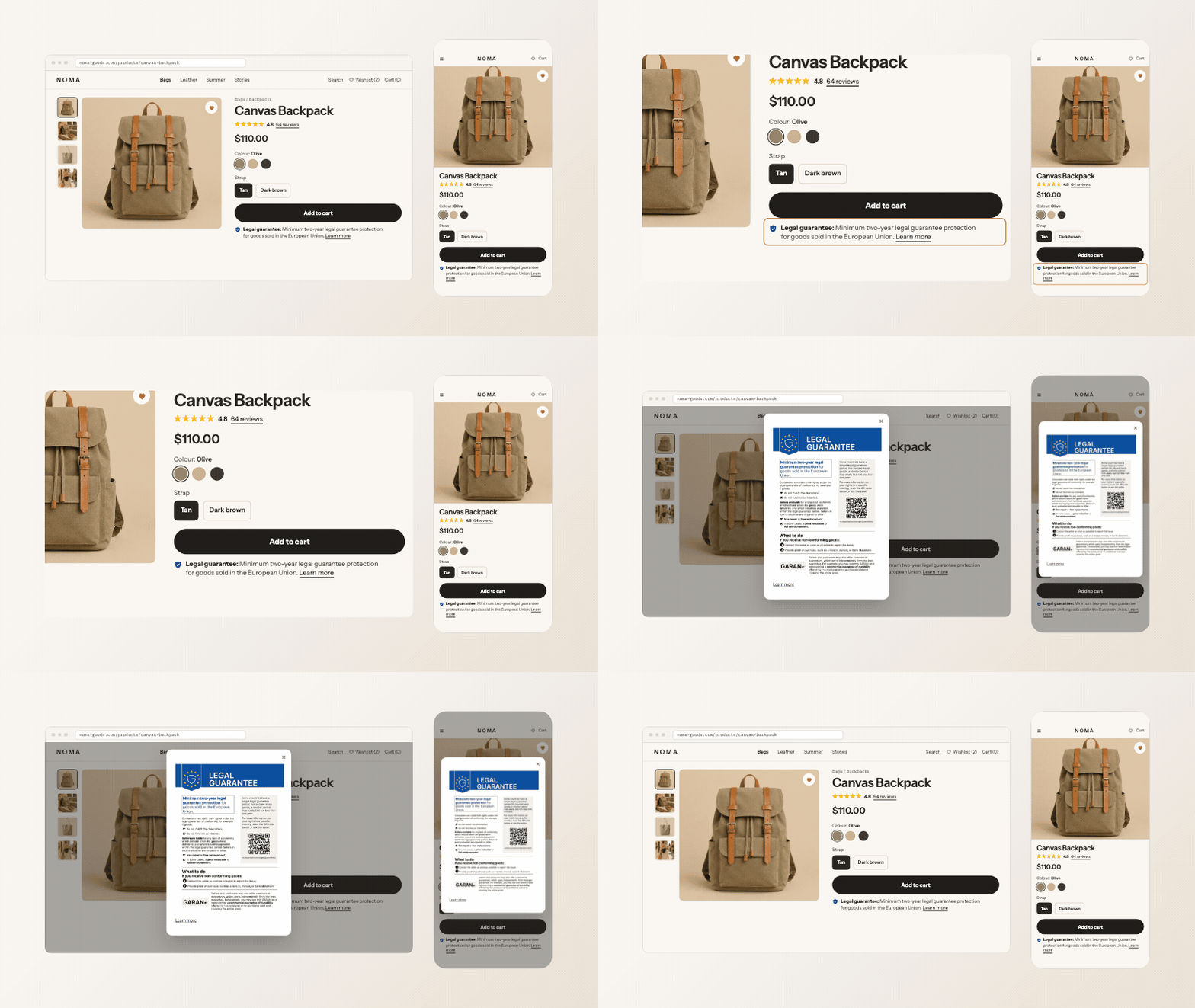
Show the EU legal guarantee notice where shoppers buy, in their language, and keep track of what still needs doing
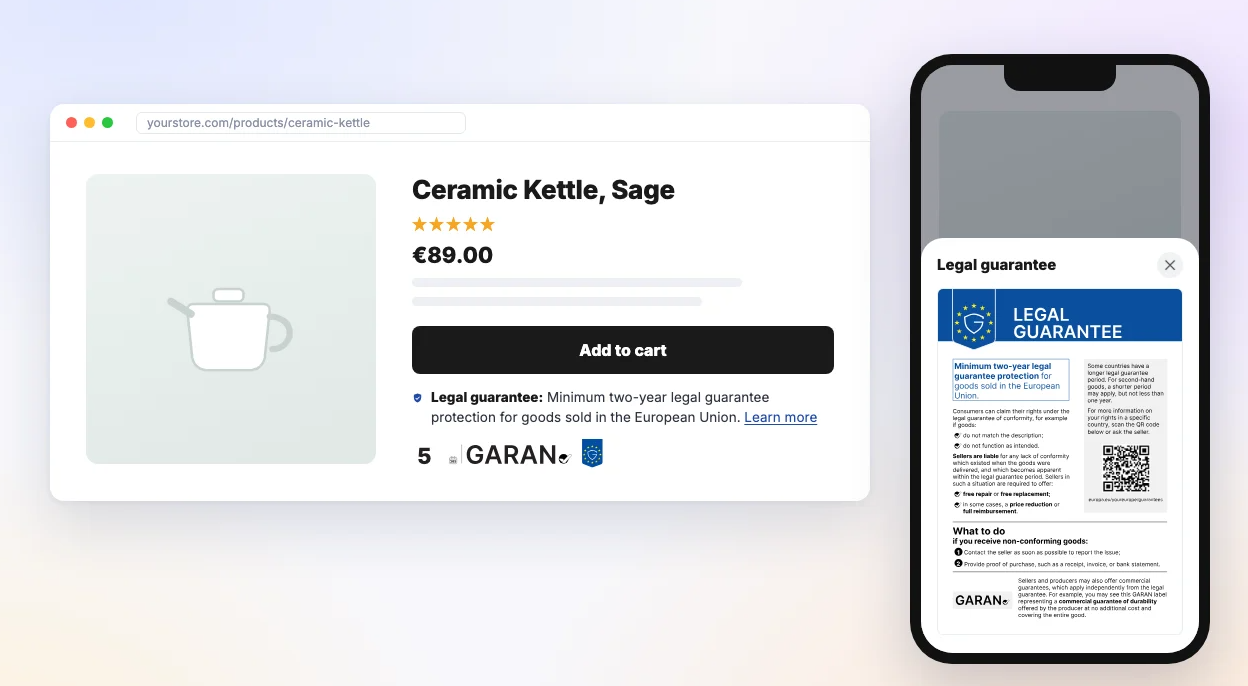
Yes, Vitals shows the EU legal guarantee notice on Shopify. The EU Legal Guarantee app is part of Vitals: Reviews, Bundles & 40+ on the Shopify App Store. It shows the EU's official harmonised legal guarantee notice near the Add to cart button and in the cart, in the right one of the 24 official EU languages for each shopper, adds GARAN durability labels for products with a longer producer guarantee, and gives you a snippet for your order confirmation email and a checklist. It is also available as its own free listing, EU Legal Guarantee by Square.
EU Legal Guarantee at a glance
| Question | Answer |
|---|---|
| What it shows | The European Commission's official legal guarantee notice: a short line that opens the full notice in a popup or in place, or the full notice always visible on product pages |
| Where it shows | Product pages near Add to cart, the cart page, the Vitals Cart Drawer and most popular theme cart drawers right above the checkout button, anywhere else with the Place it anywhere snippet, on a guarantee page of your own, and on the thank you and order status pages (plus checkout on Shopify Plus) with the EU legal guarantee notice block in Shopify's checkout editor |
| Languages | All 24 official EU languages: the shopper's language, the market country's language, or one fixed language |
| GARAN labels | Per-product durability labels for goods whose producer gives a guarantee longer than two years |
| Order confirmation email | A snippet you paste once into your Shopify Order confirmation template |
| Who sees it | Customers in the EU (default) or All customers. Hidden for logged-in B2B customers by default |
| Excluded products | Gift cards and products that never ship are skipped by default. Exclude more by product, collection, tag or product type |
| Checklist | A What EU law asks for list that shows what is done and links to the setting for anything left to fix |
| Pricing | Included in the Vitals All-in-One plan, $29.99/month, with a 7-day free trial. The standalone EU Legal Guarantee by Square listing is free. See the Shopify App Store listing for current pricing. |
When EU Legal Guarantee is not the right fit
- You want to redesign the notice itself. The notice is official artwork and cannot be edited. You can style the line, box and popup around it.
- You need GARAN labels inside checkout and you are not on Shopify Plus. Shopify opens checkout to app content on Shopify Plus only, where you add the GARAN label block in the checkout editor. On other plans the labels show on product pages, in the cart and on the thank you and order status pages.
- You need a full legal review. The checklist checks the app's settings, not your whole store, and is not legal advice.
Is this for me?
If you sell physical goods to consumers in the European Union, yes. The EU Legal Guarantee app shows the EU's harmonized legal guarantee notice on your store, in the dashboard's own words: "Show the EU legal guarantee notice and GARAN durability labels the law requires from 27 September 2026." It puts a short, official line near the Add to cart button and in the cart, opens the full notice when a shopper taps it, picks the right one of the 24 EU language versions for each shopper, and gives you a checklist of what EU law asks for so you can see at a glance what is done and what is left.
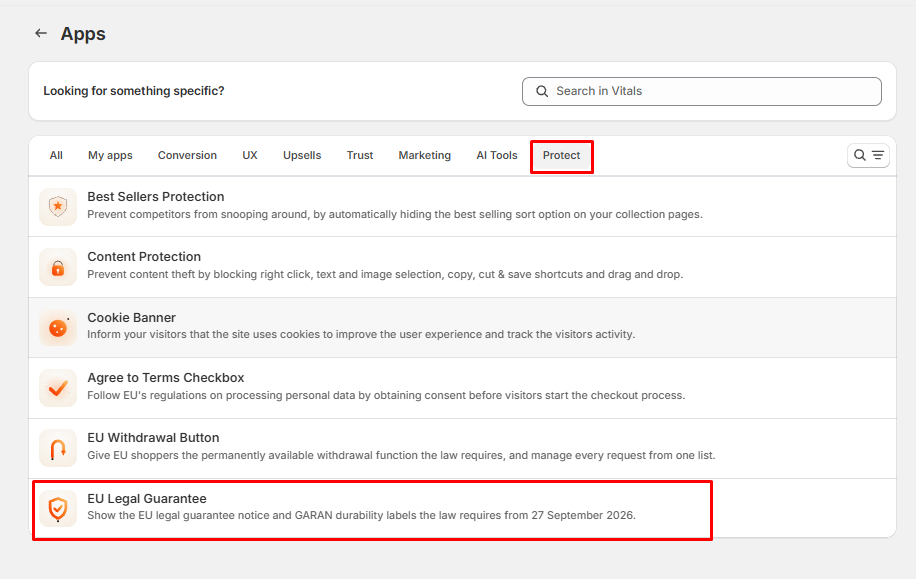
The app is new. You'll find it in your Vitals dashboard under Apps → Protect, after the EU Withdrawal Button.
A typical case: a shopper in Spain opens a product page on your English-language store. Under the Add to cart button, she sees a line reading "Legal guarantee: Minimum two-year legal guarantee protection for goods sold in the European Union. Learn more" - in Spanish, because that is the language she is browsing in. She taps it, the official notice opens in a popup with a link to the EU's Your Europe page, and the same line is waiting for her right above the checkout button in the cart.
⚠️Before you start: turn the app on in Vitals and make sure your store's app embed is active in your theme (nothing appears on your storefront until it is). The notice covers the store side. EU law also asks for the notice in your order confirmation email, which no app can edit for you - the Order email tab hands you a snippet to paste once. See the article Adding the Legal Guarantee Notice to Your Order Confirmation Email.
Setup, step by step
- Open Vitals and enable the EU Legal Guarantee app. You'll find it in the app list under the Protect category, after the EU Withdrawal Button.
The app opens on the Notice tab. At the top, "What EU law asks for" lists each requirement with a status icon and, where something needs fixing, a link that takes you straight to the setting.
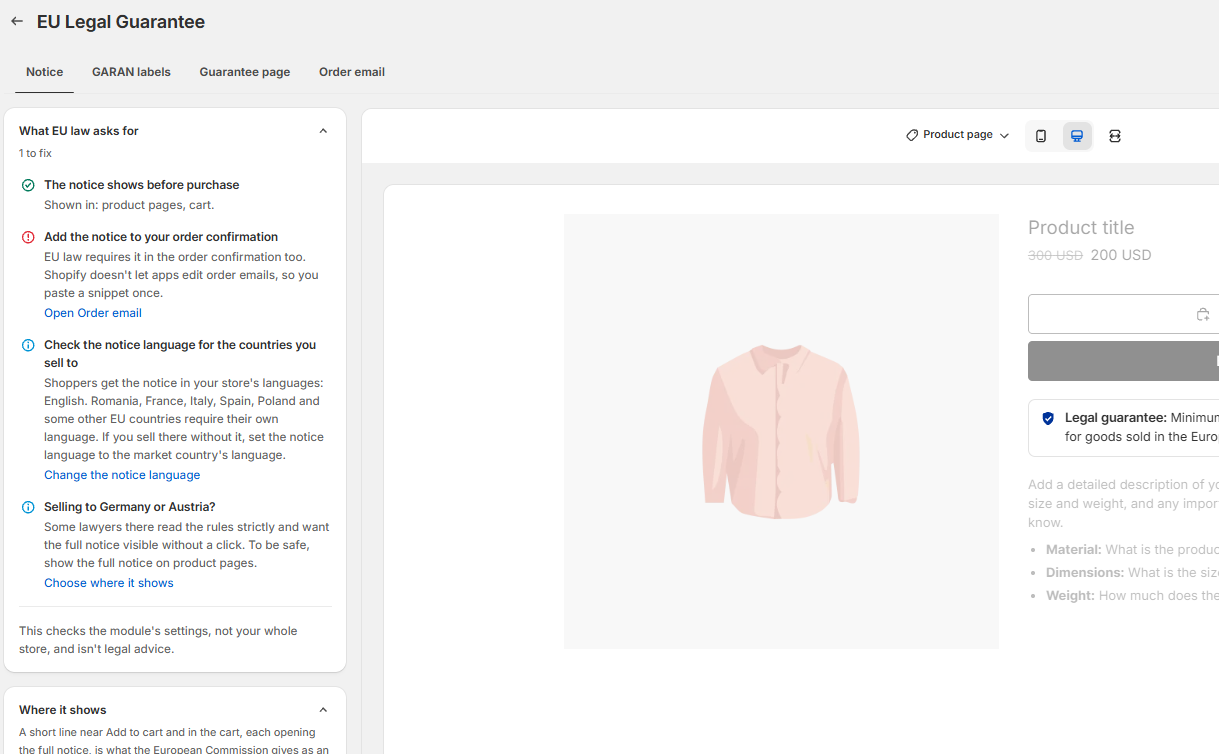
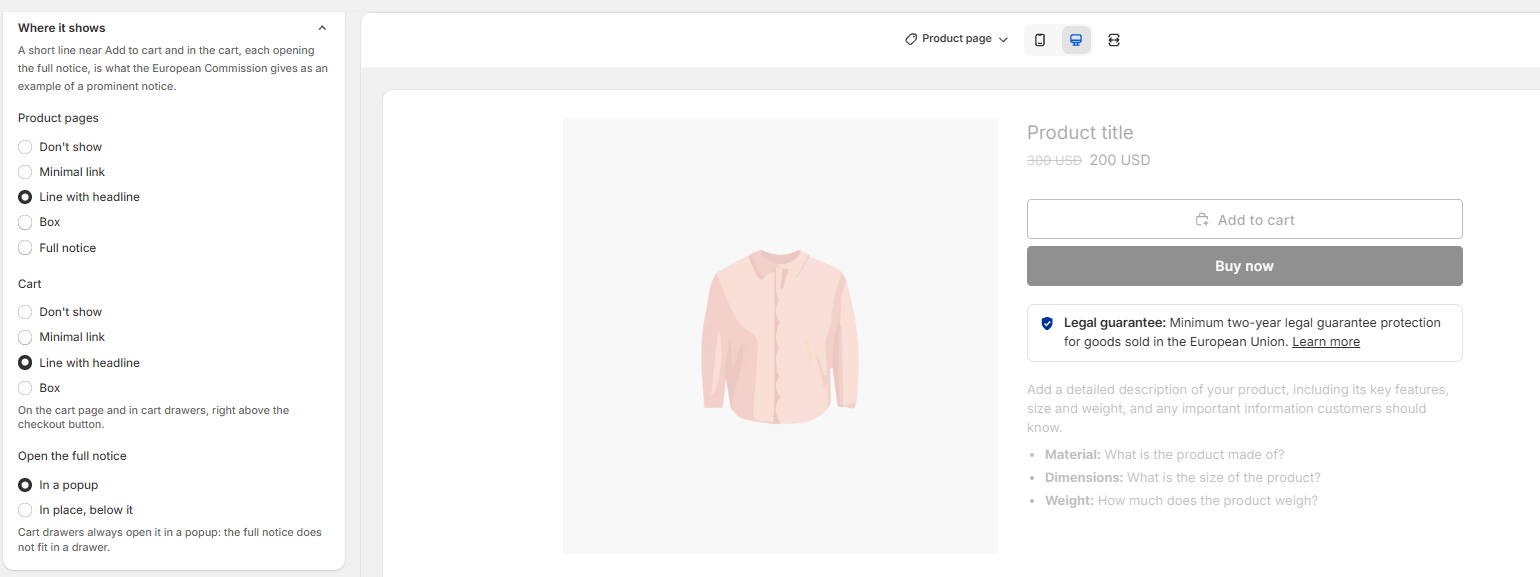
Under "Where it shows", choose a style for "Product pages" and for "Cart". The defaults, "Line with headline" in both places, are what the dashboard describes as the European Commission's own example of a prominent notice: "A short line near Add to cart and in the cart, each opening the full notice".
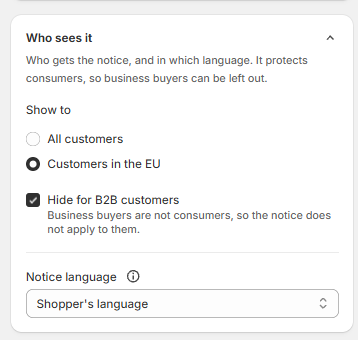
Under "Who sees it", keep "Show to" on "Customers in the EU" or switch it to "All customers", and leave "Notice language" on "Shopper's language" unless the checklist tells you otherwise.
- Click Save, open a product page on your storefront, and add something to the cart. You should see the notice under the Add to cart button and again right above the checkout button.
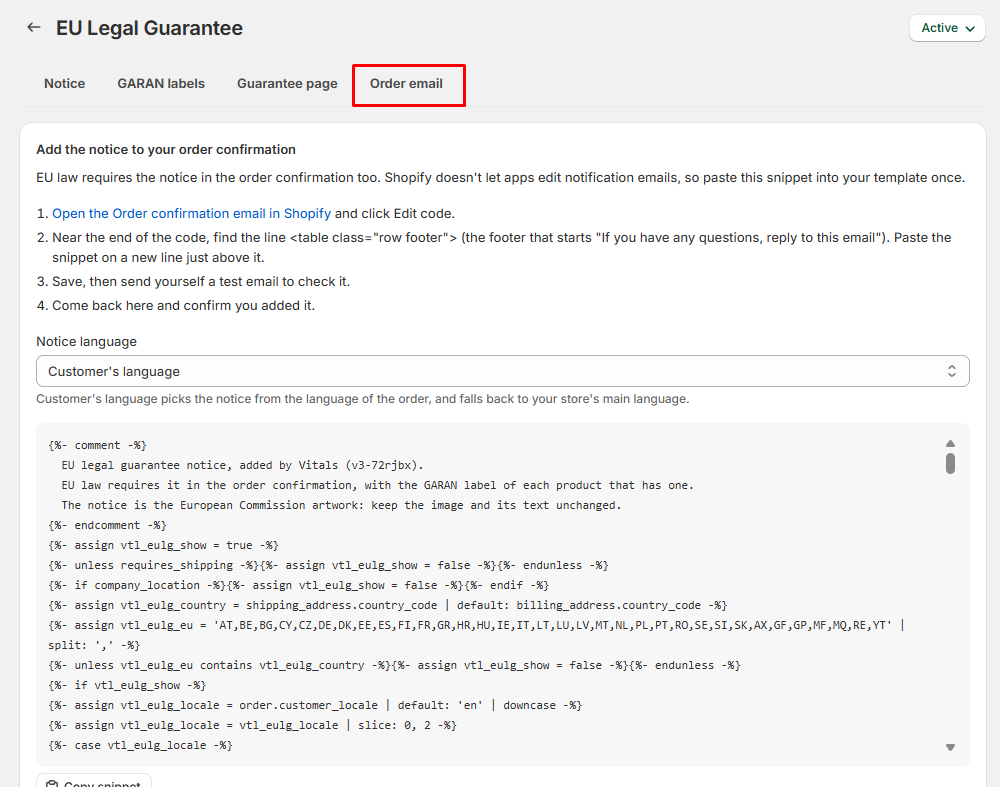
Open the Order email tab and paste the snippet into your Shopify Order confirmation template - the checklist stays red until you confirm you did.
What EU law asks for: the checklist
The first section of the Notice tab checks your settings against the requirements the app knows about. Each row carries one of four icons:
- Green check — done. For example "The notice shows before purchase", followed by where ("Shown in: product pages, cart."). If you have confirmed a guarantee page of your own on the Guarantee page tab, the list also says "its own page, linked from your footer".
- Red alert — something to fix, with a link: "The notice is not shown anywhere" (every placement is off), "Add the notice to your order confirmation", or - while the app itself is turned off - "Show the notice before purchase", which offers to give the notice its own page instead.
- Orange triangle — a gap the app cannot close for you. Today, that is one row, shown only while GARAN labels are on: "GARAN labels reach checkout on Shopify Plus only", because "On Shopify Plus, add the GARAN label block in the checkout editor. On other plans checkout does not take app content, so the label shows on product pages, in the cart and on the thank you and order status pages."
- Blue info — a tip that depends on where you sell. "Check the notice language for the countries you sell to" and "Selling to Germany or Austria?" are tips, not errors.
The section title tells you how much is left ("2 to fix", or "Nothing to fix in your settings"), and it opens by itself whenever something is red. Every row that can be fixed links to the setting that fixes it: "Choose where it shows", "Change the notice language", "Open Order email", "Open GARAN labels".
💡The checklist ends with its own caveat, worth repeating here: "This checks the module's settings, not your whole store, and isn't legal advice."
Proof of compliance
Right under the checklist, Proof of compliance lets you download a dated PDF of your setup for your records. Pick the day the record should describe and download the PDF. Save your changes first, so the record matches your store.
Where the notice shows
"Product pages" offers five styles:
- "Don't show" — nothing on the product page. Use this if you place the notice yourself (see below) or rely on the cart alone.
- "Minimal link" — a shield icon and the title "Legal guarantee", styled like a link.
- "Line with headline" (default) — the shield, the title, the official headline and a "Learn more" link, on one line.
- "Box" — a bordered row with the shield and the title.
- "Full notice" — the official notice image, always visible, with the Your Europe link under it. The checklist marks this "The full notice shows on product pages" and notes it "also meets the strictest reading, used by some lawyers in Germany and Austria."
"Cart" offers the same styles minus "Full notice". It shows, as the setting says, "On the cart page and in cart drawers, right above the checkout button." The cart shows the notice once for the whole cart, as soon as at least one line is a covered good; a cart holding only gift cards or excluded products shows nothing. Vitals' own Cart Drawer renders it too. The notice also appears automatically in most popular theme cart drawers, such as Dawn, Horizon, Impulse and Prestige. If it is missing from your theme's drawer, use the "Place it anywhere" snippet in the drawer's custom HTML or contact support and we can add support for your theme's drawer. GARAN labels in theme drawers still need the snippet.
"Open the full notice" appears while a closed style is in use and decides what happens when a shopper taps the line: "In a popup" (default) or "In place, below it". Cart drawers ignore it - as the setting explains, "Cart drawers always open it in a popup: the full notice does not fit in a drawer." The popup shows the official artwork with a "Learn more" link to the EU's Your Europe page underneath, in the shopper's notice language. The frame around the artwork follows your store - light stores get a white frame, dark stores a dark one - and you can recolor it under Style; the artwork itself never changes.
On the product page, the notice sits near the Add to cart button. The line and buttons use the European Commission's own wording; the notice image itself is official artwork and cannot be edited.
Place it anywhere
The "Place it anywhere" section gives you a short code snippet with a Copy button. As the dashboard puts it: "Paste this into your theme code, a Custom Liquid section or block, or a cart drawer's custom HTML". Wherever it lands, the notice renders there in the style you picked for product pages. The section also lists small additions you can make to the snippet to pick a different style or opening behavior for that one spot, and reminds you: "If you place the notice on product pages yourself, set Product pages to Don't show." A placed notice stays empty on the product page of an excluded product.
Who sees it, and in which language
- "Show to" — "All customers" or "Customers in the EU" (default). EU means the 27 member states, based on the shopper's location.
- "Hide for B2B customers" — on by default. The setting explains why: "Business buyers are not consumers, so the notice does not apply to them." It takes effect for logged-in B2B customers.
- "Notice language" — the tooltip says it all: "The notice exists in all 24 official EU languages. By default, each shopper sees the one matching your store language, and English when there is none." The options:
- "Shopper's language" (default) — the language the shopper is browsing your store in. If that language has no official notice, the app uses the shopper's market country's language, then your store's main language, then English.
- "Market country's language" — the official language of the country the shopper is buying in, regardless of the store's language. The checklist recommends this when it applies: "Romania, France, Italy, Spain, Poland, and some other EU countries require their own language. If you sell there without it, set the notice language to the market country's language."
- A fixed language — one of the 24, for every shopper.
Excluded products
The notice covers physical goods, so the app leaves out anything else by itself and lets you add more:
- "Skip gift cards and digital products" — on by default. "The legal guarantee notice covers goods. Products that never ship do not show it."
- Under it, you can exclude "Products and collections" (a picker), "Product tags," and "Product types". The dashboard's hint: "Hide the notice on products the legal guarantee does not cover, like services, digital content or tickets. Tags and product types also cover products you add later." There is a cap per list ("You can pick up to 250 products and 250 collections. Use a tag to cover more.").
An excluded product gets no notice on its product page, and does not count towards showing the cart notice.
Style and texts
"Style" dresses the line and box around the notice - "The notice itself is official artwork and cannot be changed." You get "Text color", "Title color", "Link color", "Icon color", "Background color", "Border color", "Border width" (0–4 px), "Corner radius" (0–24 px), "Font size", "Maximum width" (280–960 px) and "Margin". Below a divider, "Popup background", "Popup text" and "Popup links" colour the popup that opens the full notice. Every colour has a light and a dark default, so the notice already fits a dark theme before you touch anything. In the Vitals Cart Drawer, if its Light or Dark colour scheme differs from your Vitals theme, the notice's default colours follow the drawer's scheme. Any colours you save for the notice stay in use. The preview on the right switches between Product page and Cart as you edit.
"Texts" holds "The official wording, in all 24 EU languages." The line and buttons use the European Commission's own wording in each shopper's language, so they always match the notice. To use different wording, follow the link to the translations page, where the app's four texts live: "Notice title", "Notice text", "Learn more link" and "Guarantee conditions link text".
The other tabs
- GARAN labels — the per-product durability label for goods whose producer gives a guarantee longer than two years. See the article Showing GARAN Durability Labels on Your Products.
- Guarantee page — ready-made content for a page of your own, linked from your footer. See the article Giving the Legal Guarantee Notice Its Own Page.
- Order email — the snippet for your Shopify Order confirmation. See the article Adding the Legal Guarantee Notice to Your Order Confirmation Email.
Settings reference
| Setting | Where | Description |
|---|---|---|
| Product pages | Notice → Where it shows | "Don't show", "Minimal link", "Line with headline", "Box" or "Full notice". Default: Line with headline. |
| Cart | Notice → Where it shows | "Don't show", "Minimal link", "Line with headline" or "Box", right above the checkout button on the cart page, in the Vitals Cart Drawer and in most popular theme cart drawers. Default: Line with headline. |
| Open the full notice | Notice → Where it shows | "In a popup" or "In place, below it". Shown while a closed style is in use. Default: In a popup. |
| Show to | Notice → Who sees it | "All customers" or "Customers in the EU". Default: Customers in the EU. |
| Hide for B2B customers | Notice → Who sees it | Hides everything for logged-in business buyers. Default: on. |
| Notice language | Notice → Who sees it | "Shopper's language", "Market country's language" or one fixed language. Default: Shopper's language. |
| Skip gift cards and digital products | Notice → Excluded products | Leaves out gift cards and products that never ship. Default: on. |
| Products and collections / Product tags / Product types | Notice → Excluded products | Anything you add here never shows the notice. |
Frequently Asked Questions
Does Vitals have an EU legal guarantee notice app for Shopify?
Yes. The EU Legal Guarantee app in Vitals shows the official EU legal guarantee notice on product pages and in the cart, in all 24 official EU languages, with GARAN durability labels, a guarantee page, an order confirmation email snippet and a checklist. It is also available as the free standalone listing EU Legal Guarantee by Square.
How much does the EU Legal Guarantee app cost?
It is included in the Vitals All-in-One plan at $29.99/month, with a 7-day free trial. The standalone EU Legal Guarantee by Square listing is free. Check the Shopify App Store listing for current pricing.
Does it show GARAN durability labels?
Yes, on the GARAN labels tab, for products whose producer gives a guarantee longer than two years. The labels show on product pages, in the cart and on the thank you and order status pages, and on Shopify Plus also in checkout. See Showing GARAN Durability Labels on Your Products.
A product shows the label only when it has both a brand and a model. If some products lack a vendor, SKU or barcode, an active label shows Not shown on N products in the label list, and the label editor lists the products under Label text. Add the missing values in Shopify, or choose another brand or model source. See Showing GARAN Durability Labels on Your Products for the details.
What does this app do?
It shows the EU's harmonized legal guarantee notice on your store - a short official line near the Add to cart button and above the checkout button that opens the full notice - in the right one of the 24 EU languages for each shopper. It also offers GARAN durability labels for products with a long producer guarantee, content for a guarantee page of your own, and a snippet for your order confirmation email, with a checklist that tracks all of it.
Can I change the wording or the design of the notice?
The frame around it, yes: colours (including the popup's), border, font size, width and margins under Style. The notice itself is the European Commission's official artwork and cannot be edited. The short line uses the Commission's own wording in each language; if you must change it, do so on the translations page linked from the Texts section.
Which language does a shopper get?
With "Shopper's language" (the default), the language she is browsing your store in, provided the notice exists in it; otherwise her market country's language, then your store's main language, then English. "Market country's language" uses the official language of the country she buys in even on an English storefront. A fixed language applies to everyone.
Why does the checklist say "Check the notice language for the countries you sell to"?
It is a tip, not an error. The app cannot know which countries you sell to. As the row explains, "Some EU countries require the notice in their own language" - if you sell to those markets, switch "Notice language" to "Market country's language".
The notice isn't showing on my storefront. What should I check?
In order: the app is enabled in Vitals and your app embed is active in your theme; "Product pages" or "Cart" is not on "Don't show"; you are testing from an EU location if "Show to" is "Customers in the EU"; you are not logged in as a B2B customer; and the product is not a gift card, a product that never ships, or on one of your exclusion lists. In the cart, the notice only shows once at least one line is a covered good. The notice appears automatically in most popular theme cart drawers. If it is missing from your theme's drawer, add the "Place it anywhere" snippet to its custom HTML or contact support and we can add support for your theme's drawer.
Does turning this app on make my store compliant?
It gives you the notice on the store, a way to add it to your confirmation email, and a checklist of what the app can see. The checklist says it plainly: "This checks the module's settings, not your whole store, and isn't legal advice."
Still stuck?
Chat with our support team, we'll sort it out with you.