EU Withdrawal Button on Shopify with Vitals: features, pricing and setup
Last updated on October 26, 2026
Give shoppers the permanently available withdrawal function EU rules require, and manage every request from one list
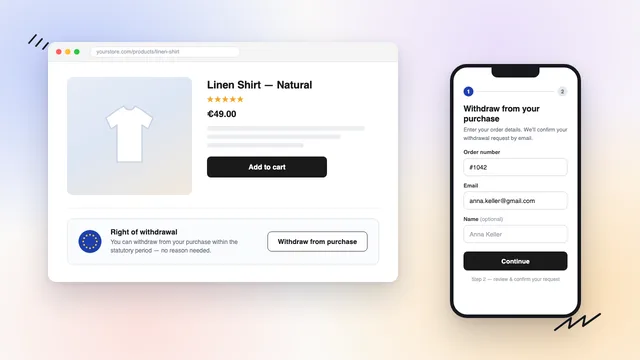
Yes, Vitals has an EU withdrawal button for Shopify. The EU Withdrawal Button app is part of Vitals: Reviews, Bundles & 40+ on the Shopify App Store. It adds a withdrawal button to your store footer, a form where customers file a cancellation or return request against a real order without logging in, a confirmation email, and a list where you approve or reject each request. It is also available as its own free listing, EU Withdrawal Button by Square.
EU Withdrawal Button at a glance
| Question | Answer |
|---|---|
| What it adds | A description line and a Return or cancel an order button, a request form, a confirmation email to the customer, an email to you, and a Requests list to approve or reject each request |
| Customer login | Not needed. The customer enters their order number and email, and Vitals checks them against your Shopify orders |
| Part of an order | Yes. Once the order is found, the customer selects the products they want to return |
| Where it shows | At the top of your store footer, on every page. Or place the EU Withdrawal Button theme block in any section |
| Who sees it | All customers or Customers in the EU (the 27 member states) |
| Form page | Created for you at /a/page/withdrawal, nothing to build |
| Refunds | Handled in your Shopify admin as usual. Approving a request records your decision |
| Pricing | Included in the Vitals All-in-One plan, $29.99/month, with a 7-day free trial. The standalone EU Withdrawal Button by Square listing is free. See the Shopify App Store listing for current pricing. |
When the EU Withdrawal Button is not the right fit
- You need a legal review. The app gives you the withdrawal function, the confirmation email and a timestamped record of each request. Full compliance also depends on your policies and wording.
- You want refunds or return labels issued from the same screen. Refunds, cancellations and return shipments stay in your Shopify admin.
Is this for me?
If you sell to customers in the European Union, yes. EU rules require online stores to give shoppers a clearly visible, permanently available way to cancel an order or withdraw from a purchase - one they can use without logging into an account. The EU Withdrawal Button gives you exactly that:
- a short line of text and a button in your store footer,
- a two-step form that checks the request against a real order,
- an automatic confirmation email to the customer,
- and a dashboard where you approve or reject each request.
A typical case: a customer in Germany orders on Friday, changes their mind on Sunday, and can't remember whether they ever created an account. They scroll to your footer, click Return or cancel an order, enter their order number and email, confirm, and receive a written confirmation by email. You see the request in your dashboard on Monday morning.
⚠️Before you start: Three things need to be in place.
- The app has to be turned on in Vitals,
- The Vitals app embed is on in your theme (see Enabling the Vitals app via App Embed).
- If you add a Refund policy line under Customize → Form page, it links to your refund policy page at
/policies/refund-policy- make sure that page exists on your store.
Setup, step by step
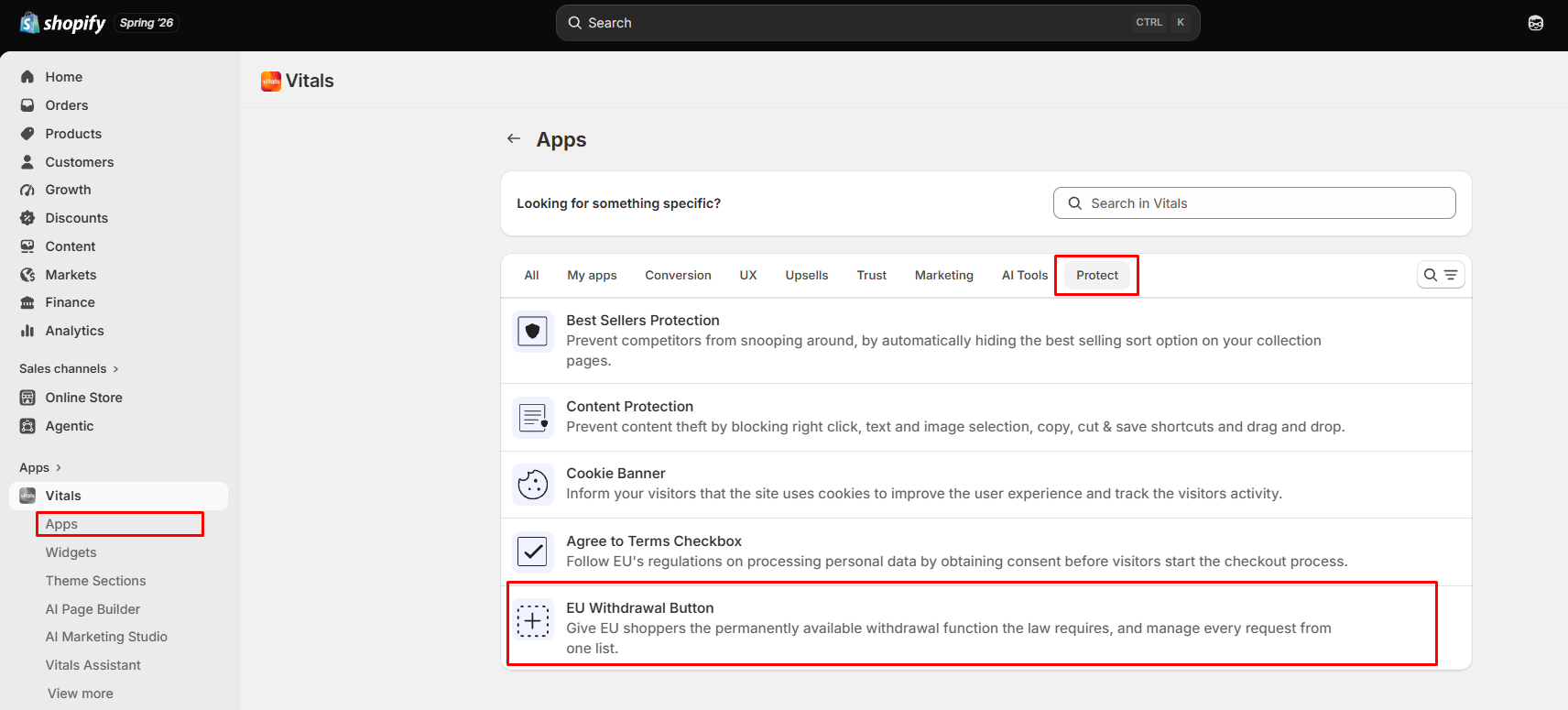
Open Vitals, open the EU Withdrawal Button app and click Activate app. You'll find it in the app list under the Protect category, alongside Cookie Banner and Agree to Terms Checkbox.
- Make sure the Vitals app embed is active in your theme. Without it, nothing renders on the storefront.
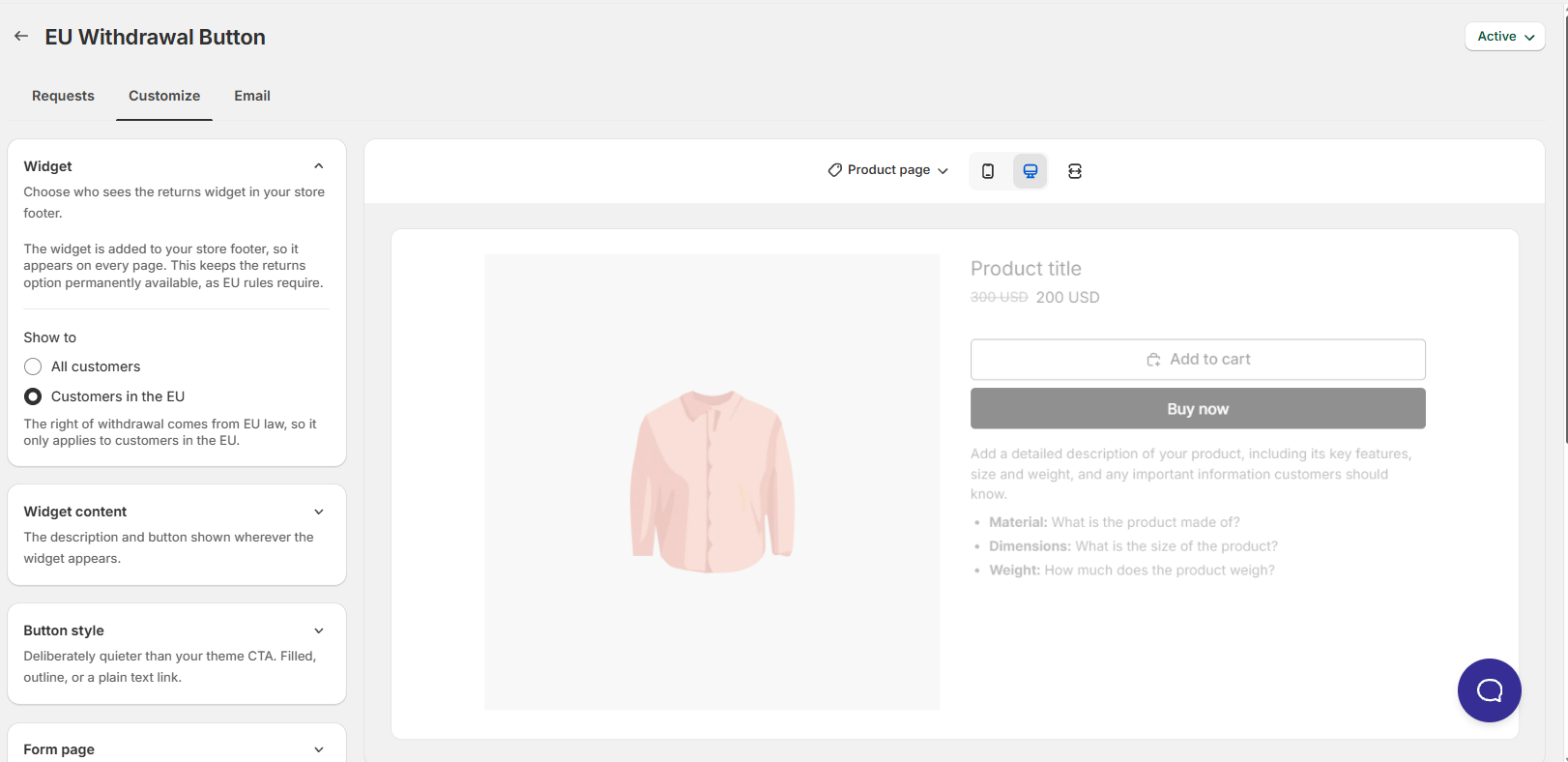
Open the Customize tab. Under Widget, choose who sees the widget in Show to - All customers or Customers in the EU.
- (Optional) Under Widget content, edit the description line and button text that your shoppers see.
- (Optional) Under Form page, turn off Show name field if you'd rather not collect a name.
- Open the Email tab and review the confirmation email your customers will receive. Send yourself a test with Send test.
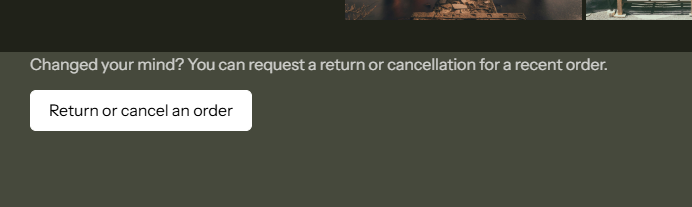
Open your storefront and scroll to the footer. You should see your description line and the Return or cancel an order button.
Where the withdrawal button appears
The widget is added to your store footer, at the top of it, so it appears on every page of your store. That's deliberate: the rules ask for a function that is permanently available, and the footer is the one place present on every page.
If you'd rather place it somewhere specific, add the EU Withdrawal Button block to any section of your theme in the Shopify theme editor. When you place the block, the footer copy is removed automatically — your shoppers always see exactly one withdrawal link, never two.
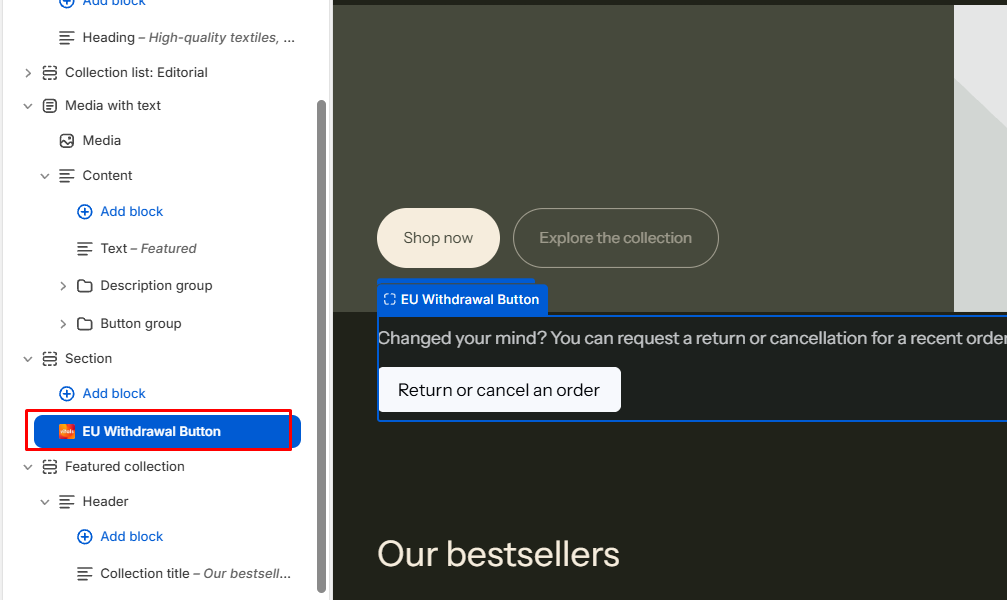
💡On a small number of themes, Vitals can't detect the footer, and nothing appears. If you don't see the widget after enabling the app and the app embed, place the EU Withdrawal Button theme block manually. That always works.
The form your customers see
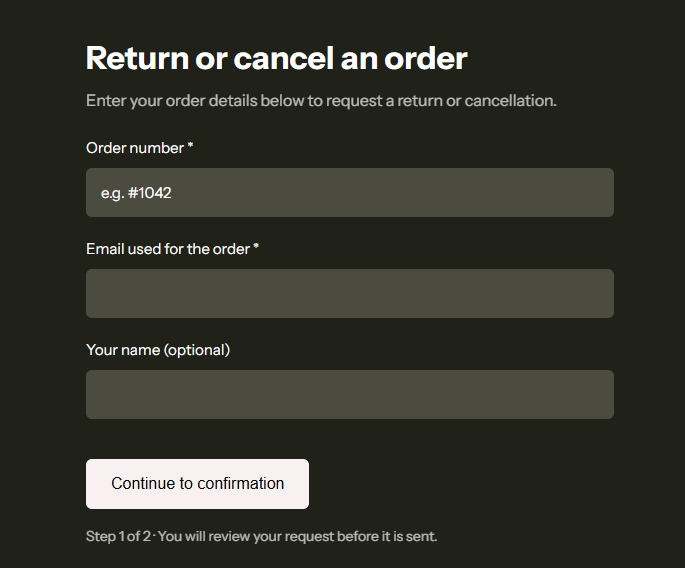
The form lives on its own page on your store:
https://your-store-domain.com/a/page/withdrawal
The form has two steps:
- Enter details. Order number and email are required. A name field is optional and can be switched off. Vitals checks the details against your Shopify orders before letting the customer continue — a request can only be filed against an order that actually exists.
Review & confirm. The customer picks the products (and quantities) to return, checks the order number, order date and email, then submits. Submitting is the formal request, and it's timestamped.
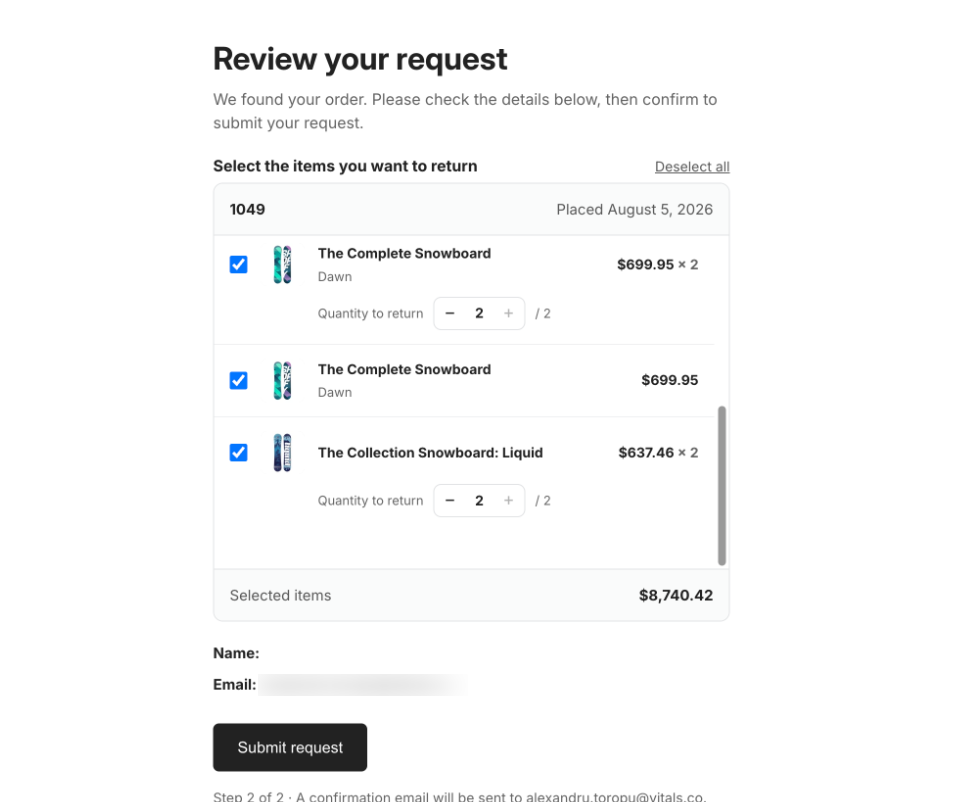
After submitting, the customer sees a confirmation screen and — unless you've turned the email off — receives a written confirmation by email.
Choosing who sees the widget
The Show to setting has two options:
- All customers — everyone browsing your store sees the widget.
- Customers in the EU — only shoppers located in one of the 27 EU member states see it, so shoppers elsewhere aren't shown a notice about rights that don't apply to them. This is the default.
Two things worth knowing about Customers in the EU:
- "EU" here means the 27 member states. Shoppers in Norway, Iceland, Liechtenstein, Switzerland, and the United Kingdom are not included.
- It hides the link, not the form. Anyone with the form's address can still open it and submit a request. That's intentional — a customer who is already partway through a request shouldn't hit a dead end.
What happens after a request comes in
- As a merchant, you will receive an email about the submitted request. The request appears in the Requests tab of the app, grouped by order, newest first, with the order's age (within or over 14 days).
- Your customer receives the automatic confirmation email, if it's turned on.
- You approve or reject each request from the dashboard.
Settings reference
| Setting | Where | Description |
|---|---|---|
| Show to | Customize → Widget | Who sees the widget: "All customers" or "Customers in the EU". Default: Customers in the EU. It doesn't restrict access to the form page itself. |
| Show name field | Customize → Form page | Shows an optional name field the customer can skip. Default: on. Turning it off also removes the Name row from the review step. |
| Send confirmation email to customers | Email → Sending | Sends the written confirmation as soon as a request is submitted. Default: on. |
Frequently Asked Questions
Does Vitals have an EU withdrawal button app for Shopify?
Yes. The EU Withdrawal Button app in Vitals adds a footer button on every page, a request form checked against your Shopify orders, a confirmation email and a list where you approve or reject requests. It is also available as the free standalone listing EU Withdrawal Button by Square.
How much does the EU Withdrawal Button cost?
It is included in the Vitals All-in-One plan at $29.99/month, with a 7-day free trial. The standalone EU Withdrawal Button by Square listing is free. Check the Shopify App Store listing for current pricing.
Do customers need an account to submit a withdrawal request?
No. They enter their order number and email, and Vitals checks the details against your Shopify orders before they continue.
What does this app do?
It adds a withdrawal function to your store: a description line and a button in your footer, a two-step form where customers submit a cancellation or return request against a real order, an automatic confirmation email, and a dashboard where you approve or reject each request.
Where exactly does the button appear?
At the top of your store footer, on every page. If you place the EU Withdrawal Button app block somewhere else in your theme, the block wins and the footer copy is removed, so there's only ever one link.
Can I move the button to my product pages instead?
Yes — add the EU Withdrawal Button app block to the section you want in the Shopify theme editor. The footer version disappears once you do.
Does installing this app make my store compliant?
It gives you the withdrawal function, the written confirmation email, and a timestamped record of every request. Whether your store is fully compliant also depends on your policies, your wording, and your own legal advice. This app is a tool, not a legal review.
Which countries count as "the EU" for the Show to setting?
The 27 EU member states, plus the EU outermost regions that report their own country code. Norway, Iceland, Liechtenstein, Switzerland, and the UK are not included.
Do I need to create the form page myself?
No. The page exists at /a/page/withdrawal as soon as the app is on. There's nothing to build or publish.
Nothing appears on my storefront. What should I check?
Check three things, in order:
- The app is enabled in Vitals,
- The Vitals app is enabled via your theme's App Embed section,
- If you're using Customers in the EU — that you're testing from an EU location.
If all three are fine, your theme's footer may not be detectable - you can either place the EU Withdrawal Button app block manually, or contact our support team so that we can investigate it further for you.
Will I get an email when a customer submits a request?
Yes. But besides the email you receive, the requests will also land in the Requests tab, so make checking it part of your routine for better visibility.
Does approving a request refund the customer?
No. Approving records your decision. Refunds, cancellations, and return shipments are all handled in your Shopify admin as usual.