Setting Up the Withdrawal Confirmation Email
Last updated on October 23, 2026
When a customer submits a withdrawal request, she receives a written confirmation by email. EU rules expect her to get that acknowledgement in a form she can keep, and an on-screen message doesn't count. The Email tab of the EU Withdrawal Button app is where you control it.
What gets sent, and when
The confirmation goes out as soon as the customer submits her request, not when you approve it. It confirms receipt, so it promises nothing about refunds, timing, or return shipments.
Vitals sends it in the language the customer was browsing in when she submitted, using the translations you added. It carries your store name and address in the footer, and no unsubscribe link, because this is a transactional message rather than marketing.
One email goes out per request, so your customers see no duplicate if they refresh the page or try to submit again.
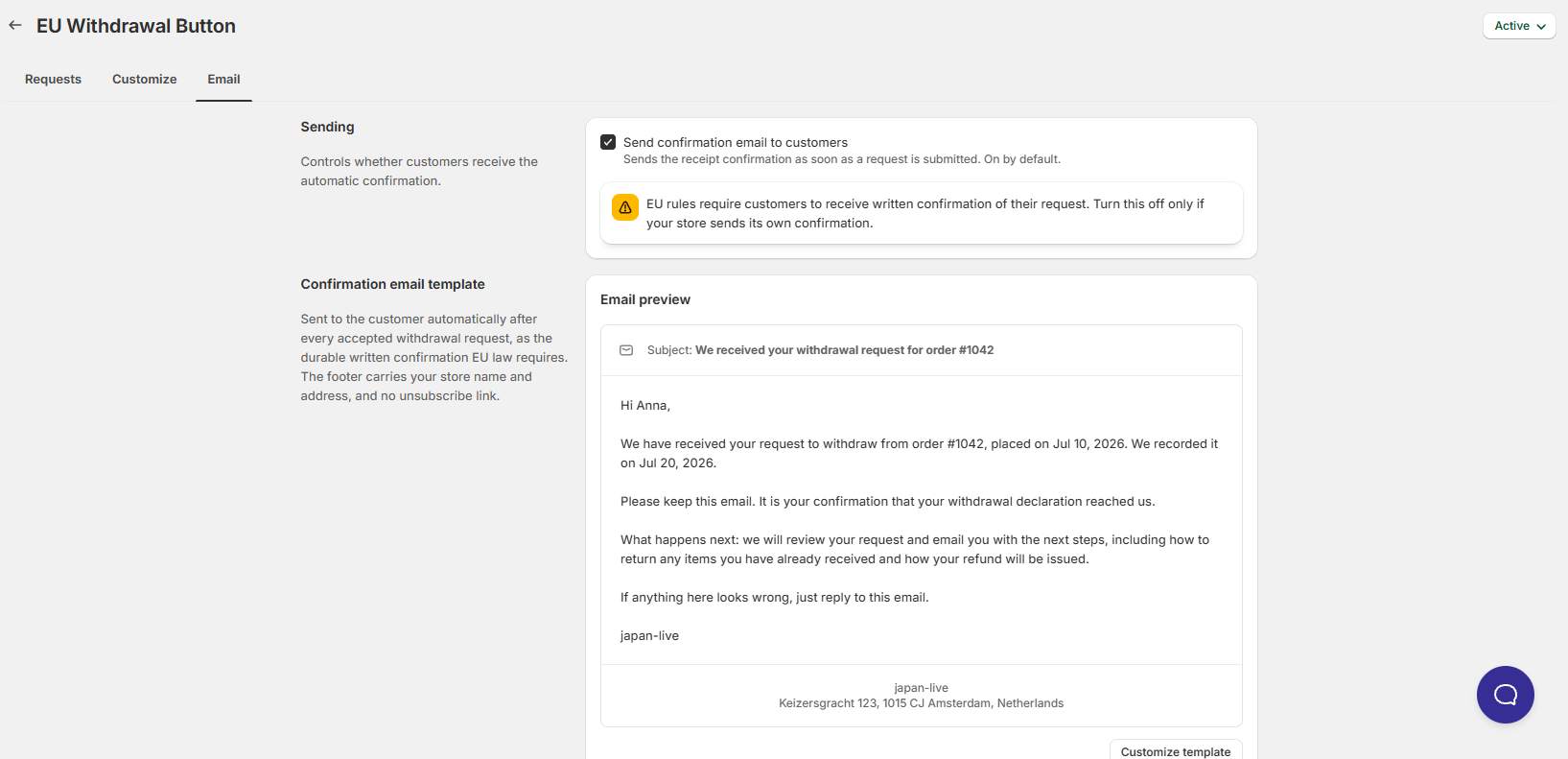
The Sending toggle
At the top of the tab, Send confirmation email to customers controls whether the email goes out at all. It's on by default.
⚠️EU rules expect customers to receive written confirmation of their request. Only turn this off if your store already sends its own confirmation through another system.
Turning it off changes the storefront too. The form stops telling customers that an email is on its way, so it never promises a message that won't arrive.
Reviewing and editing the template
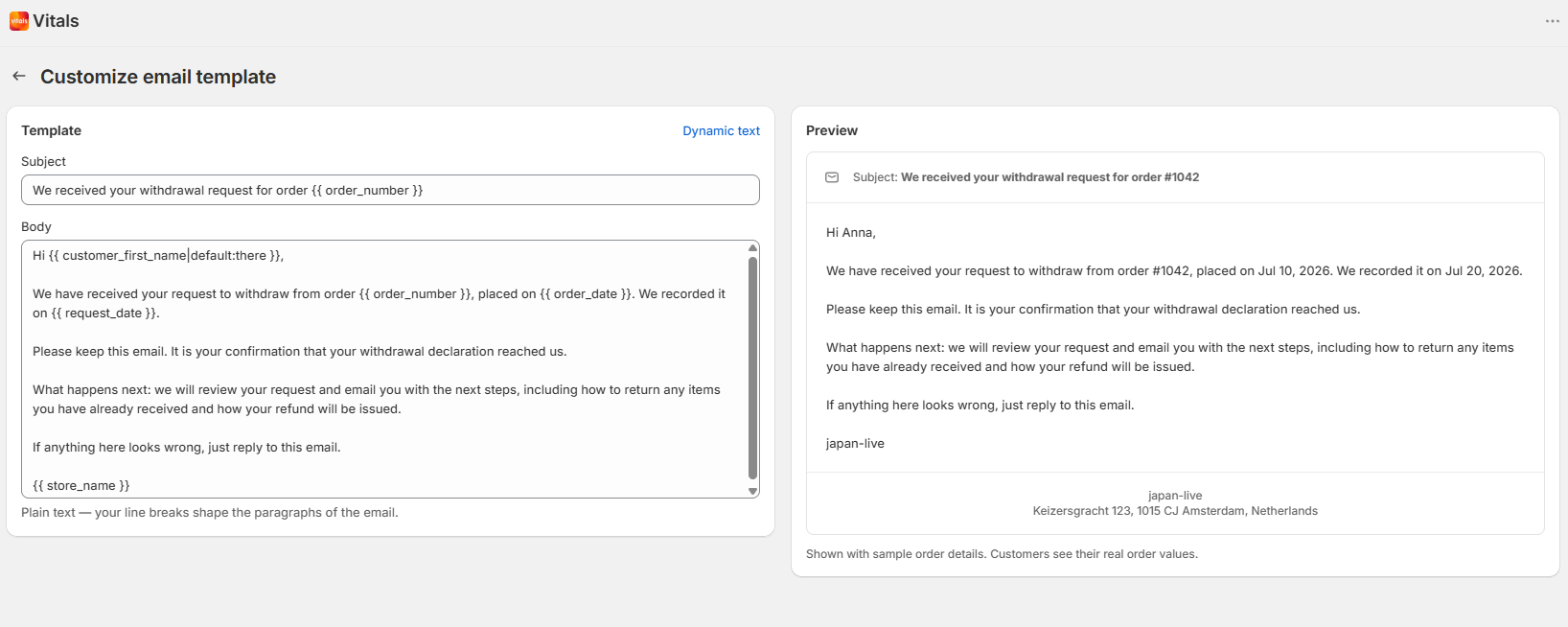
Under Confirmation email template you'll find Email preview, which shows the subject line and body as the customer receives them, with your store name and address in the footer.
To change the wording, click Customize template. You get two fields:
- Subject. The subject line. The default is "We received your withdrawal request for order
{{ order_number }}". - Body. Plain text. Your line breaks become the paragraphs of the email.
A live preview sits beside the fields as you type.
Available variables
Click Dynamic text to see the full list and copy any of them:
| Variable | What it fills in |
|---|---|
| customer_first_name | The customer's first name |
| order_number | The order number, as it appears in Shopify |
| order_date | The date the order was placed |
| request_date | The date and time the withdrawal request was submitted, in your store's time zone |
| store_name | The name of your store |
| store_address | The business address of your store |
Write each one between double braces with a single space inside, like {{ order_number }} . Mistype one, or use a variable that isn't on this list, and the app blocks the save and names the variable it doesn't recognize.
Sending yourself a test
Use the Send test email field at the bottom of the tab. It arrives prefilled with your store's email address, and you can change it to any address you want to check.
The test uses sample order details and the last saved version of your template. Save your edits before you test, or you'll review the previous wording.
Frequently Asked Questions
When is the confirmation email sent?
As soon as the customer submits her request. It confirms receipt, not approval.
Does the customer get another email when I approve or reject the request?
No. This app sends one email per request, the confirmation. To tell her what you decided, write from Shopify or email her yourself. She can also check by re-entering her order details on your withdrawal form, which shows the status of the existing request.
Do I get a copy of the confirmation email?
Not a copy, but you get your own notification email for every new request, with the order number and whether the customer is returning the whole order or part of it. New requests also appear in the Requests tab of the app.
Can I turn the email off?
Yes, with the Send confirmation email to customers toggle. Before you do: EU rules expect customers to receive written confirmation, so only turn it off if your store already sends its own.
My customer says the email never arrived. What should I check?
Check that Send confirmation email to customers is on, that the subject and body of your template aren't blank, since an incomplete template won't send, and that the email address on the request is correct. You can see it in the Customer column of the Requests tab. Ask the customer to check her spam folder too. If everything looks right and the email still didn't land, contact Vitals support.
Can I translate the email?
Yes. The subject and body follow the same translations system as the rest of the app, and each customer receives the version matching the language she submitted in.
Can I add my logo or change the design?
Not in this version. The email is plain text with your store name and address in the footer, a deliberate choice for a legally required transactional message.
Why is there no unsubscribe link?
Because this isn't marketing. It's a transactional confirmation the customer is entitled to receive, so it carries no unsubscribe option.
The test email doesn't show my latest wording.
The test always uses the last saved template. Save your changes, then send the test again.