AI product page generator on Shopify with Vitals: AI Page Builder features, pricing and setup
Last updated on October 21, 2026
Yes, Vitals has an AI product page generator for Shopify. The AI Page Builder builds a complete product page from one product: it writes the page copy in one of 12 languages, lays it out with Vitals theme sections, and publishes it as a product template in your theme. Start from a product already in your catalog, or import a new one from AliExpress or Amazon. It is part of the Vitals app (Vitals: Reviews, Bundles & 40+ on the Shopify App Store) and of the free standalone app Theme Sections & Page Builder.
🤖 AI Page Builder at a glance
| Question | Answer |
|---|---|
| What it builds | A full product page: a product page template in your theme, with each product's text and images saved in that product's metafields |
| Where products come from | Your Shopify catalog, or a new product imported from AliExpress (optionally with its reviews) or Amazon |
| Languages | English, Portuguese, Spanish, French, Polish, Italian, Turkish, German, Dutch, Korean, Arabic and Russian |
| Supported themes | Any Online Store 2.0 theme, including Dawn, Horizon and other free Shopify themes and popular paid themes |
| Product requirements | Published, with a description and at least 3 images |
| Pages per run | One product page at a time. No bulk generation. |
| Editing | Text and images per product in Shopify admin > Products > Metafields; layout in the Shopify Theme Editor, shared by every AI page that uses the same template |
| Page designs | Choose a template for the page: Classic, Origin, Delicate, Modern, Minimal, Joyful or Essential |
| Credits | Each generated page uses one AI credit. Credits refill every 30 days. |
| Pricing | In Vitals: Included in the Vitals All-in-One plan, $29.99/month, with a 7-day free trial. As a standalone app, Theme Sections & Page Builder is listed as Free. See the Shopify App Store listing for current pricing. |
When AI Page Builder is not the right fit
- Generating pages for a whole catalog at once. It builds one product page per run.
- Older (vintage) themes that are not Online Store 2.0. The generated page can't be added to such a theme, and the builder tells you so.
- Pages in several languages from one run. Each page is generated in one language. Translate it afterwards with Shopify's Translate & Adapt app.
💡 Important update: If you've used the AI Page Builder before, here's what to know:
1. New pages now store content in product metafields (editable from Shopify admin > Products) instead of the Theme Editor. You can read more about this change below.
2.The AI Page Builder tool now has the option to generate product pages by first importing the products from AliExpress.
Your existing pages are unchanged.
The AI Page Builder creates high-converting product pages for your store using AI. We've recently updated how it works to make editing simpler and keep your store design consistent.
This article covers the requirements, how to generate a page, how the updated system works, and how to edit your AI-generated pages.
Requirements
In order for the AI Page Builder to work, your store needs to meet the following:
Supported themes:
Any Online Store 2.0 theme
Product requirements:
- The product must have a description (it cannot be empty)
- The product must be published and have 3 or more product images
Note: Generating a product page consumes one AI credit. Your Vitals plan includes a fixed number of credits that replenish every 30 days.
How to Generate a Product Page using the AI Page Builder
Open your Vitals dashboard and select AI Page Builder from the left sidebar.
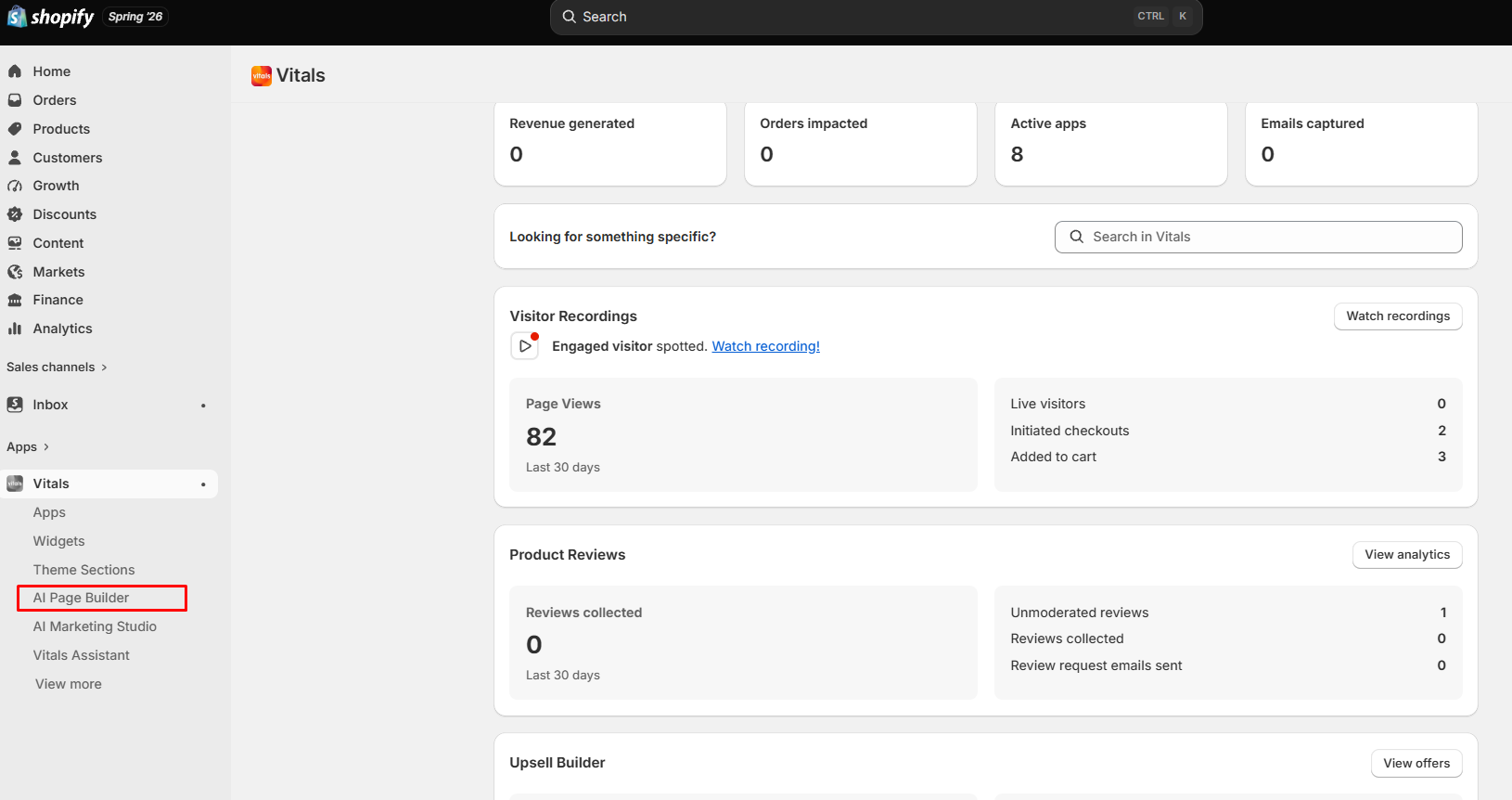
In the homepage of the AI Page Builder, select Get Started.
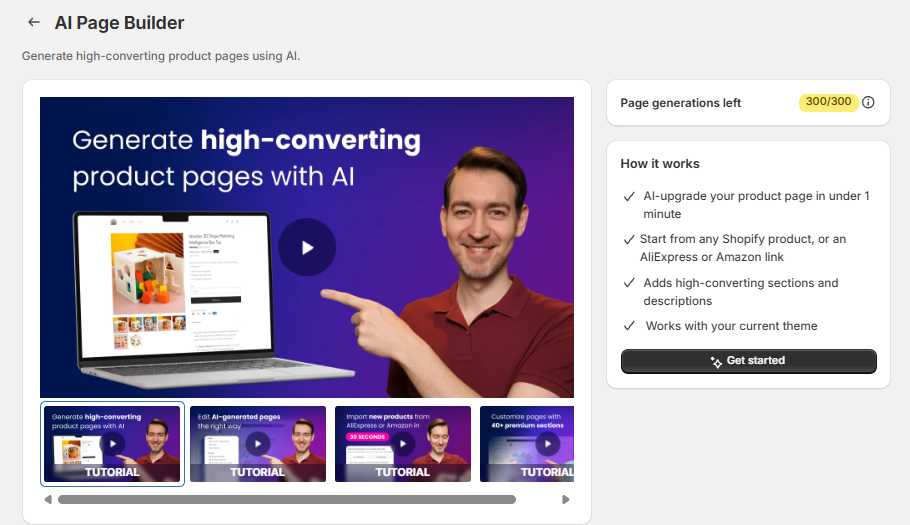
Choose the language for the generated page.
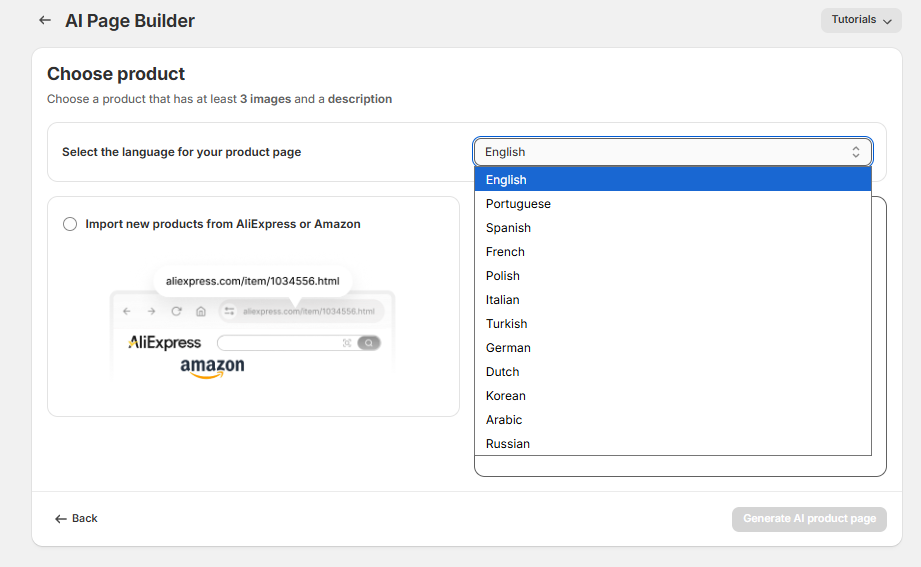
Supported languages: English, Portuguese, Spanish, French, Polish, Italian, Turkish, German, Dutch, Korean, Arabic, Russian
- When using the AI Page Builder, you can choose between two options:
Select product from Shopify catalog — Pick an existing product from your store. Use the search bar to find it by name, or click Browse to view your full catalog.
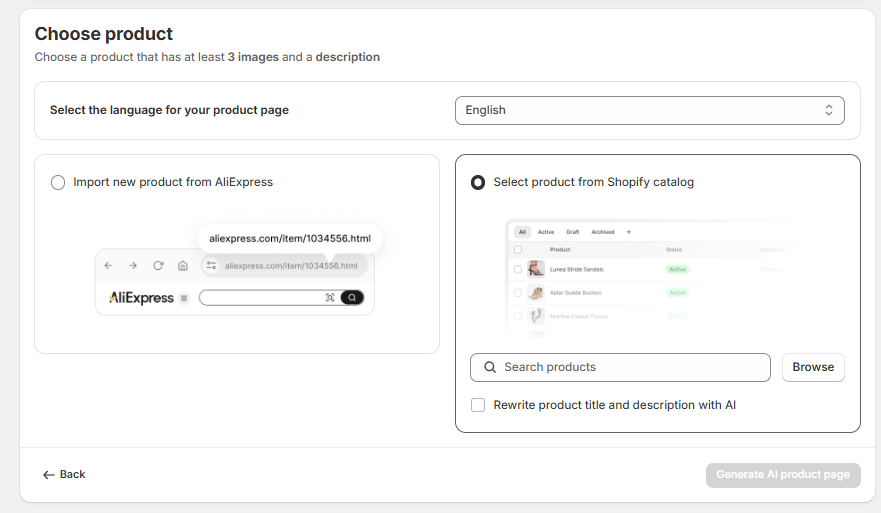
Import new products from AliExpress or Amazon — Paste an AliExpress or Amazon product URL to import a new product. You can also check "Import product reviews from AliExpress" to bring over customer reviews.
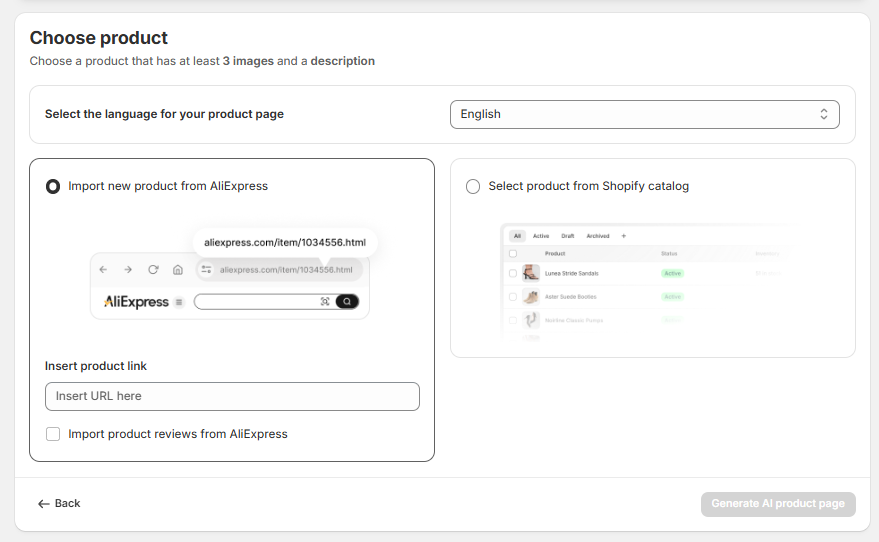
Note: Your product must have at least 3 images and a description for AI page generation to work.
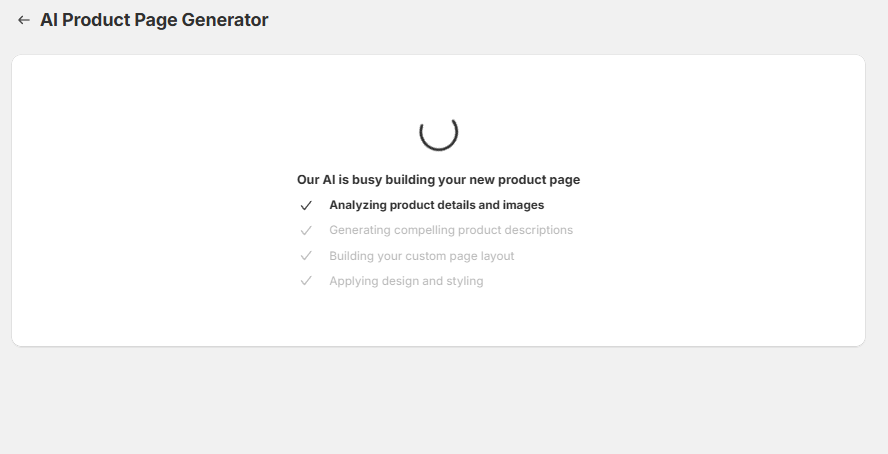
Click Generate AI product page to start the AI generation process. It will then start generating the product page.
Once generation is complete, click Preview page to review the result in a new tab (opens in the Shopify Theme Editor).
If you're happy with the page, go back to the AI Page Builder and click Publish.
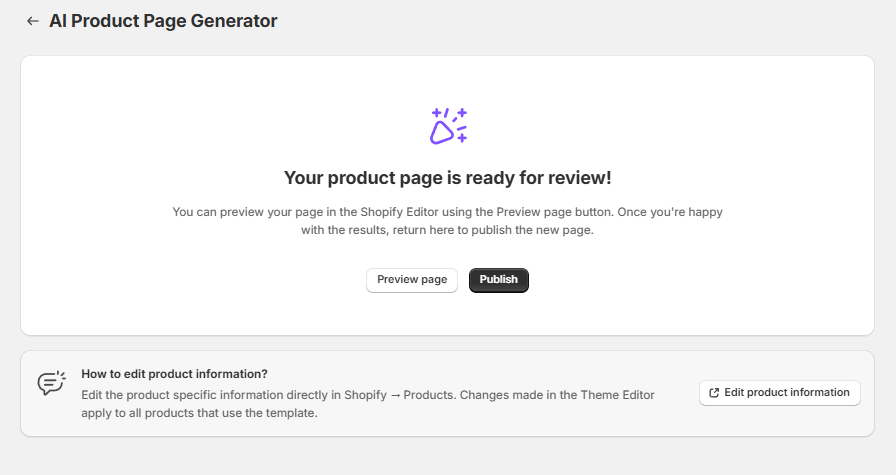
ℹ️ When you click Preview, the Theme Editor opens showing the specific product. This is for reviewing only. Do not make content edits (images, text) here — those changes will affect all AI-generated product pages.
If you want to change content for this product, do so from Shopify admin > Products > [Product] > Metafields after publishing.
If you click Publish, the product page will be automatically published to your live store.
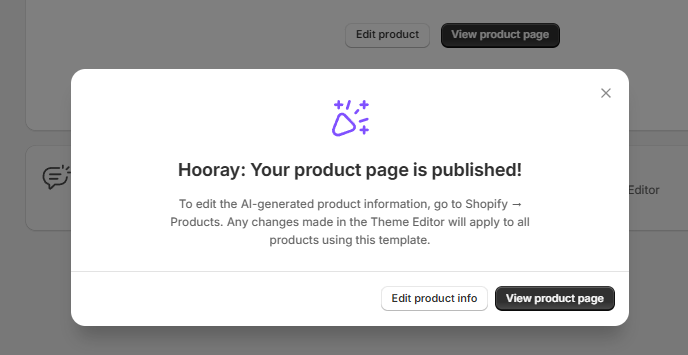
You also have an option to generate a new page afterward (in which you will start over):
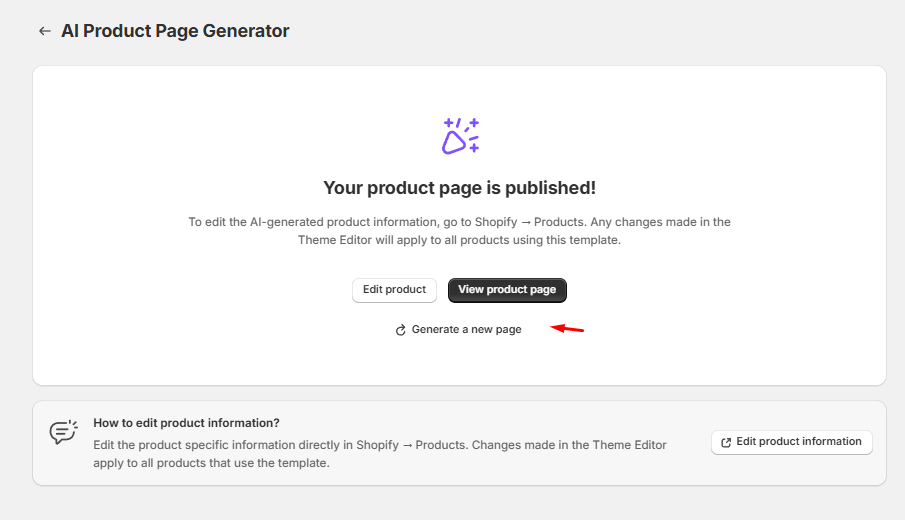
💡 Important update: If you've used the AI Page Builder before, here's what to know: new pages now store content in product metafields (editable from Shopify admin > Products) instead of the Theme Editor. You can read more about this change below.
Your existing pages are unchanged.
What Changed
| Before | Now | |
|---|---|---|
| Page layout | Each AI-generated page had its own individual layout | All AI-generated pages share one single template |
| Where product content is stored | Product-specific content (text, images) was embedded in the template | Product-specific content is saved in product metafields |
| Where you edit AI-generated product information | Shopify Theme Editor | Shopify Product Editor |
| Where you edit page layout and design | Shopify Theme Editor | Shopify Theme Editor |
How It Works Now
When you generate a product page with AI Page Builder, two things happen:
- A product page template is created. This is a single template that controls the layout and design of your AI-generated pages. It lives in your Shopify theme.
- Product-specific content is saved to metafields. The AI-generated text, images, and section content for each product are stored as metafields on that product.
This means the template controls how every AI page looks, while the metafields control what each individual page says.
How to Edit Your AI-Generated Pages
Editing Product-Specific Content (Text and Images)
To change the AI-generated text or images for a specific product, there are two ways to start:
Option 1: Inside AI Page Builder, simply click the "Edit Product Info" button of the generated product page you would like to edit:
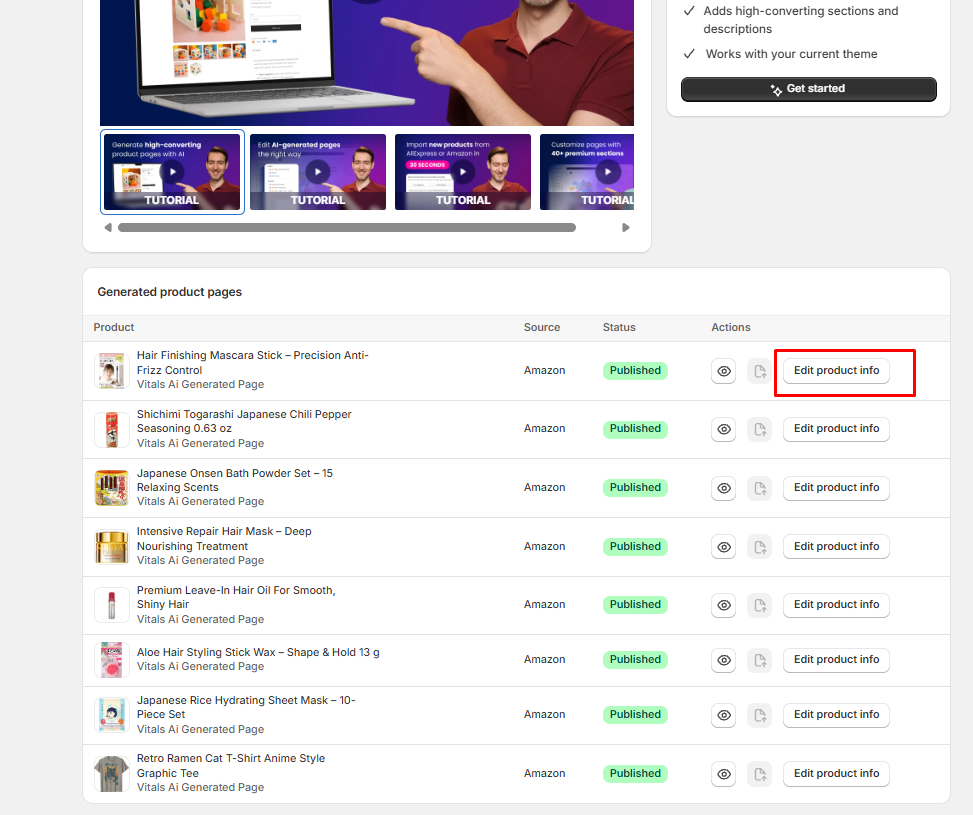
OR
Option 2: Go to Shopify admin > Products and select the product you want to edit
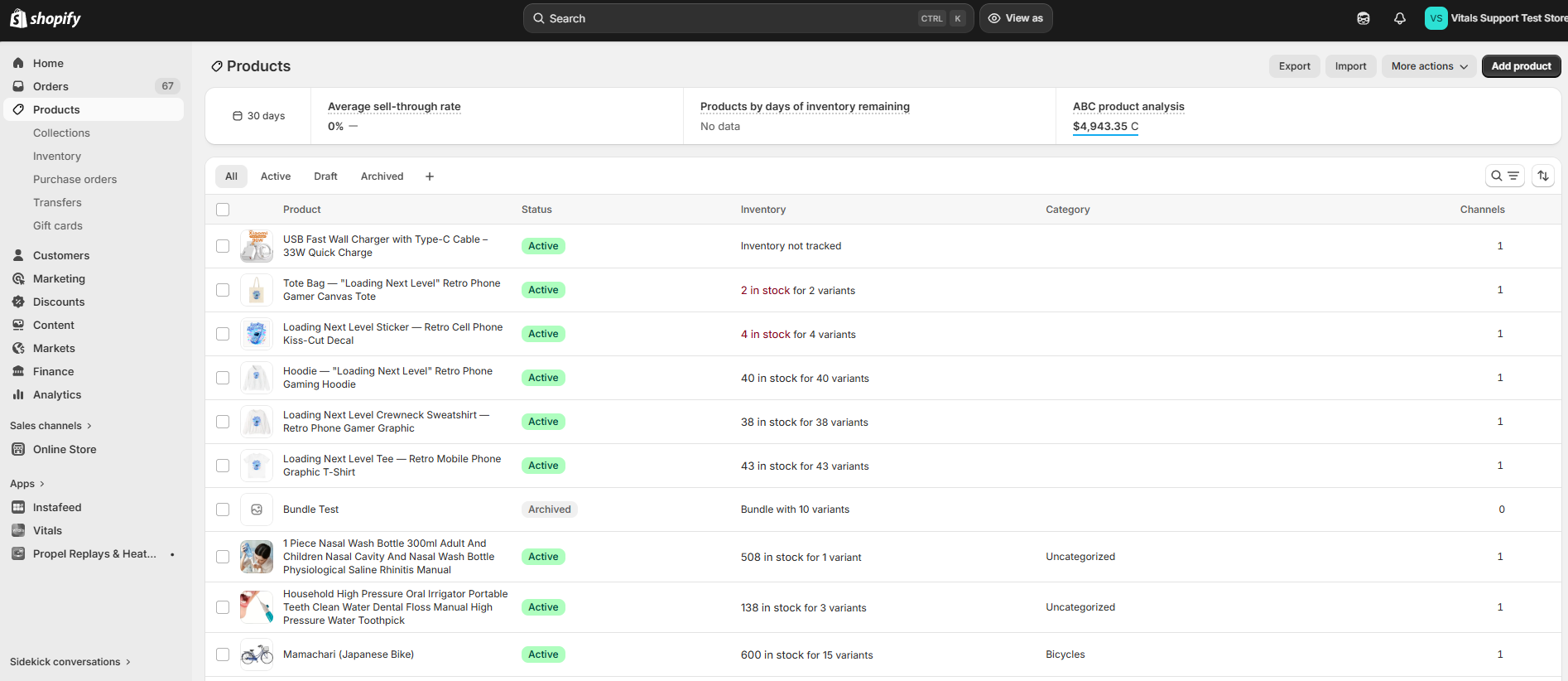
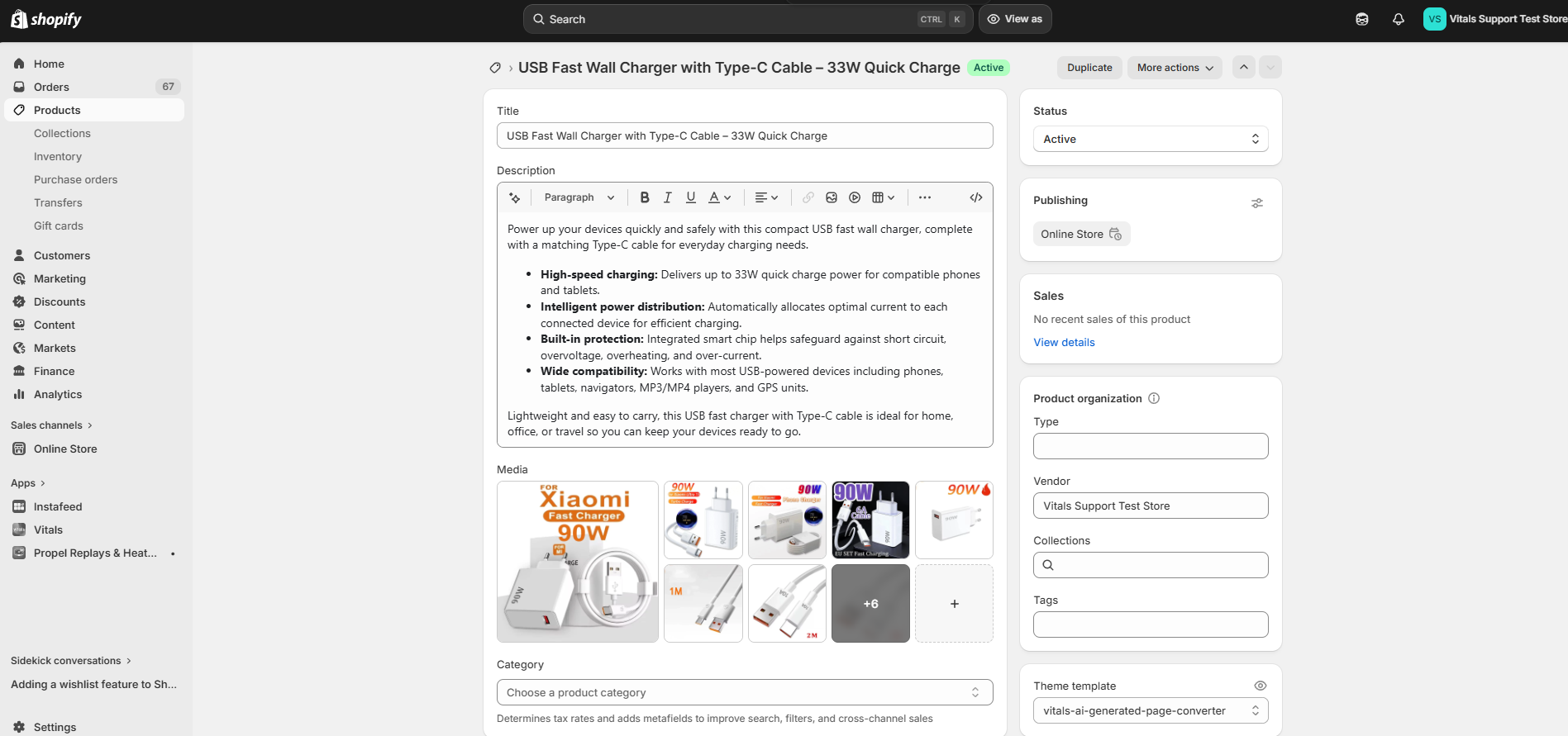
Both of these steps will bring you to the Metafields section
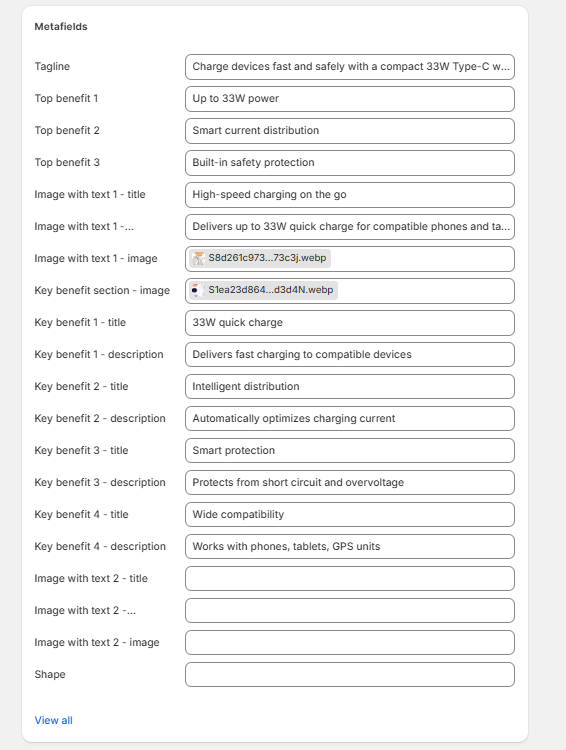
From here, you can edit the fields you want to change (e.g., headline, description, feature bullets, images). Once you're satisfied with the changes, click Save.
Your changes will appear on the live product page immediately.
ℹ️Each section on the generated page has a corresponding metafield.
For example, "Image with Text 1 - Image" controls the first Image & Text section (image on the left), while "Image with Text 2 - Image" controls the second one (image on the right). Make sure you're editing the correct metafield for the section you want to change.
Editing the Page Layout and Design
To change the overall layout or design of your AI-generated pages:
Go to Shopify admin > Online Store > Themes
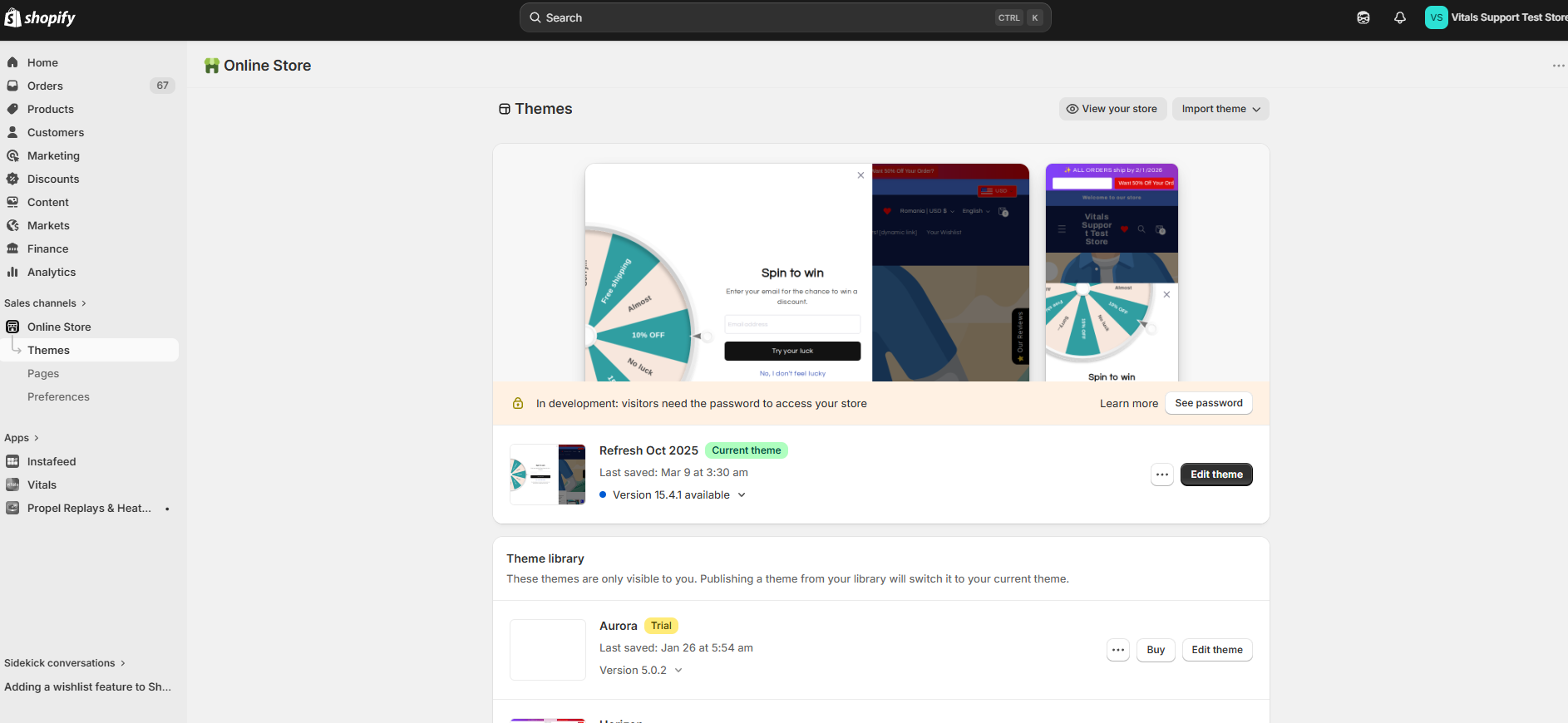
- Click Customize
Navigate to the AI-generated product page template
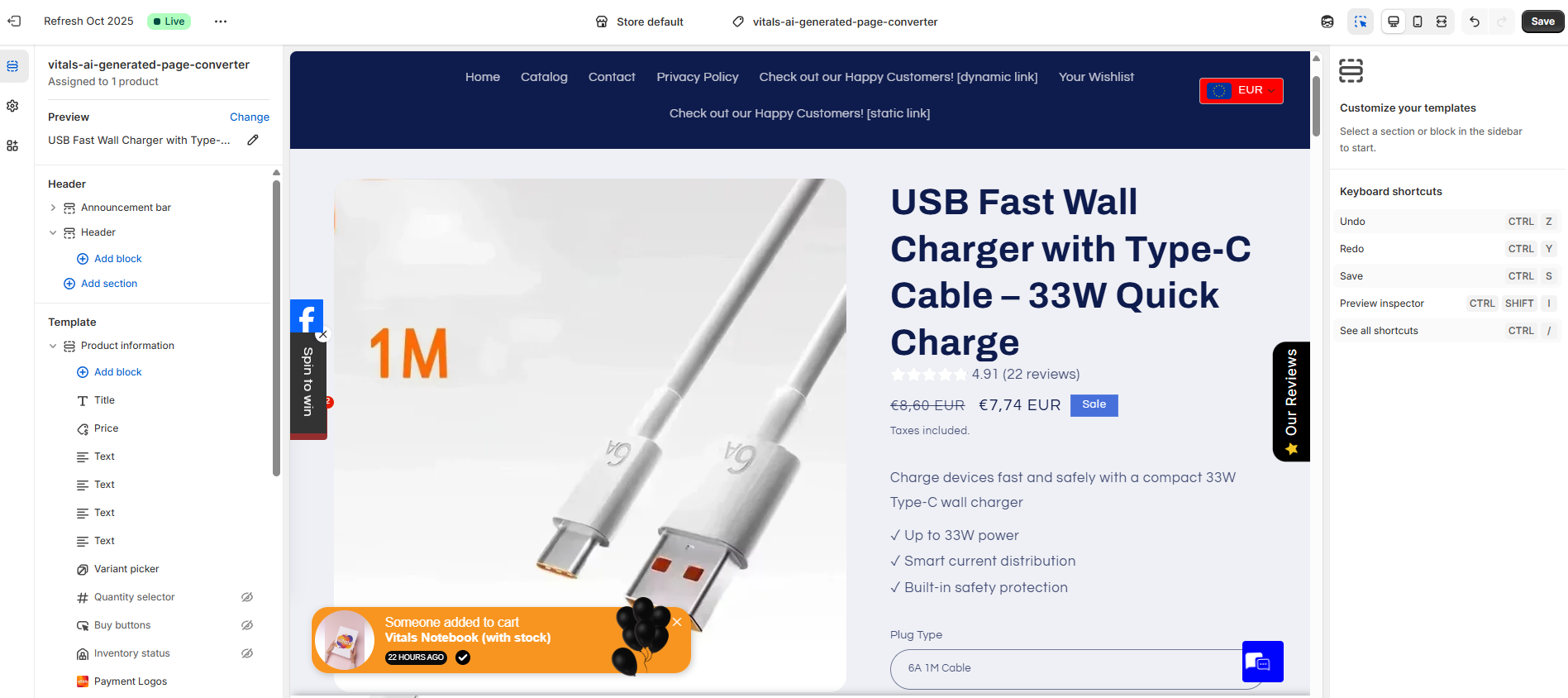
- Edit sections, reorder blocks, or adjust styling
Note: Layout changes apply to all products using the AI-generated template, not just one.
Frequently Asked Questions
Does Vitals have an AI product page generator?
Yes. The AI Page Builder in Vitals generates a complete Shopify product page from one product, in one of 12 languages, and publishes it as a product template in your theme.
How much does the AI Page Builder cost?
It is included in the Vitals All-in-One plan at $29.99/month, with a 7-day free trial, and in the free Theme Sections & Page Builder app. Each generated page uses one AI credit from your monthly allowance. See the Shopify App Store listing for current pricing.
Can I build a product page from an AliExpress or Amazon link?
Yes. Choose Import new products from AliExpress or Amazon, pick the AliExpress or Amazon tab and paste the full product URL from your browser's address bar. For AliExpress you can also import the product's reviews.
Which themes does the AI Page Builder support?
Any Online Store 2.0 theme, which includes all current free Shopify themes such as Dawn and Horizon. Older vintage themes are not supported, because they cannot hold the product page template.
What happens to my existing AI-generated pages?
Nothing. Pages you generated before this update keep their own individual templates and continue to work as before. You can still edit them in the Theme Editor. Only new pages generated from now on will use the new shared template and metafields system.
What happens if I edit the template?
Any changes to the template affect all new AI-generated pages that use it. Your previously generated pages are not affected since they have their own separate templates.
Can I still use the Theme Editor?
Yes, but for layout and design changes to the shared template. Product-specific content (text, images) should be edited from the Product section (Shopify admin > Products) in the Shopify admin.
⚠️ Do not edit product-specific content (images, text) in the Theme Editor. Because all AI-generated pages share a single template, any image or text change you make in the Theme Editor will apply to every product using that template. To change content for a single product, always use the metafields on that product's page in Shopify admin.
What are metafields?
Metafields are custom data fields in Shopify that let you store extra information on products, collections, and other resources. The AI Page Builder uses metafields to store the AI-generated content for each product. You can view and edit them directly from the product page in your Shopify admin.
I edited something in the Theme Editor and it changed across all my AI-generated product pages. How do I fix this?
Because all AI-generated pages share one template, edits made in the Theme Editor apply to every product. To fix this, the dynamic source (metafield connection) for that section may need to be reconnected.
To reconnect the metafield, in your Shopify Theme Editor, select the element/section where the unwanted change happened. Once that is selected, look for its source in its Settings Sidebar and ensure that its source is connected to their corresponding metafield.
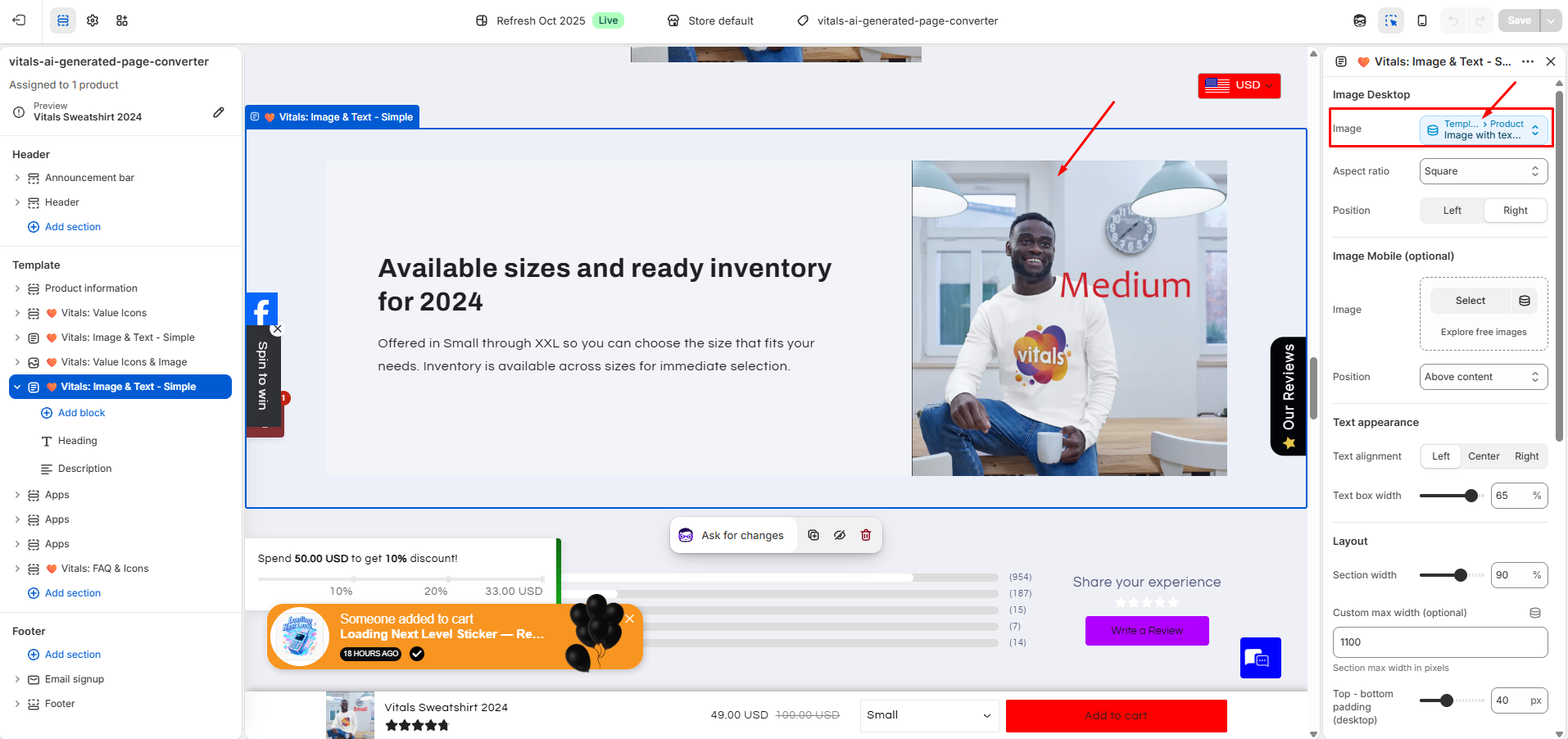
Going forward, always edit product-specific content from Shopify admin > Products > Metafields.
How do I revert a product to the default theme template?
Go to Shopify admin > Products, select the product, and change its template back to the default template in the Theme template section.
Can I generate multiple product pages at once?
No, the AI Page Builder can only generate one product page at a time. Each generated page remains listed on the AI Page Builder start page, so you can continue generating pages later.
When do my AI credits refill?
Your available credits replenish every 30-day cycle.
Can my team use AI Page Builder?
Yes. Anyone with access to Vitals in your store's Shopify admin can use AI Page Builder. AI Page Builder credits are shared across your store. To give a colleague access, add them in Shopify admin under Settings > Users and give them access to apps.
I switched themes and my AI-generated product pages now show the default product layout. Do I need to regenerate every product?
No. Your AI-generated content remains saved on each product, but the new theme does not include the AI page template from your previous theme. Generate and publish one affected product for each AI page template style you use.
- In Shopify admin, open an affected product and check the Theme template shown on the right.
- Make sure your new theme is live, then open AI Page Builder in Vitals and click Get started.
- Select one affected product, choose the same language and template style as before, then click Generate AI product page.
- On the results page, click Publish to put the new page live on this product.
Other products using that same template should display their AI pages again without being generated again. Repeat these steps once for each template style you use. Each generation uses one AI credit.
Any layout changes you made in the Theme Editor on the old theme are not copied to the new theme, so you will need to make those changes again. Switching back to your old theme restores its AI pages unchanged.
I changed themes and see an error message in AI Page Builder saying my theme is incompatible.
If you switched to a theme that is not supported, the AI Page Builder will show a message that it is not compatible, and will not be able to continue. Switch to a supported theme to regain access.
How do I translate my AI-generated product page into another language?
You can use Shopify's Translate & Adapt app. Open the app, go to the Templates section, and look for the template name that contains "Vitals" and your product name. From there, you can provide translations for each language.
💡 Note: Not all sections might be translatable.
Need help? If you have questions or run into any issues, reach out to our support team. We're happy to help.