Displaying featured reviews on the homepage as Cards/List
Last updated on October 28, 2026
💡 Want to display your reviews as a Carousel? You can display your selected reviews in a Carousel behavior easily. For the steps on how to do this, you can proceed here: Displaying the Product Reviews as a Carousel
With the Product Reviews app, besides displaying it as a Reviews Carousel, you will be able to display a Featured Reviews section on your homepage containing the best reviews across your store by following these easy steps:
1. Go to the Reviews tab of the Product Reviews app.
2. Select any of your products that have reviews from the list to see their reviews.
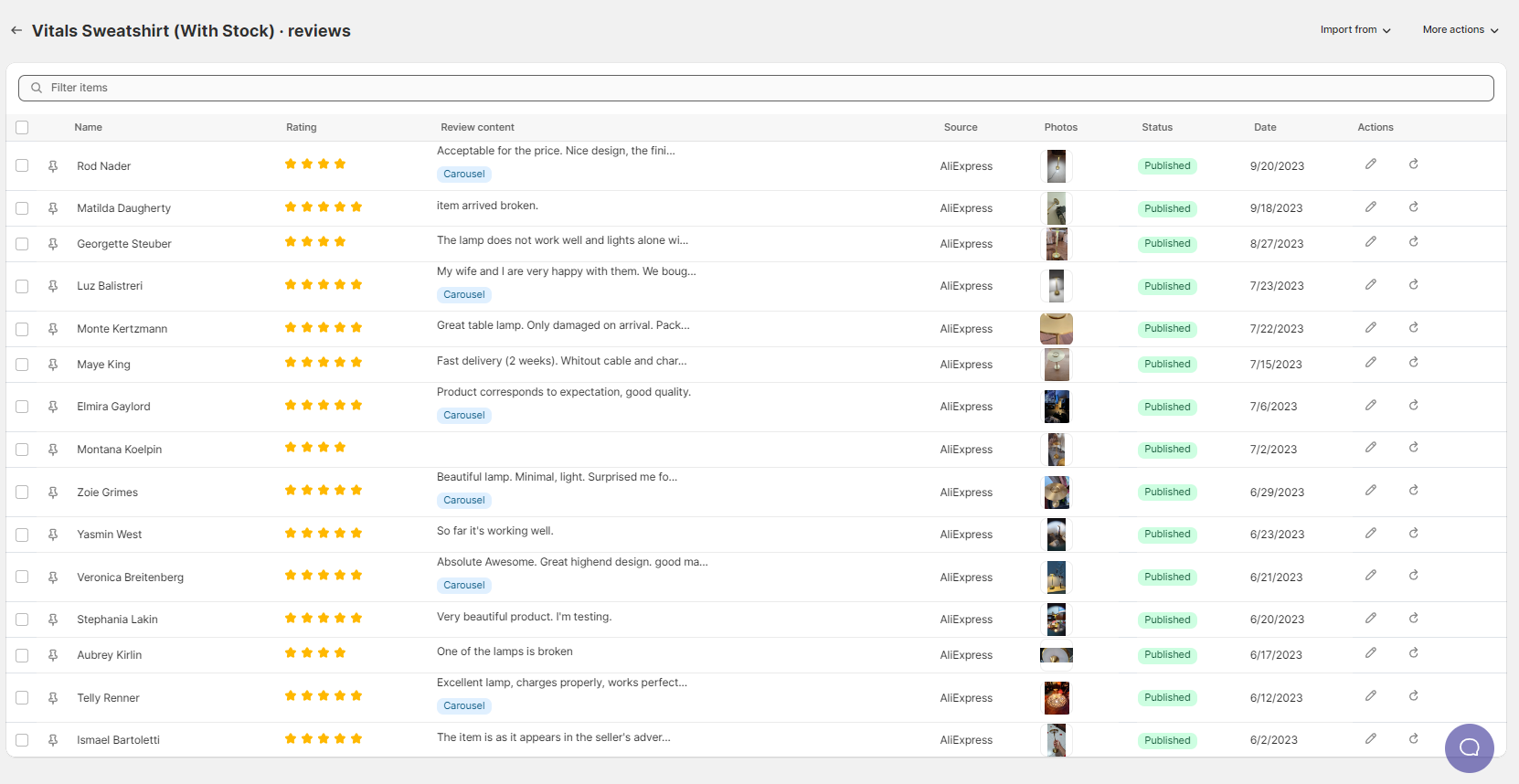
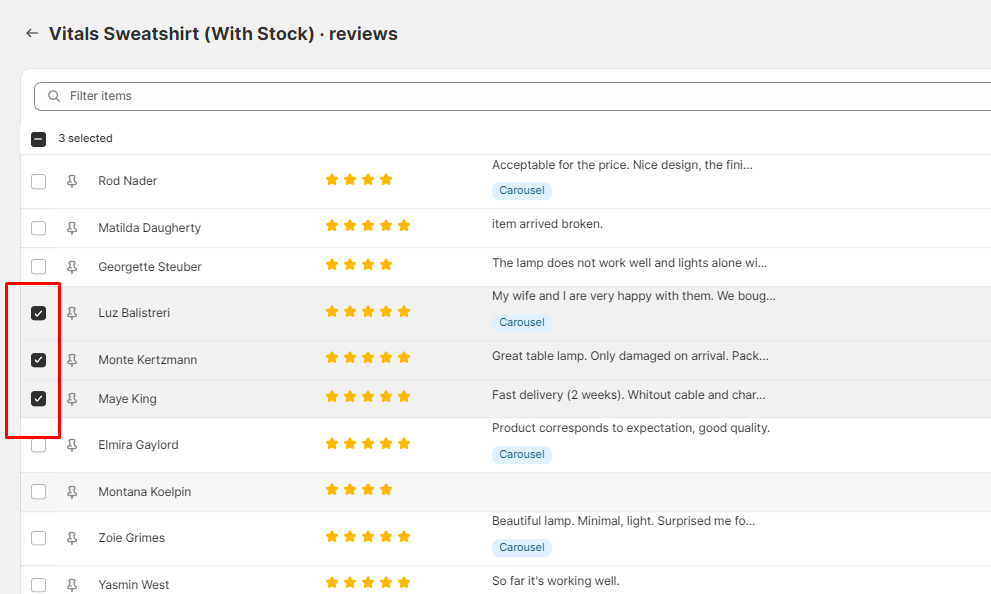
3. Tick the left box for each review you want to feature. You can select up to 100 reviews at a time.
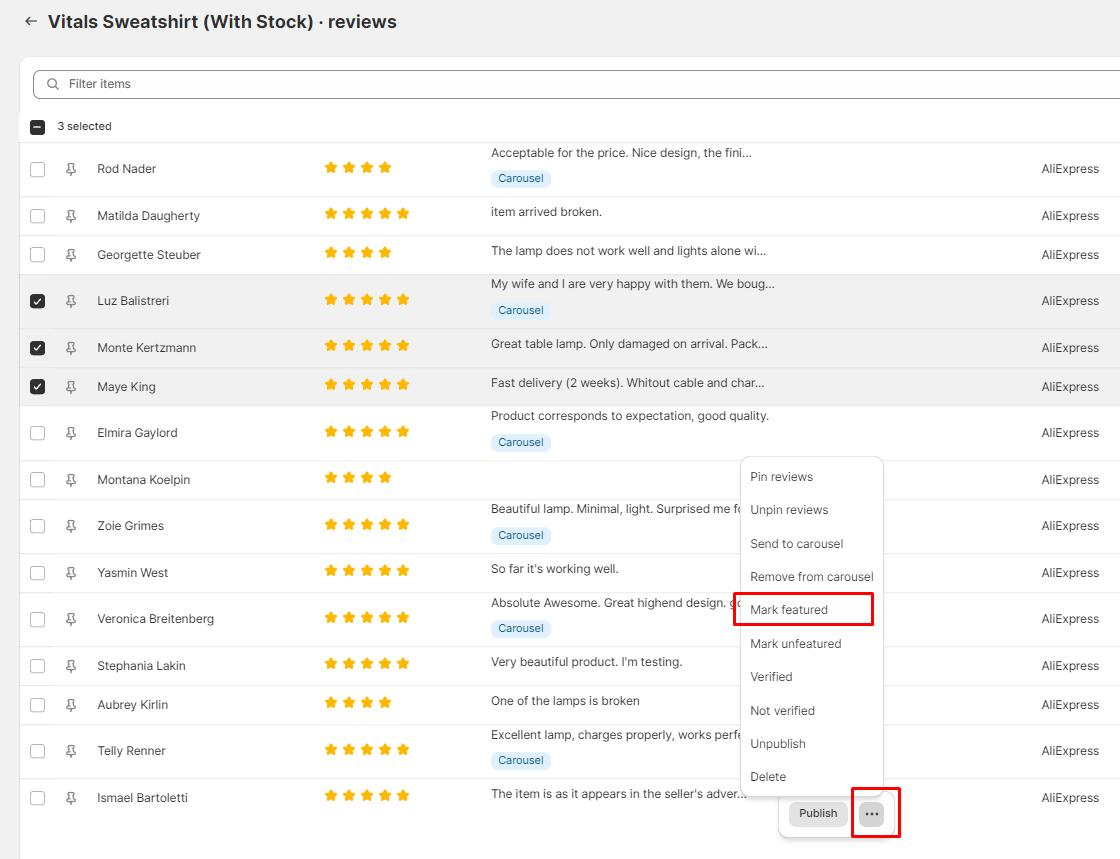
4. Once reviews are selected, a small floating window appears near the bottom. Open More actions and select Mark featured. Your featured reviews are then listed in the Featured tab, where you can check or remove them.
5. Add the Featured Reviews block to your homepage: open your Shopify theme editor on the homepage, add the Featured Reviews app block (it is listed under Apps) to a section, and click Save. The block can't be added to product pages. For more on the theme editor, see Using the Shopify Theme Editor to change Vitals app locations. To change its layout (Grid or List) and header, go to Product Reviews > Settings > Featured Reviews.
💡 The Featured Reviews section doesn't show on your homepage until you add the block in the theme editor.
☑️ Looking to have the featured reviews be displayed on its own, dedicated page instead? You may refer here for the steps: Displaying featured reviews on a dedicated page