Show Your Product Reviews on Google Shopping
Last updated on October 21, 2026
Your Vitals product reviews can appear as star ratings on your Google Shopping listings. Products with star ratings stand out in search results, which leads to more clicks and stronger buyer confidence. Here's how to set it up and what to expect.
How It Works
Vitals creates a special feed URL that contains all of your eligible product reviews. You add this URL to your Google Merchant Center account, and Google automatically pulls your reviews on a regular basis. Once approved, your star ratings appear on your Google Shopping listings — no ongoing maintenance required.
Before You Start
Make sure you have the following in place before setting up your review feed:
- The Vitals Product Reviews feature is active on your store.
- You have at least 50 eligible reviews. (See "Which reviews count" below.)
- You have a Google Merchant Center account with your products already listed.
- Your Shopify products have barcodes (GTINs) filled in — this helps Google match your reviews to the correct listings.
Why do barcodes matter?Google uses barcodes (also called GTINs, UPCs, or EANs) to identify your products. Without barcodes, Google falls back to product URLs and SKUs, which is less reliable and can result in reviews not showing up for some products.
Step-by-Step Setup
- Open your review feed settings.
In your Vitals dashboard, go to Product Reviews → Settings → Customize Widgets. Scroll down to the Google Shopping section and expand it.
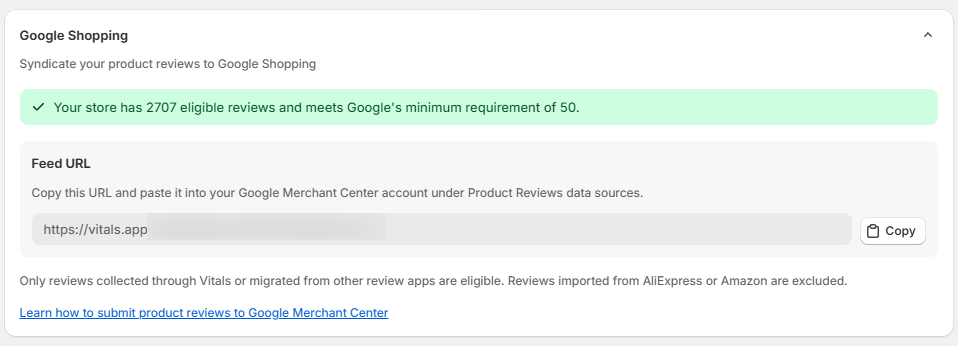
- Check your eligibility.
You'll see one of two status banners:
- Green banner — You're eligible. It shows your review count and confirms you meet Google's minimum of 50 reviews.
- Red banner — You're not eligible yet. It shows how many eligible reviews you have versus the 50 required. Keep collecting reviews and check back later.
- Copy your feed URL.
If you're eligible, a Feed URL field will appear. Click Copy to copy it to your clipboard.
- Add the feed to Google Merchant Center.
Log in to your Google Merchant Center account. Navigate to Product Reviews data sources, add a new data source, and paste the feed URL you copied from Vitals. Save your changes.
- Wait for Google's approval.
Google reviews your feed during an initial approval process that typically takes 2–4 weeks. Once approved, star ratings will start appearing on your Google Shopping listings automatically.
✅ You're all set after this.The feed updates automatically as you collect new reviews. You never need to re-submit the URL or make changes on your end.
Which Reviews Count as Eligible
Google requires that reviews are collected directly from your own customers. Reviews imported from third-party marketplaces do not qualify. Here's a breakdown:
| Review Source | Eligible? | Why |
|---|---|---|
| Collected through Vitals (email requests, on-site forms, post-purchase flows) | Yes | These are authentic reviews from your customers. |
| Migrated from Judge.me, Loox, Stamped, Yotpo, or other review apps | Yes | You originally collected these from your customers — switching apps doesn't change that. |
| Imported from AliExpress | No | These weren't collected from your store's customers. |
| Imported from Amazon | No | These weren't collected from your store's customers. |
What Google Receives From Your Feed
When Google pulls your feed, it receives the following data for each review:
- Reviewer name (shown as anonymous if not provided)
- Star rating (1–5)
- Review text
- Review date
- Whether the purchase was verified
- Review photos (if any)
- Product title and URL
- Product barcode (GTIN), SKU, and brand
- Your store name
This information is formatted according to Google's Product Reviews Feed specification and is kept up to date automatically.
Tips for Getting the Most Out of This Feature
Fill in barcodes on your Shopify products
In Shopify, go to Products → select a product → Variants and edit the Barcode field. Adding GTINs or UPC codes helps Google match your reviews to the correct listings with high confidence.
Actively collect reviews
Use Vitals' review request emails and post-purchase flows to build up your review count. More reviews means more of your product listings will display star ratings.
Moderate your reviews
Reviews waiting in Moderation are not sent to Google. Published reviews and reviews you unpublished are both included, so unpublishing a review hides it on your store but doesn't remove it from Google. If Google finds content that violates their policies (such as spam, profanity, or fake reviews), they may reject your feed. Keep your reviews clean by reviewing them regularly in Vitals.
Check Google Merchant Center for diagnostics
After submitting your feed, Google provides a diagnostics dashboard that shows any issues they found. Check it regularly, especially during the first few weeks after setup.
Troubleshooting
Frequently Asked Questions
No. The feed is generated automatically. You just need to copy the feed URL from your Vitals settings and paste it into Google Merchant Center.
At least 50 eligible reviews. The exact count is shown in the Google Shopping section of your Product Reviews settings.
Yes. The feed URL is dynamic — Google periodically re-fetches it and picks up any new reviews. You never need to re-submit the URL or take any manual action.
After you submit the feed URL, Google has an initial approval process that takes approximately 2–4 weeks. Once approved, new reviews typically appear within a few days of Google's next crawl.
No. This feature works entirely through the Vitals dashboard and Google Merchant Center. Your storefront theme is not affected.
Not individually. All eligible reviews are included automatically, whether or not they are published on your store. Unpublishing a review doesn't remove it from the feed. If a review is spam, mark it as spam in Vitals so Google doesn't count it, or delete it.
Yes. Reviews migrated from other review apps into Vitals are treated as eligible, since they were originally collected from your customers.
No. This feature is included with Vitals Product Reviews at no additional cost.
Focus on collecting more reviews through Vitals using email requests, on-site review forms, and post-purchase flows. The feed URL will be ready for you as soon as you reach 50 eligible reviews.
You can paste your feed URL into a browser to view the raw XML file, but it's formatted for Google to read — not designed to be human-friendly. The content matches the review data described in the What Google Receives section above.
Check Google Merchant Center's diagnostics for the specific rejection reason. Common causes include reviews that contain profanity, spam, or content that violates Google's policies. Moderate the flagged reviews in Vitals, and the feed will update automatically on Google's next crawl.