[NEW] Managing Shipments and Your Monthly Tracking Limit
Last updated on September 16, 2026
See every shipment in one place, catch the ones that need attention, and keep an eye on your monthly allowance.
Once the Order Tracker app is enabled, every order you fulfill with a tracking number appears in the app, and its status updates as the carrier scans the parcel. This article covers the Dashboard and Shipments tabs, what each status means, and how the monthly tracking allowance works.
The Dashboard tab
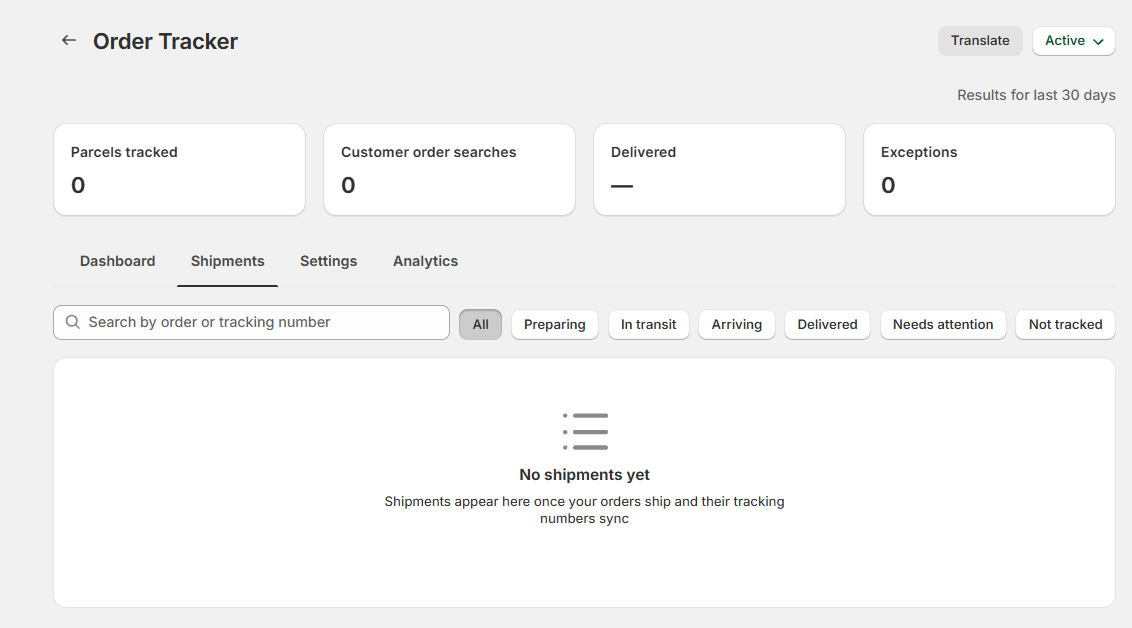
At the top of the app you'll see three figures, labelled Results for last 30 days:
- Parcels tracked — parcels tracked in the last 30 days. Orders shipped together under one tracking number count as one parcel, even though each order has its own row in the Shipments tab.
- Customer order searches — how many times customers looked up an order on your tracking page.
- Delivered — the share of tracked parcels delivered in the last 30 days.
- Exceptions — parcels with a delivery issue or no recent carrier updates.
Below them:
Tracked shipments this month — how many of this month's free tracked shipments you've used, shown as "used / allowance", with the date it resets. The bar turns to a warning colour when you've used most of your allowance.
On the All-in-One plan default values, tracking doesn't stop at 50, so there's no warning colour; once you go past the 50 included shipments, the card notes that usage charges apply.
- Recent shipments — your latest shipments. Click View all shipments to open the full list.
The Shipments tab
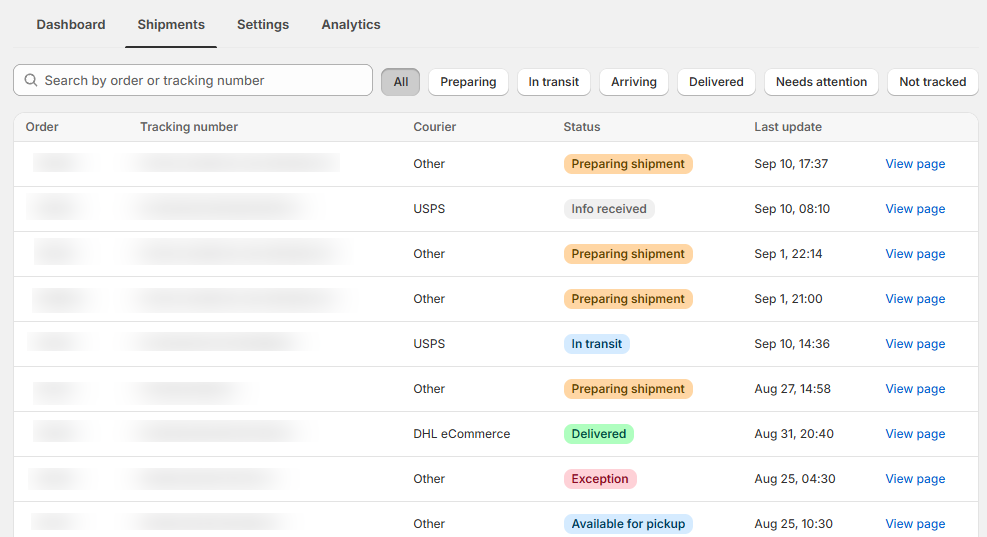
The full list of shipments, 25 per page, with these columns: Order, Tracking number, Courier, Status and Last update.
- Use Search shipments to find a shipment by order number or tracking number.
- Use the filter buttons to narrow the list: All, Preparing, In transit, Arriving, Delivered, Needs attention and Not tracked.
- Click the order number to open the order in your Shopify admin.
- Click View page to open the tracking page exactly as your customer sees it for that shipment.
What each status means
Each filter groups one or more statuses. The row shows the precise one.
| Filter | Status on the row | What it means |
|---|---|---|
| Preparing | Preparing shipment, Info received | The shipment exists and the carrier has its details, but hasn't scanned the parcel yet. |
| In transit | In transit | The carrier has the parcel and it's on its way. |
| Arriving | Out for delivery, Available for pickup | The parcel is out for delivery today, or waiting at a pickup point. |
| Delivered | Delivered | The carrier has confirmed delivery. |
| Needs attention | Exception, Expired | The carrier reported a delivery problem, or there have been no tracking updates for a long time. |
| Not tracked | Not tracked | The shipment isn't being tracked, so it has no carrier updates. This happens when this month's free allowance is used up (on plans other than All-in-One), when you've reached your shipments tracked limit, or when the tracking number couldn't be tracked. Hover over the badge to see why. |
Your customers see friendlier wording for the same statuses on the tracking page (for example "Delivery issue — check the latest update below"), and you can change it in Settings → Translations.
Your monthly tracking allowance
Every plan includes 50 free tracked shipments per month. The count starts again on the 1st of each month, and Tracked shipments this month on the Dashboard always shows where you stand. What happens after your first 50 depends on your plan: on the All-in-One plan, tracking continues, and a usage charge applies; on every other plan, tracking pauses until the count resets.
If you're on any plan other than All-in-One, when all 50 are used:
- A banner appears across the app: "You've used your 50 free tracked shipments this month". It includes a See plans link, so you can switch to All-in-One and keep tracking shipments past the free allowance.
- New shipments show as Not tracked and don't receive tracking updates until the count resets. Customers who look up those orders on your tracking page won't see tracking updates either.
- Shipments that were already being tracked keep updating as normal.
A customer looking up a tracking number that Vitals hasn't seen before, for example from an order placed before you turned Order Tracker on, also counts as a tracked shipment.
Tracking more than 50 shipments on the All-in-One plan
On the All-in-One plan, Order Tracker keeps tracking new shipments after your first 50 each month. Shipments beyond the included 50 are billed as a monthly usage charge that goes up in steps as your volume grows. You can see every step under Shipments tracked on vitals.app/pricing.
While you're past the included 50, the Tracked shipments this month card shows "Usage charges apply beyond the 50 included shipments." This month's tracking usage and fee also appear in the Tracking card on your Vitals dashboard and in the Shipments tracked column of your plan's usage tiers.
Shipments are counted per calendar month. A shipment that's already being tracked isn't counted again when it receives new updates.
Setting a shipments tracked limit
On the All-in-One plan, you decide how far tracking goes each month. Open Order Tracker → Settings → Shipments tracked limit and choose a limit: 50, 250, 500, 1,000, 2,000, 3,000, 5,000, 10,000 or Unlimited. Your usage for the month is shown right under the setting.
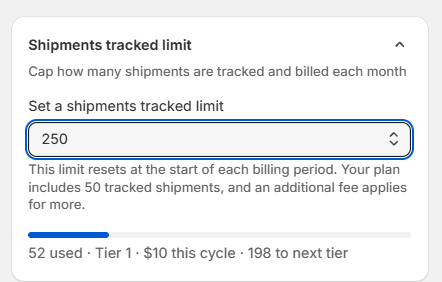
The default limit is 250. Nothing is tracked or billed past your limit, so your tracking costs never go beyond what you've chosen.
When you reach your limit, a banner lets you know: "You've reached your shipments tracked limit of 250 this month" (showing your own limit). New shipments show as Not tracked, customers who look up those orders on your tracking page won't see tracking updates, and shipments that were already being tracked keep updating as normal.
To keep tracking, raise the limit in Settings. Recent shipments from this month that were marked Not tracked because of the limit are then picked up again automatically.
This setting only appears on the All-in-One plan. On other plans, tracking stops at the free 50.
Frequently Asked Questions
Why is a shipment stuck on "Preparing"?
The carrier hasn't scanned the parcel yet. If it stays there after the parcel has been handed over, check the carrier and tracking number on the fulfillment in Shopify: shipments marked with the carrier "Other", or with some smaller regional couriers, often can't be matched to a carrier automatically. Choosing the carrier from Shopify's list when you fulfill the order gives the best results.
What does "Not tracked" mean?
Vitals isn't following that shipment, so it has no carrier updates. Hover over the badge to see why. There are three possible reasons:
- This month's free allowance of 50 was used up, on a plan other than All-in-One.
- You reached the shipments tracked limit you set in Settings (All-in-One plan).
- The tracking number couldn't be tracked, for example because it was mistyped. Correct the tracking number on the fulfillment in Shopify and Vitals tries again.
For the first two, tracking starts again for new shipments when the count resets on the 1st of the month. On All-in-One, you can also raise your limit to keep tracking this month.
Can I get more than 50 tracked shipments a month?
Yes, on the All-in-One plan. Every plan includes 50 free tracked shipments a month. On All-in-One, Order Tracker keeps tracking past 50 and a usage charge applies (see Shipments tracked on vitals.app/pricing), up to the shipments tracked limit you choose in Settings. On other plans, tracking stops at 50 until the count resets, so switching to All-in-One is the way to track more.
I'm on All-in-One. Why did tracking stop before the end of the month?
You've most likely reached your shipments tracked limit, which is set to 250 shipments a month by default. Go to Order Tracker → Settings → Shipments tracked limit and choose a higher number or Unlimited. New shipments start tracking again, and recent shipments that were skipped because of the limit are picked up again automatically.
Why can't I look up orders on my tracking page after testing it several times?
To protect your store, the tracking page allows up to 20 lookups every 10 minutes from the same internet connection. If you or a customer go over that, wait a few minutes and try again.
Why don't older orders appear in the Shipments list?
Order Tracker follows shipments from the day you turn it on and doesn't import earlier orders. Customers can still look up an older order on your tracking page by its tracking number.
How can I see exactly what my customer sees?
In the Shipments tab, click View page on any row. It opens that shipment on your tracking page in a new tab.