Connecting an AI Assistant to Your Vitals Data
Last updated on October 28, 2026
Ask ChatGPT, Claude, Gemini or Grok about your Vitals apps — and, if you allow it, have it make changes for you — in the assistant you already use
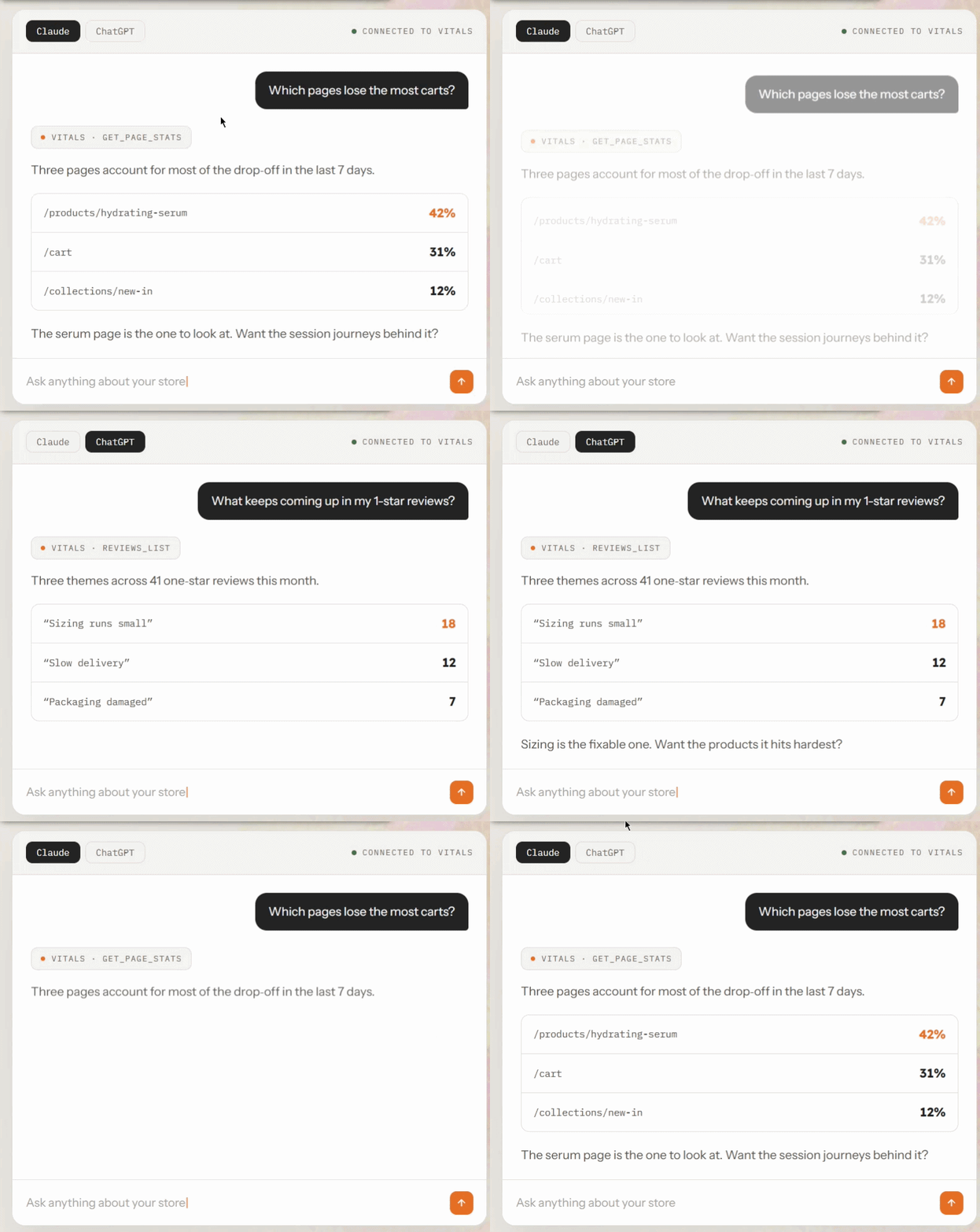
If you work in ChatGPT, Claude, Gemini or Grok, you can connect it to your store and work with your Vitals apps in plain language. Ask "how are my reviews doing?" or "which upsell offers earned the most last month?" and the assistant reads the answer straight from your store. Ask "turn on Sticky Add to Cart" or "make a bundle: buy any 2 snowboards, get 15% off" and it can make the change or prepare the offer for you.
You set the connection up yourself, and it takes a couple of minutes. When you connect, the approval screen tells you whether the assistant can only read your Vitals data or can also change it — switch an app on or off, adjust an app's settings, or prepare an Upsell Builder offer for you to review and save — and nothing is shared until you approve.
💡Already using Shopify Sidekick? That's a separate, automatic integration inside your Shopify admin — see Asking Shopify Sidekick About Your Vitals Data. Connecting ChatGPT, Claude, Gemini or Grok is something you do here in Vitals, and the two work independently: setting one up changes nothing about the other.
Before you start
- This is part of the Vitals bundle, so it appears if you use Vitals itself.
- You don't need an API key, a developer account, or anything technical. You copy one address, generate a short code in Vitals, and approve the connection.
- ChatGPT and Claude are available on free and paid plans.
How to connect an assistant
Open the Vitals dashboard and click Integrations.
Choose ChatGPT, Claude, Gemini or Grok, then click Connect with [assistant].
- Each assistant opens a five-step guide. Follow the assistant-specific steps to add Vitals as a connector. Gemini is available only for personal Google accounts in the US using Gemini in English.
- In step 3 of the guide, click Generate code. The code works once and expires after 10 minutes.
- Paste the code into the Vitals store-code page, then approve the connection in Vitals.
- The approval screen names the assistant and shows what it will be able to see and change. If it can make changes, it warns that changes go live on your store straight away, and says Vitals asks the assistant to get your OK before each change.
- Click Approve. Your assistant can now use your Vitals data, and the guide changes to Connected automatically. Cancel stops the connection there and shares nothing.
If the approval screen sits unanswered for more than about ten minutes, the request expires. Just start again from your assistant.
💡Check it worked: ask your assistant for your Vitals store overview. It should come back with your apps and which ones are switched on. If you want to be certain it's reading the right shop, ask it to confirm which store it's connected to.
Connecting more than one store
If you run several stores on Vitals, one assistant can work with all of them — you don't need a separate connection for each.
- Ask your assistant to add another store to its Vitals connection. It gives you a link.
- Open the link. Then, in the Vitals admin of the store you want to add, go to Integrations and click Generate code.
- Paste the code into the page the link opened and click Continue.
- Approve the connection in that store's admin, just as you did the first time.
The code always comes from the store being added — that's how Vitals knows which store is joining. Once more than one store is connected, tell the assistant which store you mean every time you ask something.
A store you add this way is read-only for the assistant, even if your first store allows changes. Make changes on that store in its own Vitals admin.
If your assistant says the connection predates multi-store support, disconnect it, connect again, and then add your other stores.
What you can ask about
Your assistant can read every Vitals app you can see in your admin — your apps, their settings and the data behind them. Ask about an app you don't have switched on and the assistant will simply tell you it's off. These areas have the most detailed answers:
Your store overview
Which Vitals apps have you switched on, and what each one has earned or shown recently? This is the best place to start. It tells the assistant which apps you actually run, so it stops guessing. It can also suggest which Vitals apps to turn on for your store, and which of your other Shopify apps Vitals could replace. It can read any Vitals app's current settings too, and tell you which Vitals plan you're on, what it costs, whether you're in a trial and, if your plan is billed by usage, how much you've used this billing cycle.
Cookie Bar
Your store overview can include Cookie Bar's 30-day Pulse summary: impressions and consents. The assistant can’t retrieve Cookie Bar analytics for a date range.
Product Reviews
Your store-wide rating picture, your recent reviews, which products rate best and worst, and the stored AI summary for a product where you've generated one. You can also ask it to read unpublished reviews, or find one specific review by its exact ID. Deleted reviews aren't available.
Upsell Builder
How your offers are performing, the list of offers themselves with the products each one targets, and the orders your offers were credited with. It can also open a single offer in full: which products or collections it targets, what shoppers have to buy and what they get.
Visitor Replays
Your recorded sessions, what a particular visitor did step by step, and how your pages are performing for traffic and behavior. You can also go the other way and ask which recording belongs to a specific order number. This is useful when you want to see what happened before a purchase, or before a refund request. Recordings are kept for 31 days, so an older order has no session to show.
Email Marketing
How your campaigns and automations are performing over time, and the list of campaigns and automations themselves. You can also ask it to inspect a saved campaign or automation, including its steps and the saved settings, HTML or builder design for a selected step. It can read this content but can’t send emails.
Wishlist
How shoppers are using your wishlist, and which products get saved most often.
Size Chart
Which size charts you have, what's in each one, whether it's switched on, and which products or collections it appears on.
What an assistant can change (if you allow it)
If you approved a connection that can make changes, your assistant can do more than report. It's asked to tell you what it's about to change and to check with you before it does.
- Switch an app on or off. For example, "Turn on Sticky Add to Cart." Switching an app off removes it from every page it shows on, and switching it back on brings it back with the settings it already had. Nothing is installed, uninstalled or deleted either way.
- Change an app's settings — the same settings you'd change yourself in Vitals.
- Choose which products an app shows on. For example, "Show Product Reviews only on my snowboards." This works like the Advanced display rules section in Vitals.
💡App changes are live straight away. Switching an app on or off, changing its settings and changing which products it shows on all take effect on your storefront as soon as the assistant makes them, exactly as if you had saved them yourself. There's no separate preview step: if you don't like a change, ask the assistant to set it back, or change it back in Vitals. Upsell Builder offers work differently: nothing goes live until you press Save.
A few things to know about app changes:
- Not every app can be changed yet. If the assistant says it can't change an app yet, make that change in Vitals.
- Where an app appears on the page isn't changed from the assistant. Placement and position settings stay in Vitals.
- Showing an app on some products uses a product list. The assistant picks the products for you, or you can set a price, discount or stock range. It doesn't follow a collection, so products you add later aren't included until you add them.
- Switching on an app that messages shoppers lets it send. If you turn on Email Marketing, Push Marketing, Back in Stock, Wishlist or Product Reviews, any automations or alerts in that app start working again. Back in Stock also sends restock alerts to shoppers who are already on a waitlist.
Creating Upsell Builder offers
Describe the offer you want — for example, "Make a bundle: buy any 2 snowboards, get 15% off" — and your assistant prepares it for you to review. It works for every offer type.
- The assistant looks up your real products and collections and fills in the offer.
- It replies with a review link. The link opens the Upsell Builder offer editor in your own Shopify admin, already filled in.
- Every field the assistant filled is outlined in purple, so you can see at a glance what it chose. A field's outline disappears once you change it.
- Review the offer, adjust anything you like, and press Save. Nothing goes live until you do — the assistant never publishes an offer for you.
Offers your assistant prepares are also listed in the Upsell Builder on the Offers tab, under Generated prompts, so you can come back to one later. If you open the link of an offer you've already saved, you're taken to that saved offer, so the same offer can't be created twice.
Changing an existing Upsell Builder offer
Your assistant can also change an offer you already have — for example, "Raise the discount on my 'Frequently bought together' offer to 15%", "Add the Winter Jacket to my post-purchase offer and change the headline", or "Rewrite all the texts on my 'Bundle & Save' offer to sound friendlier".
- The assistant reads the offer, prepares the change and gives you a link.
- The link opens that offer's own edit page with the change already applied. Every field the assistant changed is outlined in purple.
- Nothing changes on your store until you review the change and press Save. If you leave without saving, the offer stays exactly as it was.
A few things to know:
- The assistant can change an offer's text, products, discounts, design and other settings, but it can't switch an offer on or off or change its offer type. Those stay with you.
- Only the assistant's latest suggestion for an offer is kept. If you ask for another change to the same offer, it replaces the earlier one.
- If you or a teammate save the offer after the assistant prepared its change, the link won't overwrite your newer work — you'll see "This offer changed after the edit was suggested. Ask the assistant to suggest it again." Ask, and it starts again from the offer as it is now.
Copying and importing product reviews
Your assistant can also prepare reviews for one of your products. Nothing is copied or imported until you click Import yourself.
- Copy reviews from another product. For example, "Copy the reviews from my Classic Snowboard to the Classic Snowboard 2.0." The reviews can come from a product in this store, or in another store connected to the same assistant. Only published reviews are copied: hidden, pending and deleted reviews stay behind, and reviews the product already has are skipped.
- Import reviews from AliExpress. Give the assistant the link to the AliExpress product page and tell it which of your products the reviews are for.
The assistant replies with a link that opens that product's reviews page in Vitals. For a copy, you see the newest reviews that would be copied, and you click Import or Dismiss. For AliExpress, the import window opens with the link filled in: choose how many reviews and which options you want, confirm you have permission to use the reviews, and click Import Reviews.
Daily limits
Each store can have its assistant prepare up to 30 new Upsell Builder offers, suggest up to 30 changes to existing offers, prepare up to 30 review copies, and send up to 5 bug reports in any 24 hours. If you reach a limit, wait a little and try again — you can always create or edit offers yourself in the Upsell Builder in the meantime.
Reporting a bug from your assistant
Tell your assistant what's not working — a widget that isn't showing, a discount that isn't applying — and it writes up a bug report for Vitals support. It shows you exactly what it will send, and only sends it once you confirm. This works on every connection, including read-only ones. The report goes to your store's Vitals support conversation: we reply by email to your store's contact email, and you can also find the conversation in the support chat in Vitals.
What an assistant can't do
An assistant only does what you approved. A read-only connection can read and report, and nothing else. A connection you allowed to make changes can also switch apps on or off, change their settings, prepare Upsell Builder offers for you to save, and prepare review copies and imports for you to approve. No connection can delete anything, publish or reply to a review, send a campaign or anything else to your shoppers, or place an order.
A few other boundaries worth knowing:
- You approve the connection as a whole. The approval screen shows whether the assistant is asking only to see your Vitals data or also to make changes, and Approve grants everything it asked for. You can't pick individual apps on that screen. To change what a connection can do — for example, to move from read-only to making changes — disconnect it and connect again.
- Time ranges differ by app. Recent sessions and page statistics cover a shorter recent window than the performance figures for your apps, and some counts, like your all-time review totals, aren't limited by date at all. Ask your assistant what period a number covers if it matters.
- Money comes back in US dollars, whatever currency your store sells in.
- A missing number doesn't mean zero. If an app doesn't measure something, it's left out of the answer rather than reported as nothing. A good assistant will say so rather than inventing a zero.
- Asking for something that isn't covered? Your assistant can log the request so we know what to build next. It records what you asked, and nothing else about your store.
Managing your connected assistants
Open Integrations to see every assistant you've approved, with its name, a Connected badge, and when it was last used — Never used if it hasn't done anything yet. Before you connect anything, the page shows Connect an AI assistant with the address and the Connect buttons; once something is connected, that part reads Connect another assistant.
To revoke access, open Integrations and click Disconnect beside that assistant. Its access to this store stops right away, and you can reconnect from the same place whenever you want. If the same assistant also works with other stores of yours, those stay connected — disconnect it in each store you want to remove. If you see Could not disconnect, just try again.
💡Review the list now and then. An assistant names itself when it connects, so if you ever see an entry you don't recognise, disconnect it — you can always reconnect the ones you do use.
Tips
- Start with your store overview. It orients the assistant around the apps you actually run, and the answers to everything after it get sharper.
- Ask where Vitals could help. "Which Vitals apps should I turn on?" and "Which of my apps could Vitals replace?" both work once you've approved your store overview.
- Ask the question you'd ask a colleague. "Which upsells aren't pulling their weight?" works better than app jargon.
- Narrow the question rather than asking for everything. A tighter question, like a one star rating, one date range, one offer, comes back faster and more usefully than "show me everything".
- Use exact product names when you ask for an offer or a display rule, so the assistant picks the right products.
- Use it to triage, then act. It's quickest for the morning check: what needs moderation, what's underperforming, which recording explains an order. If your connection can make changes, ask it to fix what it finds — switch an app on, adjust a setting, or prepare an offer for you to review.
Frequently Asked Questions
Do I need an API key or a developer account?
No. You copy the connection address from Integrations and add it in your assistant as a custom connector. The assistant then asks which store to use — you generate a short code in Integrations and paste it in — and you approve the connection in Vitals. There's no key to generate, store, or rotate.
Does this cost extra?
No. Connecting an assistant is included with Vitals. Your assistant's own subscription is between you and ChatGPT, Claude, Gemini or Grok.
Can an AI assistant change something in my store?
Only if you allow it. When you connect, the approval screen tells you whether the assistant is asking to make changes. With a connection that can make changes, the assistant can switch apps on or off and change their settings — those changes are live on your store straight away — and it can prepare Upsell Builder offers, which only go live when you press Save, and review copies or imports, which only happen when you click Import. It can't delete anything, send anything to your shoppers, or place an order. A read-only connection can't change anything.
Can I connect more than one assistant?
Yes. Connect ChatGPT, Claude, Gemini and Grok, or several devices or workspaces, and each appears as its own entry; you can disconnect independently.
How do I disconnect an assistant?
Open Integrations, find the assistant, and click Disconnect. It loses access to this store right away. If it also works with other stores of yours, disconnect it from each of those stores' Integrations pages too.
I can't find where to connect an AI assistant.
It's part of the Vitals bundle, so it doesn't appear if you use a standalone Vitals app on its own. It's also hidden when your store can't use it: if Vitals has been uninstalled, or your Shopify store is suspended or blocked. If your store is active and on the Vitals bundle and the card is still missing, reload the page, then contact support.
My assistant says the connection address is out of date.
You're using an older address, probably from an earlier version of this page or an old screenshot. Open Integrations, choose your assistant, and click Connect with [assistant] to follow the current guide. Connections already made on the old address keep working.
My assistant says there were too many requests.
Each store has a limit on how many requests its connected assistants can make per minute, so one busy conversation can't slow everything else down. Nothing is blocked and there's nothing to fix — wait a moment and ask again, or ask for less at once, such as a narrower date range or fewer records.
My assistant says a session is too large to read right now.
The session has more detail than the assistant can read in one request. This doesn't mean the recording is broken. Wait 60 minutes after the last attempt and ask again, or ask about another session in the meantime. If the assistant says the session is unavailable instead, it can't be read.
My assistant says Vitals has been uninstalled, but I still use it.
That message means the connection was made before the app was removed from your store. Reinstall Vitals, then connect your assistant again from Integrations.
The assistant gave me a number I don't recognize. Where do I check it?
Open the app it came from in Vitals and compare against its own analytics. Ask the assistant what date range it used first. The periods differ by app, and a mismatch is usually a different window rather than a different number.
Is the connection address secret?
No. Every Vitals store uses the same address, and it gives access to nothing on its own — an assistant still needs a code from your Vitals admin and your approval before it can do anything.
I generated a code and it stopped working.
Codes expire after 10 minutes. Open Integrations, click Generate a new one, and paste the new code instead.
My assistant says it can't change an app.
There are two reasons. If your connection is read-only (every connection made before October 7, 2026 is), open Integrations, click Disconnect beside that assistant, then connect it again from your assistant and approve. Starting a new chat isn't enough. If the assistant says it can't change that app yet, the app isn't supported for changes, so make the change in Vitals. Reconnecting won't help in that case.
My assistant doesn't know about its new abilities.
Start a new chat — assistants usually load the list of what they can do when a conversation begins. If it still can't see them, disconnect and connect again.
Where do I find an offer my assistant prepared?
Open the review link the assistant gave you, or go to the Upsell Builder's Offers tab and open Generated prompts.
The review link opened an empty form.
Part of the link was probably cut off when it was copied. Ask your assistant for the review link again, or open the offer from Generated prompts in the Upsell Builder. If it happens again, contact Vitals support and include the link the assistant gave you.
The assistant picked the wrong products for my offer.
Fix them in the editor before you press Save — nothing is live until then. Next time, name the products or collections exactly as they appear in your store.
The link to my offer change shows a message instead of the change.
The message tells you what happened. "This suggested edit is already saved" means you've already saved this change. "This suggested edit was replaced or dismissed" means the assistant made a newer suggestion for the same offer, so use its latest link. "This offer changed after the edit was suggested" means the offer was saved after the assistant prepared its change — ask the assistant to suggest it again. If the link opens the wrong offer, or the outlined fields don't match what you asked for, contact Vitals support and tell us your store name.
My assistant says it has reached a limit.
Each store can have its assistant prepare up to 30 new Upsell Builder offers, suggest up to 30 changes to existing offers, prepare up to 30 review copies, and send up to 5 bug reports in any 24 hours. Wait a little and try again, or create or edit the offer yourself in the Upsell Builder. To reach us in the meantime, use the support chat in your Vitals admin.
Where do my assistant's links take me?
Every link opens in your own Shopify admin, and on the right store if you've connected more than one.