
Understanding the 'Your Apps' Card on Your Dashboard
Last updated on November 23, 2026
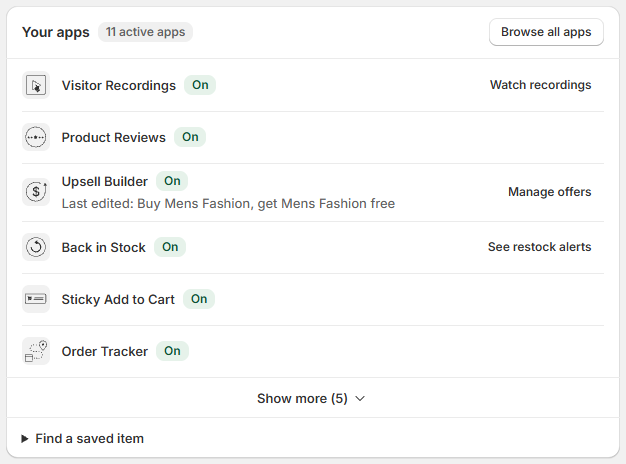
Your Vitals dashboard includes a Your apps card. It lists your apps and what's waiting in each one. At the bottom of the card, Find a saved item opens a list of everything you've set up, so you can jump straight back into any app, offer or pop-up.
The card appears once you've set up your first app. Until then, that spot helps you choose your first app instead.
Your apps
The card lists every app you've switched on. An app you've switched off stays on the list, after the apps that are on, while it still has a saved item. The badge beside the title shows how many of your apps are on.
Each row shows:
- The app's name. Click it to open the app.
- An On or Off badge.
- What's happening in the app, for some apps. For example: how many reviews are waiting for your approval, how many new recordings came in over the last 7 days, or the item you edited last. Click the item's name to open it. If it earned money in the last 30 days, the amount shows beside it. If it's a draft, a note says it isn't on your store yet.
- A shortcut button, for some apps, to what you open that app for most: Approve reviews (Product Reviews), Watch recordings (Visitor Recordings), Manage offers (Upsell Builder) or See restock alerts (Back in Stock).
When you have more than seven apps, the card shows the first six and a button below them that opens the rest.
To see every Vitals app and switch on more, use the Browse all button at the top of the card. It opens the Apps page.
Find a saved item
Click Find a saved item at the bottom of the card to open the full list of everything you've set up.
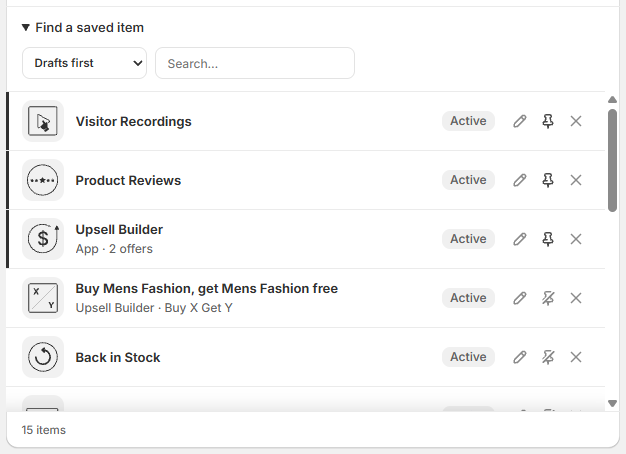
Every row is one thing you've set up - either a whole app, or an individual item you created inside one, like an upsell offer or a pop-up.
- The name. For an item you created, it's the name you gave it, with the app it belongs to underneath. For an app, it's the app's name, with the number of items it holds underneath (for example "App · 2 offers").
- A status badge, either Active or Draft.
- Three buttons: Edit (the pencil) opens the app or item's settings, Pin to top (the pin) keeps the row at the top of the list whatever the sort, and Hide from list (the X) takes the row off the list.
Active and Draft
- "Active" means the app is switched on and, for an individual offer or pop-up, that the item is published.
- "Draft" means one of those two is still missing, so shoppers aren't seeing it yet. A draft row is usually the fastest thing on your dashboard to fix - click Edit and finish it.
💡 Active here means "switched on and published". It doesn't check whether shoppers can actually see the widget on your storefront. For that, look at the line under the greeting at the top of your dashboard: Showing on your store means the Vitals app embed is on in your live theme. Not showing on your store means it's off, so shoppers can't see any Vitals widget.
Sorting and searching
The dropdown at the top of the list offers three orders:
- "Drafts first" - the default. Anything unfinished comes first, then the things you changed most recently.
- "Top earning" - highest 30-day revenue first.
- "Recently edited" - most recently changed first.
The search box beside it finds a row by its own name, or by the name of the app it belongs to. Type at least three letters. It matches from the start of a word rather than anywhere inside one - so typing "rev" finds your Reviews rows, while typing "iews" finds nothing.
Hiding and restoring rows
Click Hide from list (the X) on a row to take it off the list. Hiding changes nothing on your store — the app or offer keeps running exactly as before. It only tidies your dashboard.
To see what you've hidden, click Show hidden at the bottom of the list. The list switches to your archive, and you can bring any row back with Restore to the list (the arrow). Show my items takes you back.
Frequently Asked Questions
Does hiding a row turn the app off?
No. Hiding only removes the row from this list. The app or offer carries on working on your store exactly as it did before, and you can restore the row at any time from Show hidden.
Something I set up is missing from the list.
Check two things. Is it hidden? Open Show hidden to check. Is something typed in the search box? The list is filtered while it is. If none of those explain it, contact our support team.
Where can I see what each app or item earned?
Choose Top earning in the dropdown to put the rows that earned the most over the last 30 days first. For the figures across all of your apps, use View analytics on your dashboard.
The list says "Active" but shoppers still can't see the app.
Active here only confirms the app is switched on and the item is published. It doesn't check whether the Vitals app embed is on in your theme, or whether a published offer has a placement. Look at the line under the greeting at the top of your dashboard. If it reads Not showing on your store, the app embed is off: click Turn on app embed in the Vitals isn't visible on your store yet banner, or see Enabling the Vitals app via App Embed. If it reads Showing on your store, open the item with Edit and check where it's set to show. If you're still stuck, contact our support team.
I don't have the Your apps card at all.
It appears once you've set up your first app. On a brand-new store, or one where nothing has been set up yet, that spot helps you choose your first app instead — set something up and the card takes its place.
Still stuck?
Chat with our support team, we'll sort it out with you.