Theme Section - Compare Slider and Text
Last updated on October 22, 2026
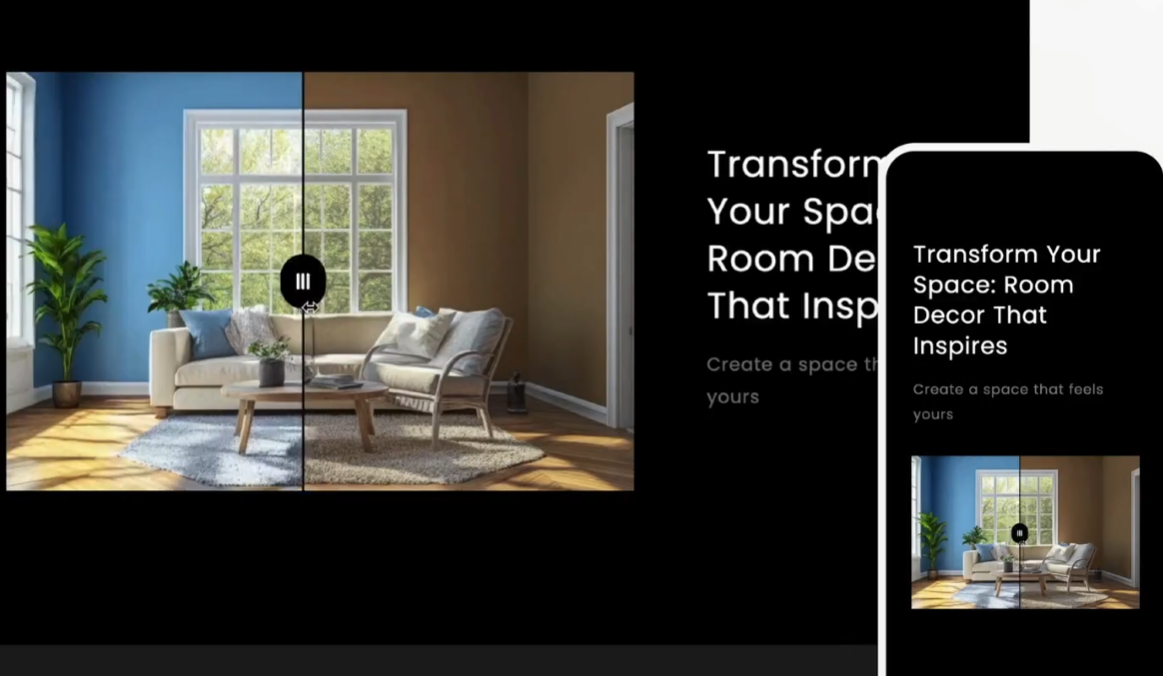
Showcase powerful before-and-after visuals using an interactive slider that customers can drag. Perfect for highlighting product results, transformations, or service impact in a visually compelling way.
✨ Key Benefits
🎚️ Interactive Before & After Slider
Engage your visitors with a draggable slider that compares two images side-by-side.
🧼 Perfect for Transformational Products
Ideal for beauty, cleaning, restoration, fitness, and similar industries where results matter.
🎨 Fully Customizable
Adjust the slider position, text, colors and background to fit your brand’s design.
💡 Want to see this theme section in action? Go to our demo store here to experience this intuitive theme section, along with our other Theme Sections!
Installing the Compare Slider & Text theme section to your Shopify theme
Before going to the Shopify Theme Editor to insert this theme section, you would first need to install it from the Vitals app.
For a complete list of instructions, you may refer to this article: How to Add a Theme Section to Your Shopify Store
Once you have successfully installed the theme section, you can now go to the Shopify Theme Editor and insert it by clicking Add section > Vitals: Compare Slider & Text.
Setting the images to be used in the Compare Slider & Text theme section
For this theme section to work effectively, you need to provide two images (left and right) that will provide the Comparison behavior.
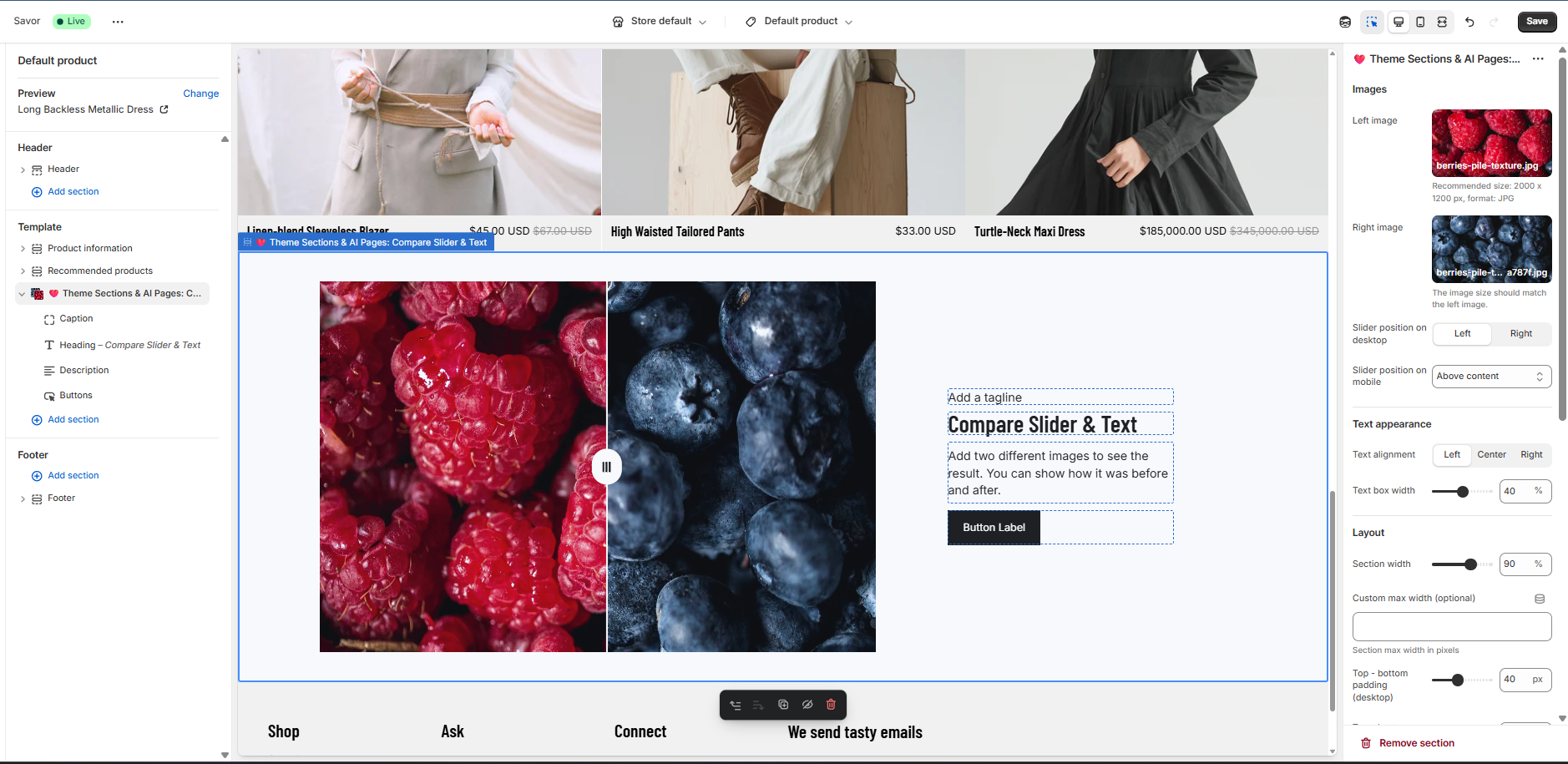
This can be done by selecting the inserted theme section in the left sidebar and then defining the left and right images.
Once the left and right images are properly setup, the Compare Slider & Text theme section would show it accordingly with an interactive button that can be dragged to the left or to the right.
Customizing the Compare Slider & Text Theme Section
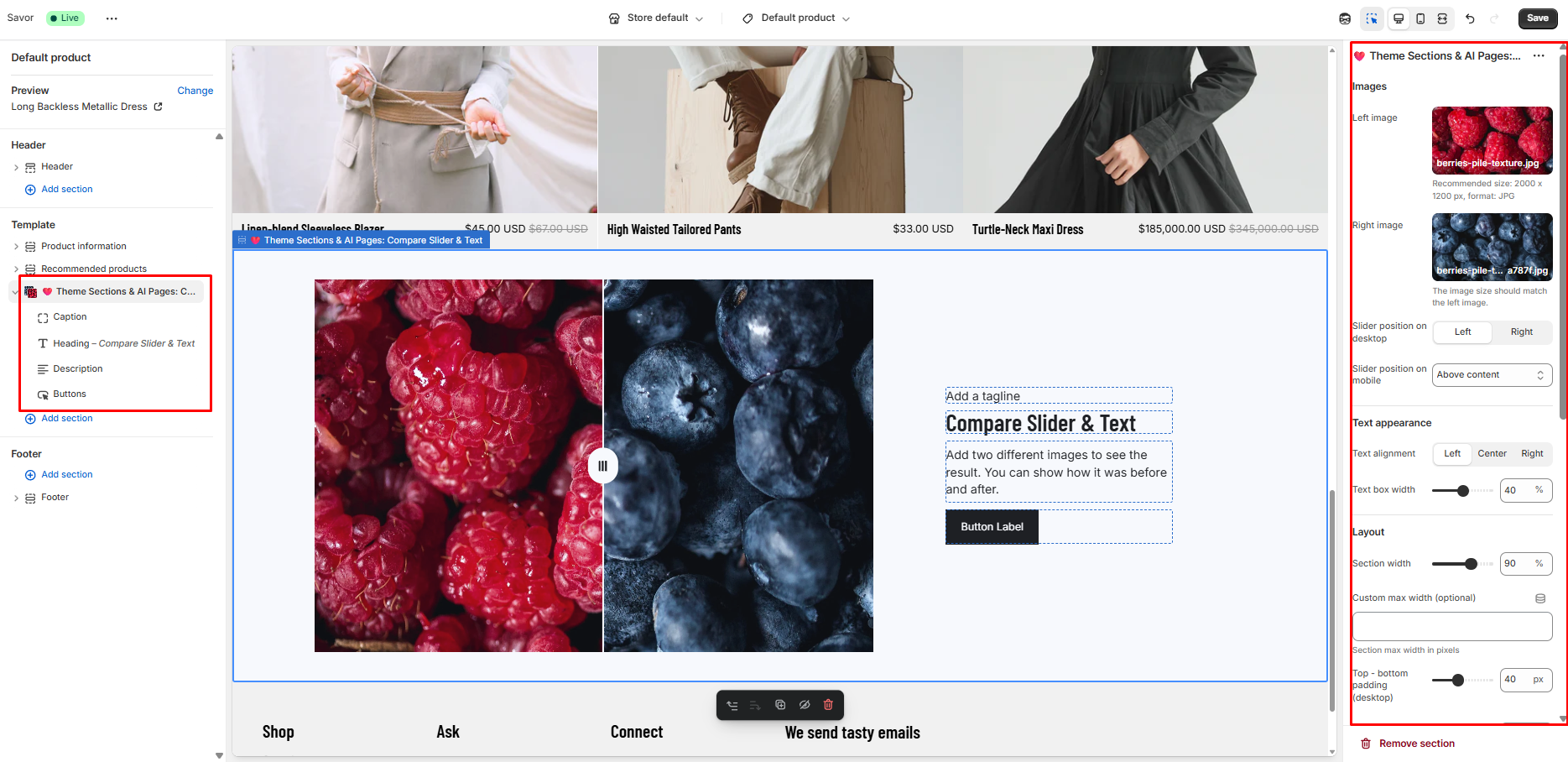
Customizing this theme section is easy, as all its appropriate settings are already found inside the theme editor. You just need to click on a specific element of the theme section (on the left sidebar), and its customizable settings will appear on the right sidebar.
- Images - left image, right image, slider position (Left or Right on desktop, Above or Below the content on mobile)
- Text appearance - text alignment and text box width
- Layout - section width, custom max width, and padding and margin for desktop and mobile
- Design - section background, text box background, drag handle color and background, and an optional background image with an overlay color and opacity
- Heading, Caption, Description and Buttons blocks - the text next to the images, with size, color and font options, and a primary and secondary button (label, link, style and colors)
Removing a Theme Section
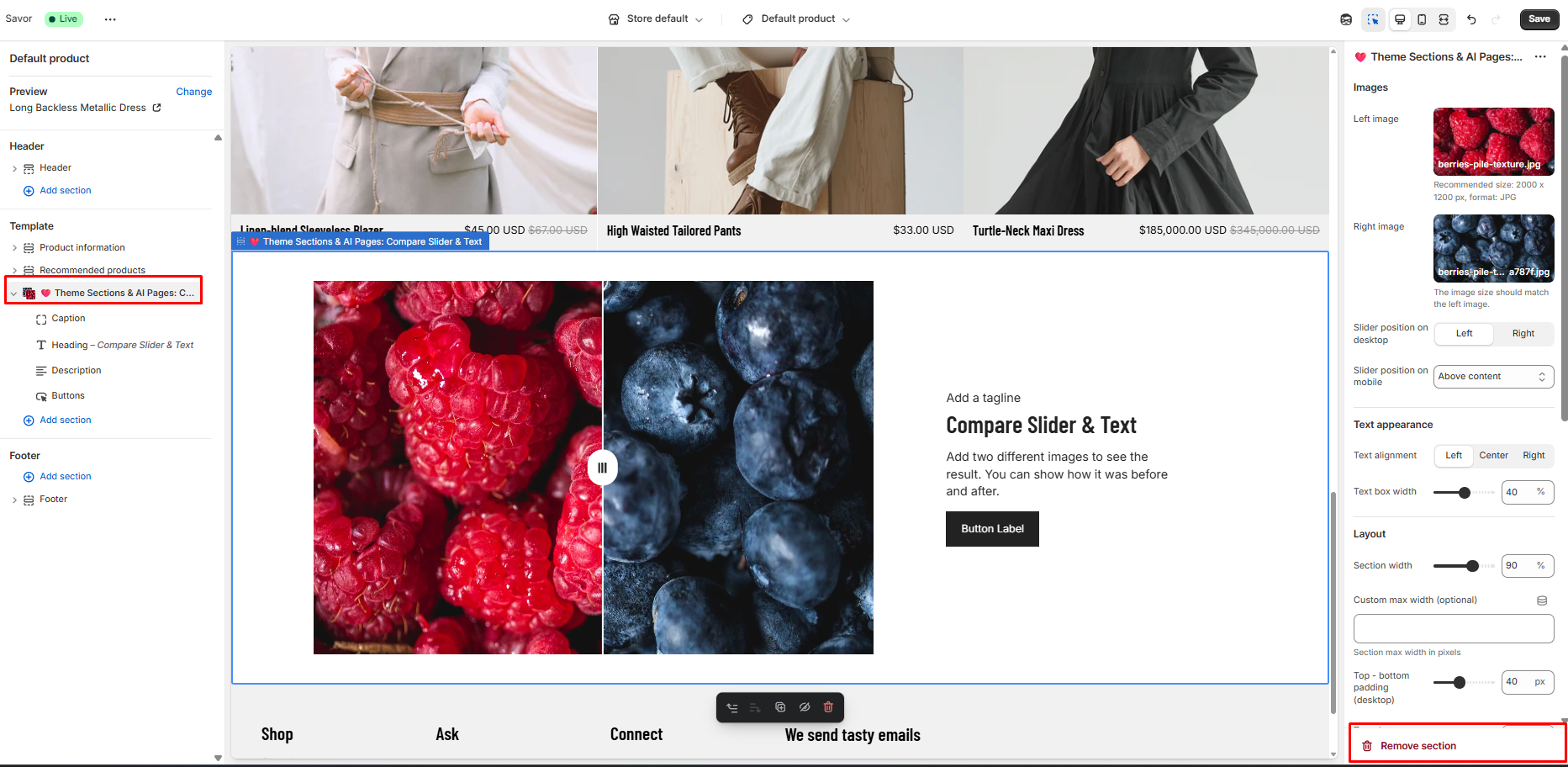
Removing an unwanted theme section is as easy as clicking the Remove section button after selecting a theme section:
💡 Pro Tips
- Use high-resolution images for a sharper, more impressive comparison.
- Pair the slider with testimonials or product details to build trust.
- Position it near CTAs (like "Shop Now") to nudge conversions.
The Compare Slider & Text section combines storytelling and proof in one elegant, interactive experience. Great for stores where visuals sell the transformation.