Theme Section - Image & Text - Overlap
Last updated on October 22, 2026
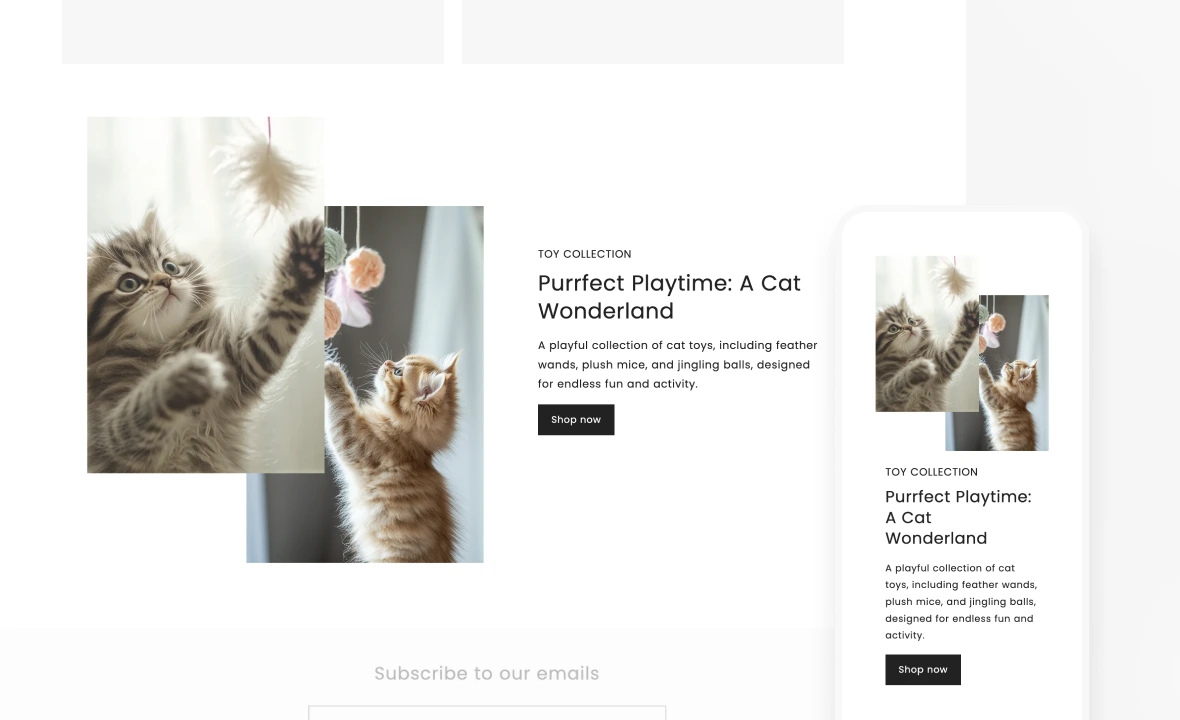
The Image & Text – Overlap theme section in Vitals is designed to make your content visually compelling by placing two overlapping images next to your text. Use it to highlight promotions, product features, or brand storytelling in a bold and engaging way.
✨ Key Features
🖼️ Overlapping Image & Text Layout
Show two overlapping images next to your text, with the images on the left or right.
💬 Highlight Key Messages
Perfect for showcasing promotional offers, product highlights, or your brand’s unique story.
🎨 Fully Customizable
Adjust text position, image alignment, background, colors, fonts, and spacing to match your brand’s look and feel.
🛠️ Best Use Cases
- ✅ Feature new product collections
- ✅ Promote seasonal sales or limited-time offers
- ✅ Tell a story about your brand or values
- ✅ Direct attention to CTAs (calls-to-action)
💡 Want to see this theme section in action? Go to our demo store here to experience this intuitive theme section, along with our other Theme Sections!
Installing the Image & Text - Overlap theme section to your Shopify theme
Before going to the Shopify Theme Editor to insert this theme section, you would first need to install it from the Vitals app.
For a complete list of instructions, you may refer to this article: How to Add a Theme Section to Your Shopify Store
Once you have successfully installed the theme section, you can now go to the Shopify Theme Editor and insert it by clicking Add section > Vitals: Image & Text - Overlap.
Adding the desired images to the Image & Text - Overlap Theme Section
For this theme section to work effectively, you must upload and select the images that you would like to showcase in the section. It is recommended to use high-quality images.
This can be done by selecting this theme section itself in the left sidebar and importing the images via their corresponding sections on the right sidebar.
💡 You can upload different images for desktop and mobile.
Customizing the Image & Text - Overlap Theme Section
Besides the image upload section on the right sidebar, you can also customize different areas of the theme section through that same sidebar:
- Images - first and second image (with optional separate images for mobile), images position (Left or Right on desktop, Above or Below the content on mobile), aspect ratio (Square, Portrait or Landscape), image layout (which image sits in front: Front bottom, Front top, Back bottom or Back top) and border color
- Text - text alignment and text box width
- Design - section background color, or a background image with an overlay color and opacity
- Layout - section width, custom max width, and padding and margin for desktop and mobile
- Heading, Caption, Description and Buttons blocks - the text next to the images, with size, color and font options, and a primary and secondary button (label, link, style and colors)
Removing a Theme Section
Removing an unwanted theme section is as easy as clicking the Remove section button after selecting a theme section.
💡 Tips for Best Results
- Use high-contrast images and text for better readability.
- Keep text concise for quick engagement.
- Use a clear CTA button to direct users to the next step.
Make your message pop and your content shine with the Image & Text – Overlap section.
A perfect blend of style and storytelling. ✨