Translating Your Upsell Offers
Last updated on September 4, 2026
If your store sells in more than one language, the text inside your upsell offers can be translated too — headlines, badges, button labels, tier names and the rest. Each offer keeps its own set of translations, and Vitals can write the first draft for you.
This article covers translating an individual offer. For how translations work across Vitals as a whole — which languages are supported and how the right one is chosen for each shopper — see Multilingual Capabilities of the Vitals App.
What you can translate here
An offer's translations page holds the text belonging to that one offer. Text that appears only once across the whole app — the Pop-up on Checkout button, for example, and other shared labels — is not on this page. That lives in the Localization section of the Upsell Builder app, and you edit it once for every offer.
Translations are available for every offer type except One Click Post-Purchase, whose text is rendered by Shopify after checkout.
ℹ️Selling in a single language? None of this appears. There is nothing to translate, so Vitals keeps it out of your way.
Opening an offer's translations
There are a few ways in:
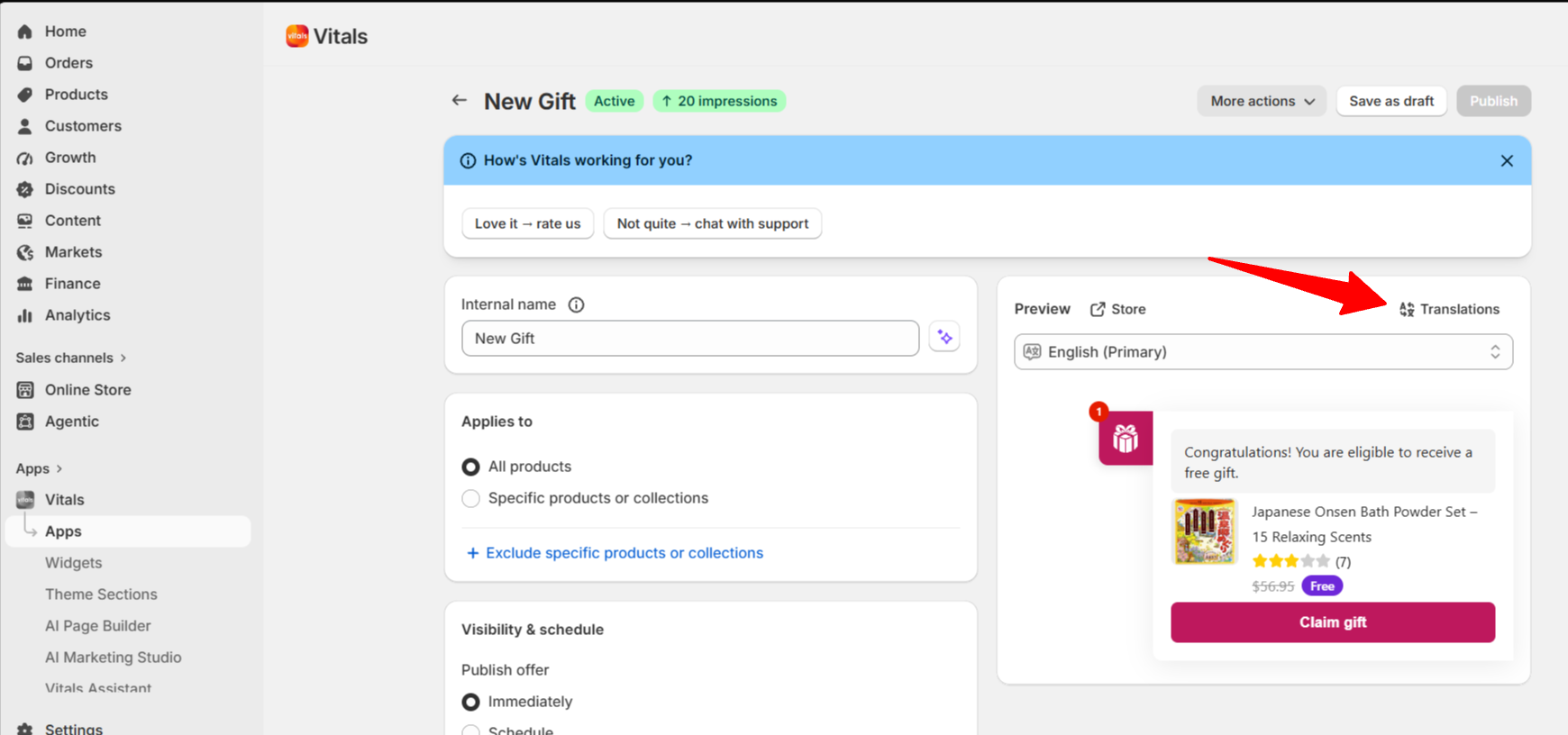
Open the offer, then click Translations in the header of the Preview panel.
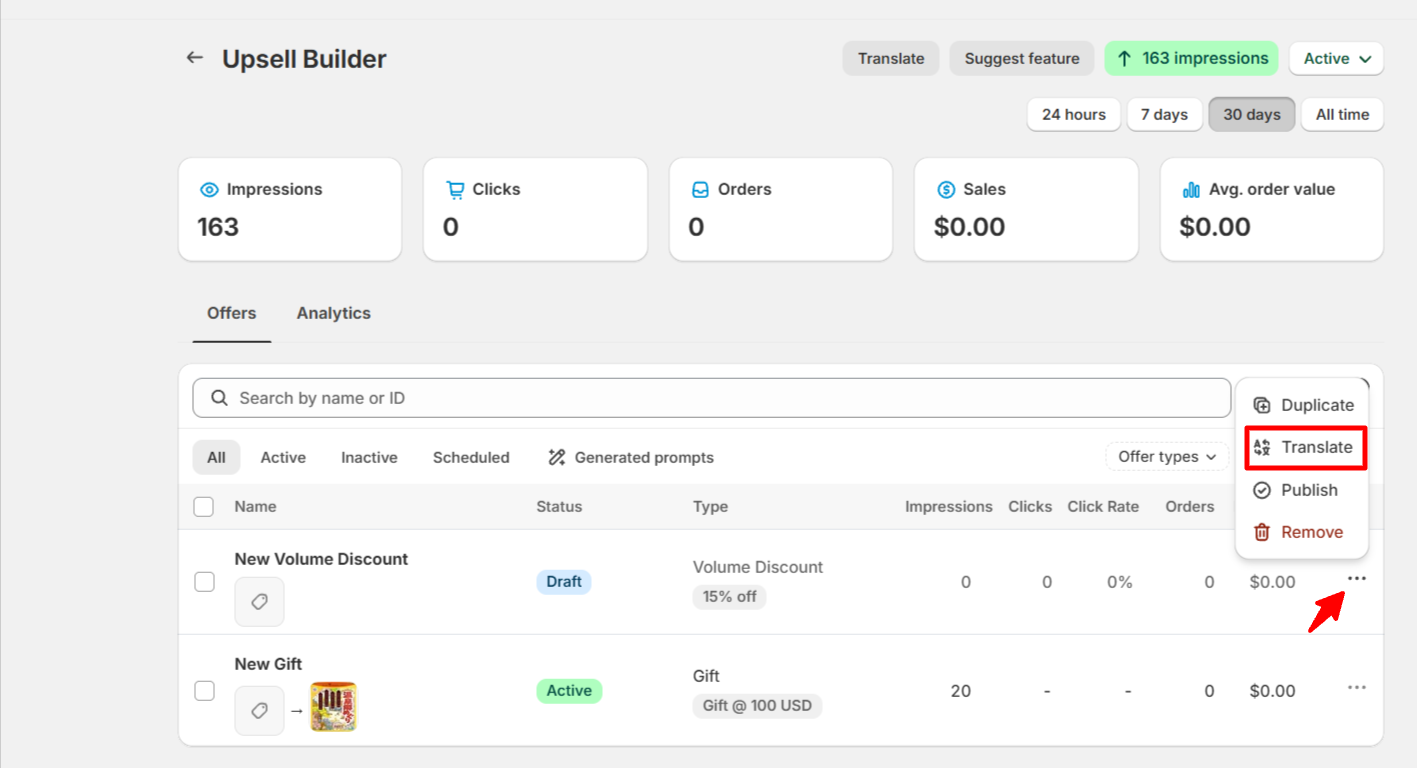
Or, from the offers list, open the ⋯ menu on the offer's row and choose Translate.
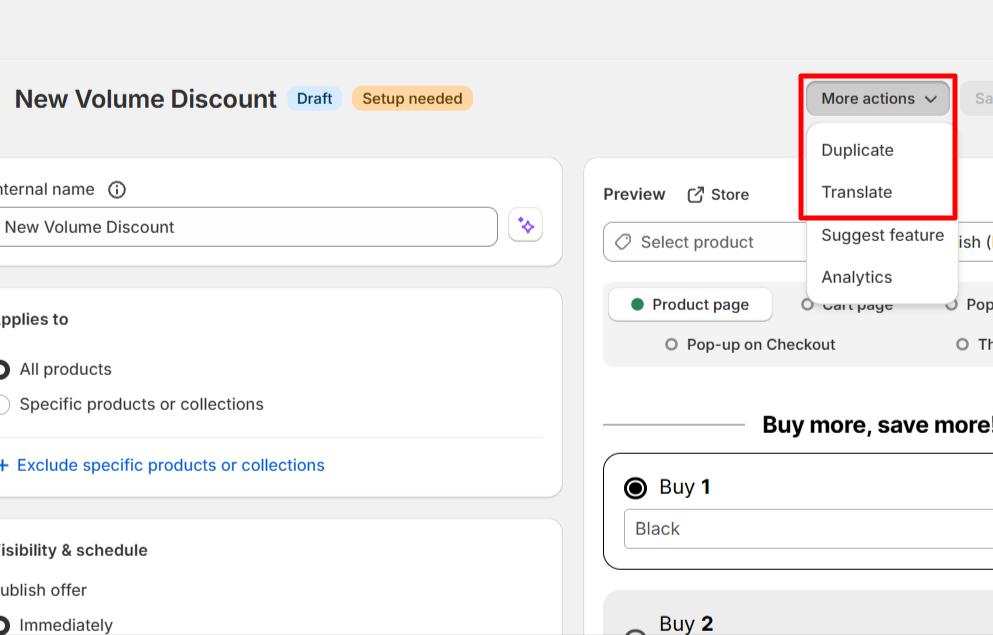
Or, inside the offer, open More actions in the header and choose Translate.
Any of these opens the translations page in the same tab. If you have unsaved changes in the offer, Vitals warns you before you leave, and the back arrow at the top of the translations page brings you straight back to the offer you came from.
The page opens with your store's primary language on one side and the language you are translating into on the other. You only pick the language you are translating into — the language you translate from is always your store's primary language, because that is what shoppers fall back to.
Seeing an offer the way a shopper will
Back in the offer editor, the Preview panel has a "Preview language" picker. Switch it and the preview renders the offer exactly as a shopper browsing in that language sees it, including falling back to your primary language for anything not yet translated. Only your published languages are listed.
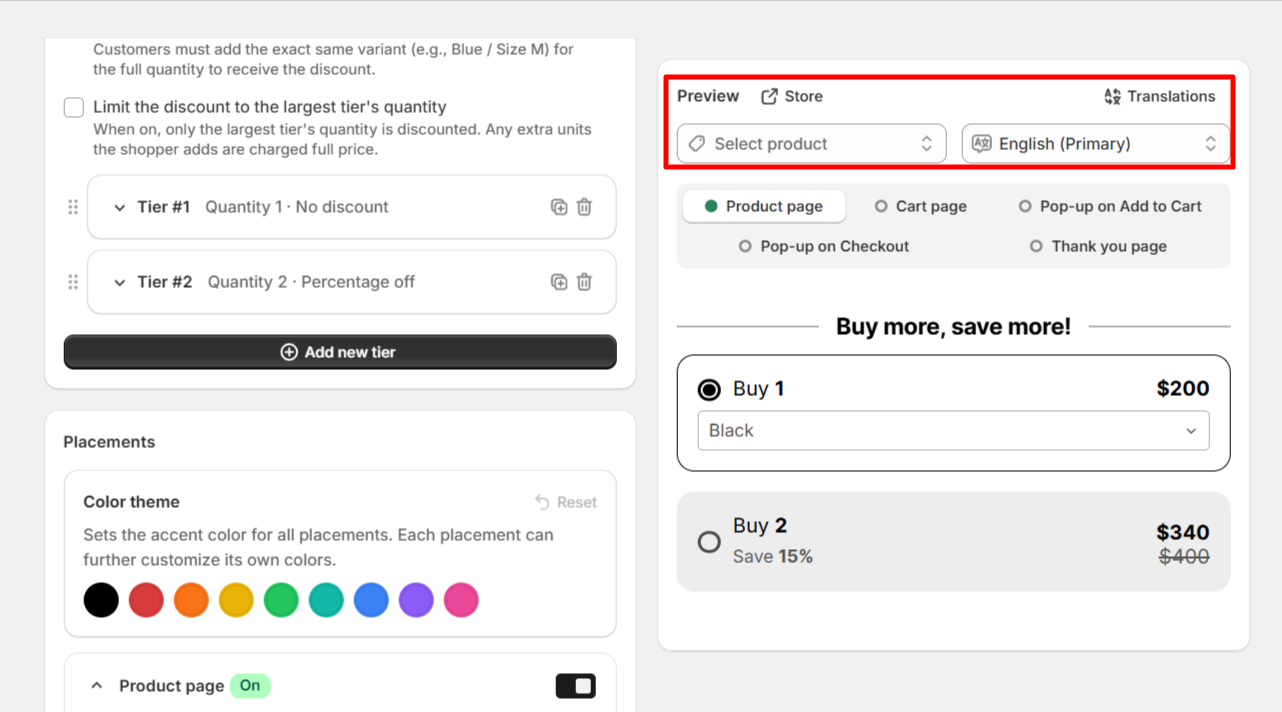
One thing worth knowing: the offer's configuration fields always edit your primary language. Typing in them never changes a translation. That is what the translations page and the buttons below are for.
If the language you are previewing has text that has not been translated, a notice above the preview tells you how many fields are affected and offers to fill them in.
Letting Vitals translate for you
Vitals can generate translations so you only have to review them rather than write them.
To fill in what's missing, click the button named after your target language. For example "Auto-translate to French". It is available both in the notice on the offer preview and as the main button on the translations page. It only writes fields that are empty, so any wording you translated yourself is left exactly as it is.
To redo a language from scratch, open the menu beside that button on the translations page and choose "Replace all X translations".
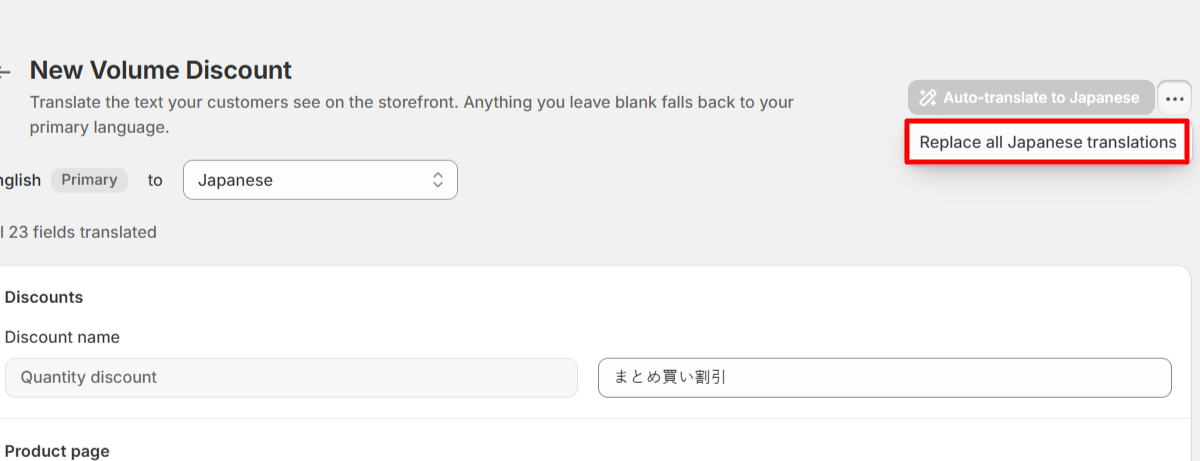
Because this replaces wording you may have written by hand, Vitals asks you to confirm first, telling you how many translations will be replaced — click Replace and continue to go ahead, or Cancel to back out. If nothing is translated in that language yet there is nothing to replace, so it runs straight away without asking. Switch language and run it again for the next one.
Translated fields are marked "Auto-generated" so you can see at a glance which wording came from Vitals and which you wrote.
Nothing is translated or saved automatically. Every run lands as unsaved changes for you to look over. Click Save to keep them, or Discard to put everything back the way it was.
Keeping translations current when you edit an offer
Translations do not refresh themselves, so editing text you have already translated leaves the old translations behind. Vitals catches this for you: change primary-language text in an offer that has translations, and a notice appears with "Update all languages".
Clicking it re-translates just the fields you changed, into every published language at once. Then a single Save stores your edit and its refreshed translations together — and Discard drops both.
Emptying a field clears its translations everywhere too, so wording you have deleted cannot keep appearing on your store in another language.
Checking your progress
The translations page tells you where you stand:
- A status line reads "4 of 12 translated", or "All 12 fields translated" once you are done.
- "Show only missing translations" hides every field that is already translated, so you can work through just what is left. When an auto-translate run fills fields, Vitals switches this filter off for you, so the fields it just wrote stay on screen for review instead of disappearing behind the filter.
- Fields still needing attention carry a "Missing translation" badge.
Fields you deliberately leave blank in your primary language are not counted as missing — there is nothing to translate — and sections that are entirely empty are hidden, so "All fields translated" is genuinely reachable.
Placeholders
Some offer text contains placeholders — things like {{ product }} — that Vitals swaps for real values on your storefront. They are highlighted in the primary-language column so they are easy to spot, and auto-translate carries them through unchanged.
If a translation is missing a placeholder that its source text has, Vitals flags it on that field. That catches a broken placeholder while you are still editing, rather than after it reaches your store.
The spacing inside a placeholder is not yours to change, so if you try to delete a space inside one while typing a translation, the character simply reappears. Deleting a whole placeholder does go through — and the missing-placeholder flag then picks it up.
Right-to-left languages
Arabic and Hebrew translations are displayed right-to-left as you type them, so you can read and edit them naturally.
Frequently Asked Questions
Why don't I see a "Translations" link or a "Preview language" picker on my offer?
Both appear only when your store publishes more than one language in Vitals. They exist to switch between languages, so on a single-language store there is nothing for them to do. Add and publish a second language and they appear.
The Translate actions work slightly differently: they also show on a store whose single published language is not English, because there is still something worth translating there. So you can have Translate available while the Translations button and the Preview language picker stay hidden.
Why is the auto-translate button greyed out?
The language you are translating into needs to be published in Vitals first. Hover the button and it tells you: "Auto-translate only works on published languages. Publish this language to use it." Publish the language, then run it again.
This is about the language's status in Vitals, not in Shopify. A language already live on your storefront can still be unpublished in Vitals, and auto-translate will not fill it until you publish it here.
The other reason is simpler: there is nothing left for it to fill. "Auto-translate to French" only writes empty fields, so once that language is fully translated the button greys out — quietly, with no tooltip. It counts what you have saved, not what is on screen, so just after a run, while you are still reviewing unsaved results, it can stay clickable. "Replace all French translations" in the menu beside it is unaffected by that count.
Will auto-translate overwrite translations I wrote myself?
Not unless you ask it to. "Auto-translate to French" only fills fields that are empty. The only action that replaces existing wording is "Replace all French translations", which sits behind a confirmation dialog telling you how many translations it will replace.
And either way, nothing is stored until you click Save — Discard puts your previous wording back.
I translated my offer, but shoppers still see English. Why?
A few things to check:
- Did you save? Auto-translate results are unsaved changes until you click Save.
- Is the language published? An unpublished language is not served to shoppers.
- Is the text actually part of this offer? Shared labels used across the whole app live in the Upsell Builder Localization section, not on an individual offer's page. The offer editor's Preview language picker is the quickest way to tell: switch to that language and see which text is still falling back.
What happens to unsaved translations if I switch language or leave the page?
Vitals stops you before they are lost. Change the language you are translating into, click the back arrow, or navigate anywhere else while a run or your own edits are unsaved, and a dialog appears: Leave page goes ahead and drops the changes, Continue editing returns you to the page so you can Save first. Reloading or closing the tab raises your browser's own warning for the same reason.
Can I translate a One Click Post-Purchase offer?
No. That offer appears after checkout, on a page Shopify renders itself, so its text is not translated through Vitals.
Do I have to translate every offer separately?
Yes — each offer has its own text and its own translations, which is what lets you word each one differently per language. Auto-translate makes each pass quick, and the status line and "Show only missing translations" filter help you see what is still outstanding on the offer you are working on.