Understanding the 'What You've Set Up' Table on Your Dashboard
Last updated on August 27, 2026
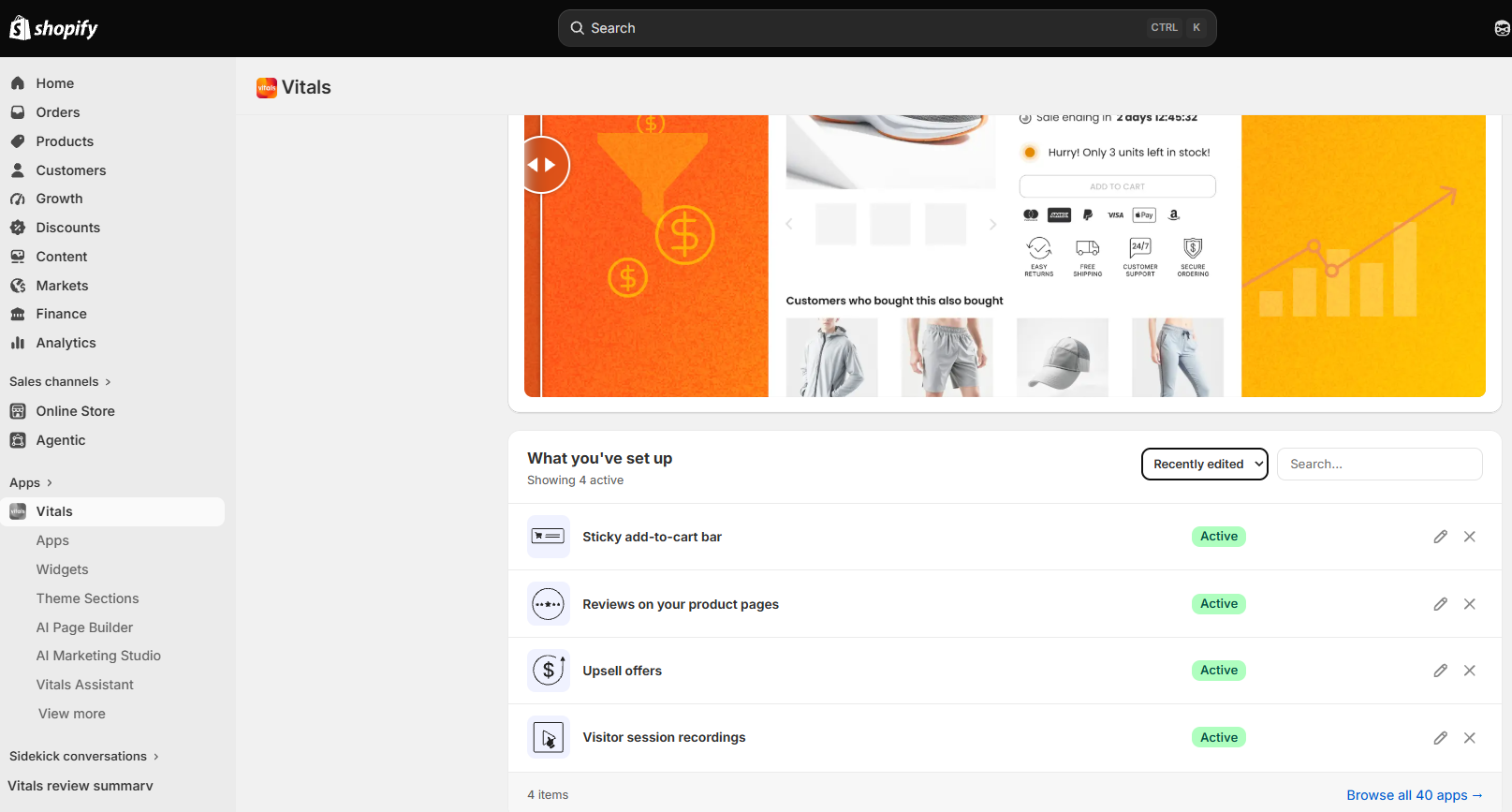
Your Vitals dashboard includes a What you've set up table - a running list of the things you've configured recently, so you can see at a glance what's on your store, how each one is doing, and jump straight back into anything that needs finishing.
It appears once you've set up your first app. Until then, you'll see the apps catalog in that spot instead.
What each row shows
Every row is one thing you've set up - either a whole app, or an individual item you created inside one, like an upsell offer or a pop-up.
- The name. For an item you created, it's the name you gave it, with the app it belongs to underneath. For an app, it's a plain-language description of what it does on your store — so the Stock Scarcity app reads as "Low stock warnings".
- A status badge, either Active or Draft.
- What it earned over the last 30 days.
- An Edit button that opens that app or item's settings.
- A dismiss button that takes the row off the list.
Live and Draft
- "Live" means the app is switched on and, for an individual offer or pop-up, that the item is published.
- "Draft" means one of those two is still missing, so shoppers aren't seeing it yet. A draft row is usually the fastest thing on your dashboard to fix - click Edit and finish it.
💡 Live here means "switched on and published". It doesn't check whether shoppers can actually see the widget on your storefront - that's what the App Value Pulse chip inside each app is for. If a row says Live but the app's chip says Setup needed, follow the chip: hover it, and the card names the one thing that's blocking you.
The earnings column
The money figure on each row is the revenue attributed to that app or item over the last 30 days. It has four states, and they mean different things:
- A figure like "+$2.1K" — what that row earned in the period.
- An empty cell — this row isn't the kind of thing that earns. Trust badges, cookie banners and size charts build trust or improve browsing rather than generating revenue directly, so there's nothing to attribute. Nothing is missing.
- A dash with "not live" — the row is a draft, so it hasn't had the chance to earn anything yet.
- "$0.00" — different from an empty cell. This row can earn, and made nothing over the last 30 days.
For the full picture across all of your apps, use View analytics at the top of the dashboard.
Sorting and searching
The dropdown above the table offers three orders:
- "Drafts first" - the default. Anything unfinished comes first, then the things you changed most recently.
- "Top earning" - highest 30-day revenue first.
- "Recently edited" - most recently changed first.
The search box beside it finds a row by its own name, or by the name of the app it belongs to. It matches from the start of a word rather than anywhere inside one - so typing "rev" finds your Reviews rows, while typing "iews" finds nothing.
Hiding and restoring rows
Click the dismiss button on a row to take it off the list. Dismissing changes nothing on your store — the app or offer keeps running exactly as before. It only tidies your dashboard.
To see what you've hidden, click Show dismissed at the bottom of the table. The list switches to your archive, and you can restore any row from there. Hide dismissed takes you back.
Why an app you set up isn't listed
The table covers what you've set up or changed in the last 30 days. It's a recent-activity view, not a complete inventory of your store.
So an app you configured six months ago and haven't touched since won't have a row - it's still running, it just has nothing recent to report. The same applies to your archive: a dismissed row leaves it once 30 days have passed since you last edited that item.
To see everything Vitals offers, and everything you have switched on, use Browse all apps at the bottom of the table.
Frequently Asked Questions
Does dismissing a row turn the app off?
No. Dismissing only removes the row from this list. The app or offer carries on working on your store exactly as it did before, and you can restore the row at any time from Show dismissed.
An app I set up is missing from the table.
Check three things, in this order. Has it been more than 30 days since you last edited it? The table only covers recent activity. Is it dismissed? Open Show dismissed to check. Is something typed in the search box? The list is filtered while it is. If none of those explain it, contact our support team.
I dismissed something and now I can't find it in the archive.
Archived rows age out on the same 30-day clock as the rest of the table, counted from when you last edited that item rather than from when you dismissed it. If it's gone, the item itself is untouched and still running — open it from the Apps page as usual.
Why do some rows have no money figure at all?
Because those rows can't earn. Apps that build trust, capture emails or improve browsing don't have revenue attributed to them, so their cell is left empty rather than showing a zero. A row that can earn and simply hasn't shows $0.00 instead.
The table says "Live" but shoppers still can't see the app.
Live here only confirms the app is switched on and the item is published. It doesn't check whether the Vitals app embed is enabled in your theme, or whether a published offer has a placement. Open the app and hover its App Value Pulse chip — if it says Setup needed, the card will name exactly what's missing.
I don't have this table at all.
It appears once you've set up your first app. On a brand-new store, or one where nothing has been configured yet, you'll see the apps catalog in that spot instead — set something up and the table takes its place.