Using the AI Ads Tool
Last updated on October 22, 2026
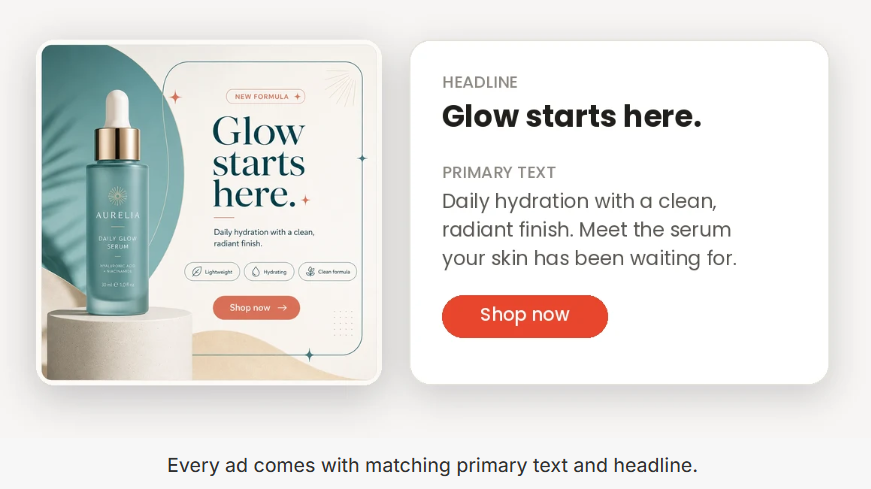
AI Ads turns one of your products into a finished image ad, with the ad copy already written for it. Pick a product, choose what kind of picture you want and the size it needs to be, and Vitals generates the image along with a matching primary text and headline — the two pieces of copy Meta asks for when you set up an ad.
You can then copy the text, download the image, and paste both straight into your ad manager.
Where to find it
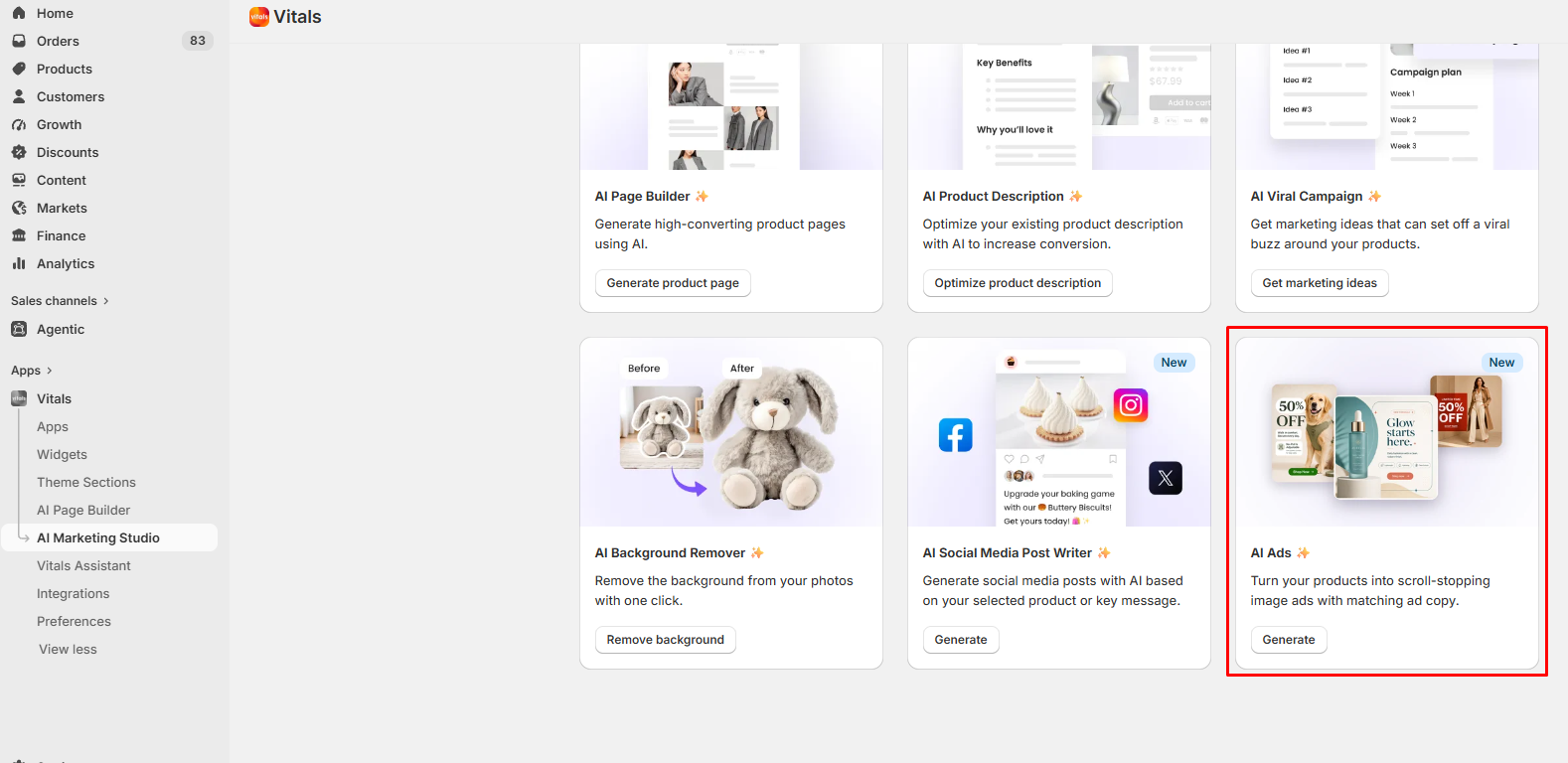
- Open the Vitals dashboard and go to AI Marketing Studio in the sidebar.
- Select the AI Ads card.
- Click Generate ad to open the generator.
Choosing the product and image
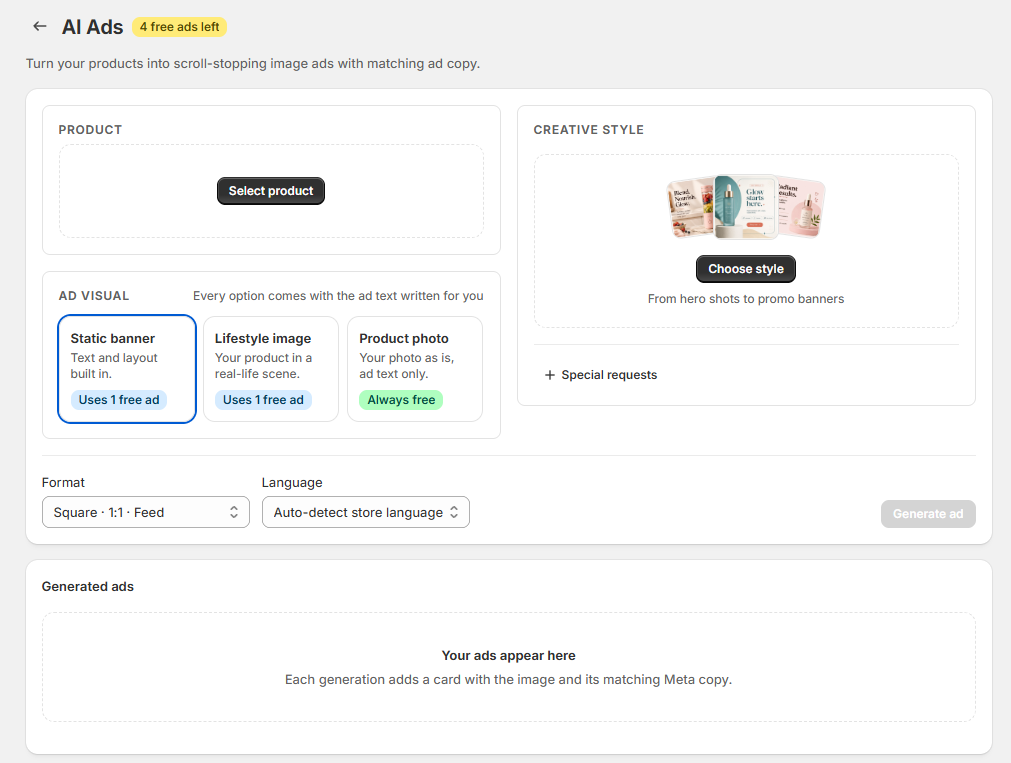
The first card is Product. Click Select product to pick one from your catalog, then choose which of its photos the ad should be built from under Product image.
Vitals reads the rest from your catalog on its own. The product's title, description, price and variants all feed the copywriter, so you don't need to describe the product yourself.
The three kinds of ad
Under Ad visual you choose what the ad's picture should be. All three come with the same written ad copy — only the image changes.
- "Static banner" — an AI-generated banner with the ad text and layout drawn into the image. This is the option most people mean by "an image ad".
- "Lifestyle image" — your product placed in a real-life setting, with no text on the picture. Useful when your only photography is a plain shot on a white background.
- "Product photo" — your own photo runs as the ad exactly as it is, and only the ad copy is written for you. Nothing is generated, so this option is always free.
The card shows what each option costs before you choose.
Picking a creative style
For a Static banner, the Creative style card decides how the banner is laid out. Click Choose style and pick one of six:
- "Let AI decide" — no fixed style. Good when you're not sure which angle fits.
- "Hero product" — your product front and center with one bold claim.
- "Main benefit + CTA" — leads with the main benefit and a clear call to action.
- "Benefits list" — a short list of your strongest selling points.
- "Before & after" — shows the change your product makes.
- "Promo" — built around your discount or offer.
The images in the picker are examples from our gallery — your ad is generated with your own product and copy, not with what you see there.
A Lifestyle image has no style step, because nothing is written onto the picture. A Product photo has none either, since your photo is used unchanged.
Special requests
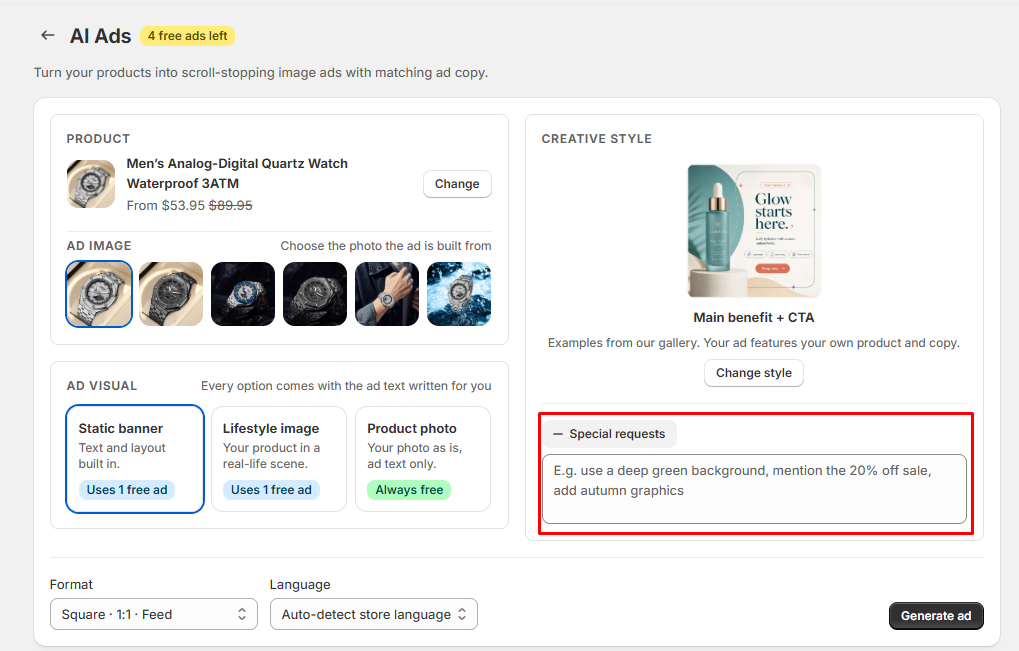
Special requests is where you tell the AI anything it can't read from your catalog, like a colour palette, a real promotion you're running, a mood, or the scene you want. It's optional on most runs and collapsed until you click it.
Two cases where it matters more than usual:
- The "Promo" style requires it. A discount isn't part of your product data, so unless you type the offer, there's nothing for the AI to put on the banner. The field stays open and the ad won't generate until you fill it in.
- On a "Lifestyle image", it's the only way to choose the setting. There's no scene picker, so if you want a specific one — "on a marble bathroom counter, soft morning light" — this is where it goes.
Format and language
At the bottom of the generator you'll find two dropdowns.
Format is the shape the picture is exported in:
- "Square" — 1:1, for feeds.
- "Portrait" — 3:4, for the Meta feed.
- "Story" — 9:16, for Reels and TikTok.
- "Landscape" — 16:9, for link ads.
Language is the language the ad copy is written in. It's set to auto-detect, which uses your store's own language, and you can pick a different one from the list at any time.
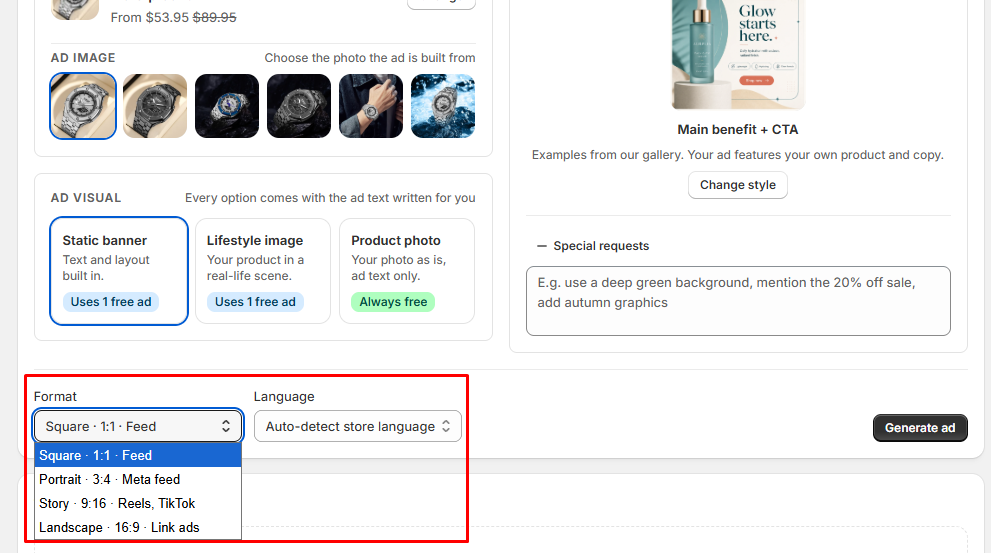
When you're ready, click Generate ad.
While your ad is generating
A generation takes up to two minutes, and it happens in two steps: the ad copy is written first, then the picture is created. A card appears in your gallery showing the progress.
You don't have to wait on the page. The ad keeps generating even if you navigate away, and it will be waiting for you in Generated ads when you come back.
Your generated ads
Every ad you make lands in the Generated ads gallery below the generator, newest first, laid out the way it would look as a real post.
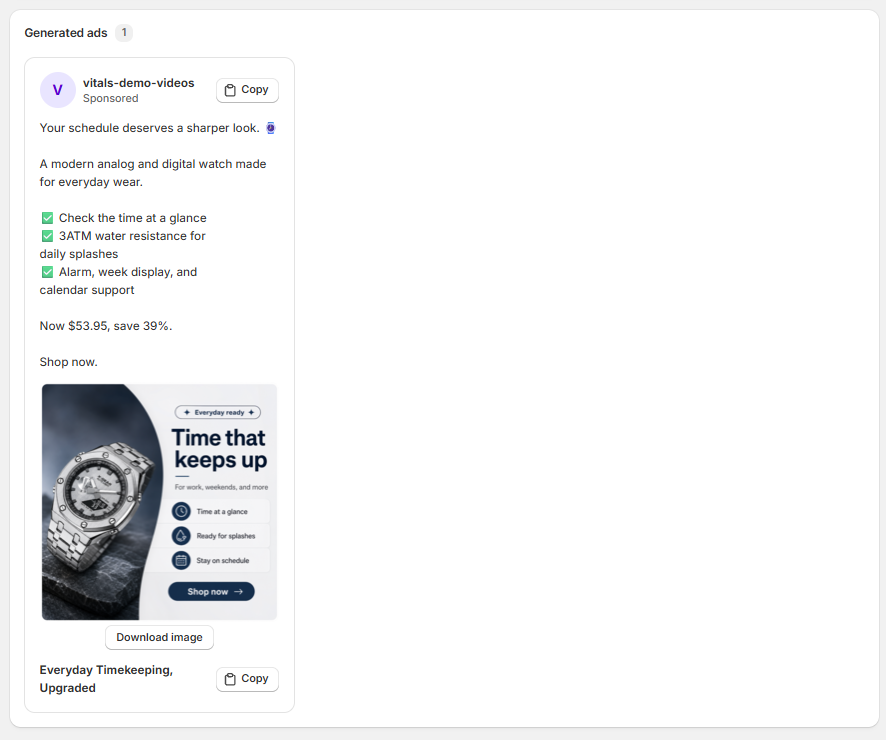
On each card you can:
- Copy the primary text, using the button at the top.
- Copy the headline, using the button at the bottom.
- Download the image.
- Click the picture to open it at full size.
Use Load more to see older ads.
⚠️ Generated ads are kept for 14 days and then removed. The gallery is a rolling window rather than permanent storage, so download anything you want to keep.
What it costs
Your plan includes a number of free ads. The Free ads left counter in the header of the tool shows exactly how many you have. That's always the number to trust.
- A Static banner or a Lifestyle image uses one free ad. Once your free ads are used up, each one costs $0.25 USD, billed as a usage charge on your Shopify bill. To generate more, you first approve usage-based charges in Shopify. Stores on annual pricing can't be charged per ad, so contact our support team if you want to switch to monthly pricing.
- A Product photo ad is always free. No image is generated, so it never uses a free ad and is never charged.
- You're only charged for an ad that finishes. If a generation fails, nothing is billed and your free ads are untouched.
Once your free ads are gone, the tool defaults to the Product photo option, so you're never charged by accident.
Frequently Asked Questions
Do I have to write anything myself?
No. Vitals reads your product's title, description, price and variants from your catalog and writes the primary text and headline from those. Special requests is there if you want to steer it, but it's optional on every style except Promo.
Why can't I click Generate ad?
Either you haven't chosen a creative style yet, or you've picked the Promo style and haven't typed your offer into Special requests. Both are required before a banner can be generated.
My ad has been generating for a while. Did it fail?
Probably not. A generation takes up to two minutes, and it carries on in the background even if you leave the page. Check Generated ads again in a few minutes. The finished ad usually appears there on its own.
Can I edit the ad copy or the image afterwards?
Not inside Vitals. Copy the text and download the image, then adjust them wherever you build your ads. If the result isn't what you wanted, generating again with a different creative style or a clearer special request is usually quicker than editing.
An ad I made last month has disappeared.
That's expected. Generated ads are kept for 14 days and then removed, so the gallery only ever shows recent work. Download anything you want to keep as soon as it's ready.
Can I use these ads outside of Meta?
Yes. The image is yours to use anywhere, and the four formats cover most placements. The written copy is shaped around Meta's primary text and headline fields, but it works as a starting point for other platforms too.