Using the AI Avatar Video Ads Tool
Last updated on October 22, 2026
What is AI Avatar Video Ads?
AI Avatar Video Ads is a feature in the Vitals app designed to help you create customized video presentations for your products. Using AI, it generates both the script and video content.
How to Access AI Avatar Video Ads
- Open the Vitals app and select AI Marketing Studio from the left-hand menu.
Select the "Generate Video" button inside the AI Avatar Video Ads section to start:
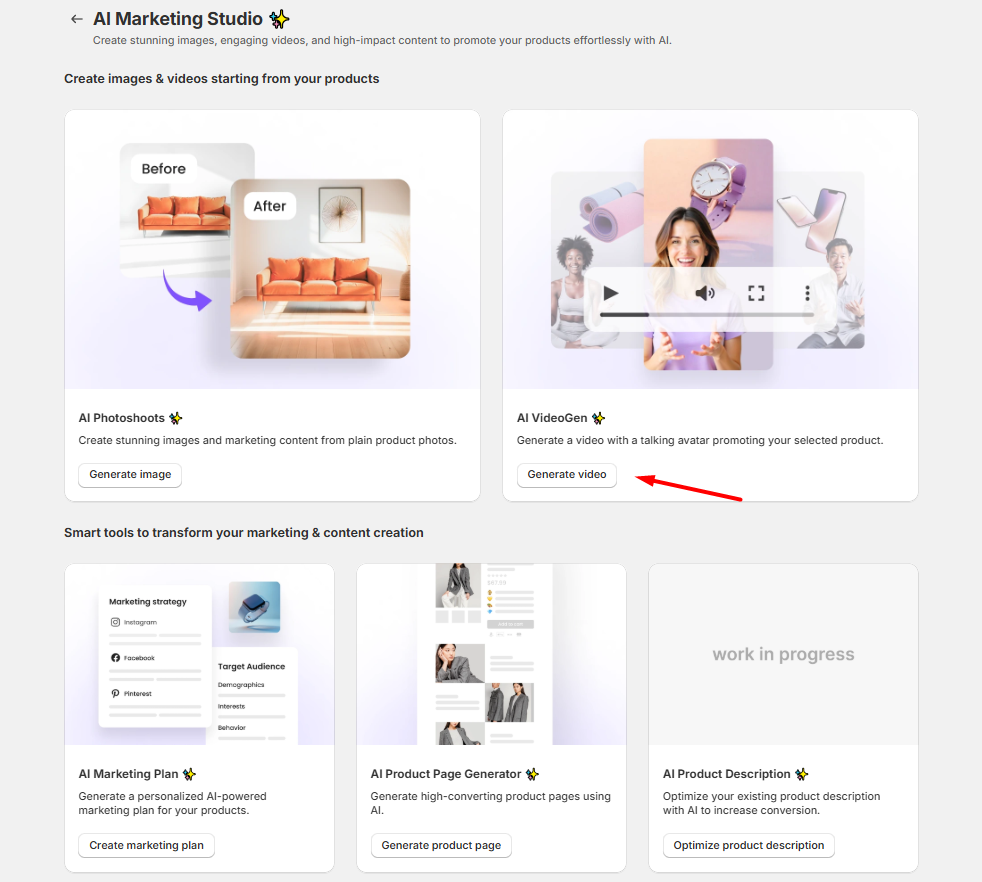
💡 Important: The All-in-One plan includes one free video preview, once; after that, usage charges apply for each video preview.
Steps to Create a Video Using AI Avatar Video Ads
- Choose a Product:
- Select a product from your store to generate a video for.
- Confirm the product details and images to be used.
- Confirm or update the product title, product description and the assets (images and videos) to be used by the generated video.
- Describe Your Ideal Audience and Video Length:
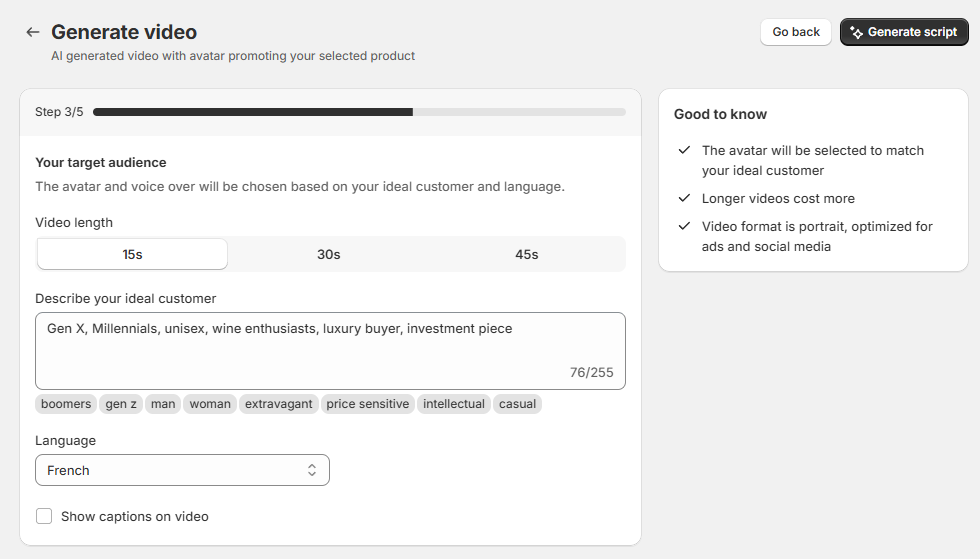
- Specify the target audience for the video
- Select the video length - 15 seconds, 30 seconds, or 45 seconds
- Select the language to be used.
- Generate Script:
- AI Avatar Video Ads will generate several scripts tailored to your product.
- Choose one of the scripts or edit it to suit your needs.
- Select an Avatar:
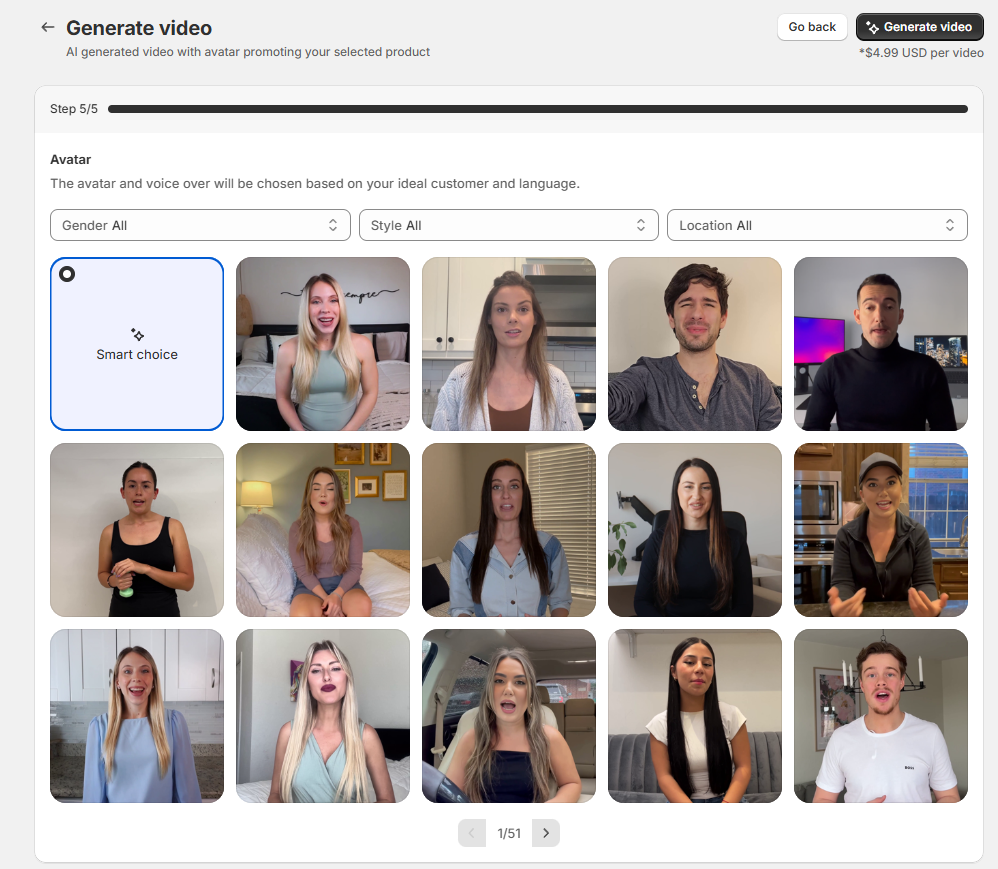
- AI Avatar Video Ads allows you to select the Avatar or the person who is going to talk in the video.
- Filter the avatars by Gender, Age, Style and Location (Indoor or Outdoor). The first avatar that matches your filters is selected for you, and you can pick another.
- Click the Generate Video button to see how the video will initially look like with the entered parameters. This is where the charge is going to be generated.
- The Vitals All-in-One plan includes one free video preview, once (it doesn't renew each month, and isn't available during the free trial). After that, each preview is a usage charge on your Shopify bill. The first time, Shopify asks you to approve usage charges for Vitals; you don't confirm each video separately.
- Depending on the video duration you selected in the previous step, there will be a corresponding charge for the video:
- 15-second video - $4.99 USD
- 30-second video - $6.99 USD
- 45-second video - $9.99 USD
- Once a preview has been generated, you can then select a Video Style.
Select a video style [NEW]
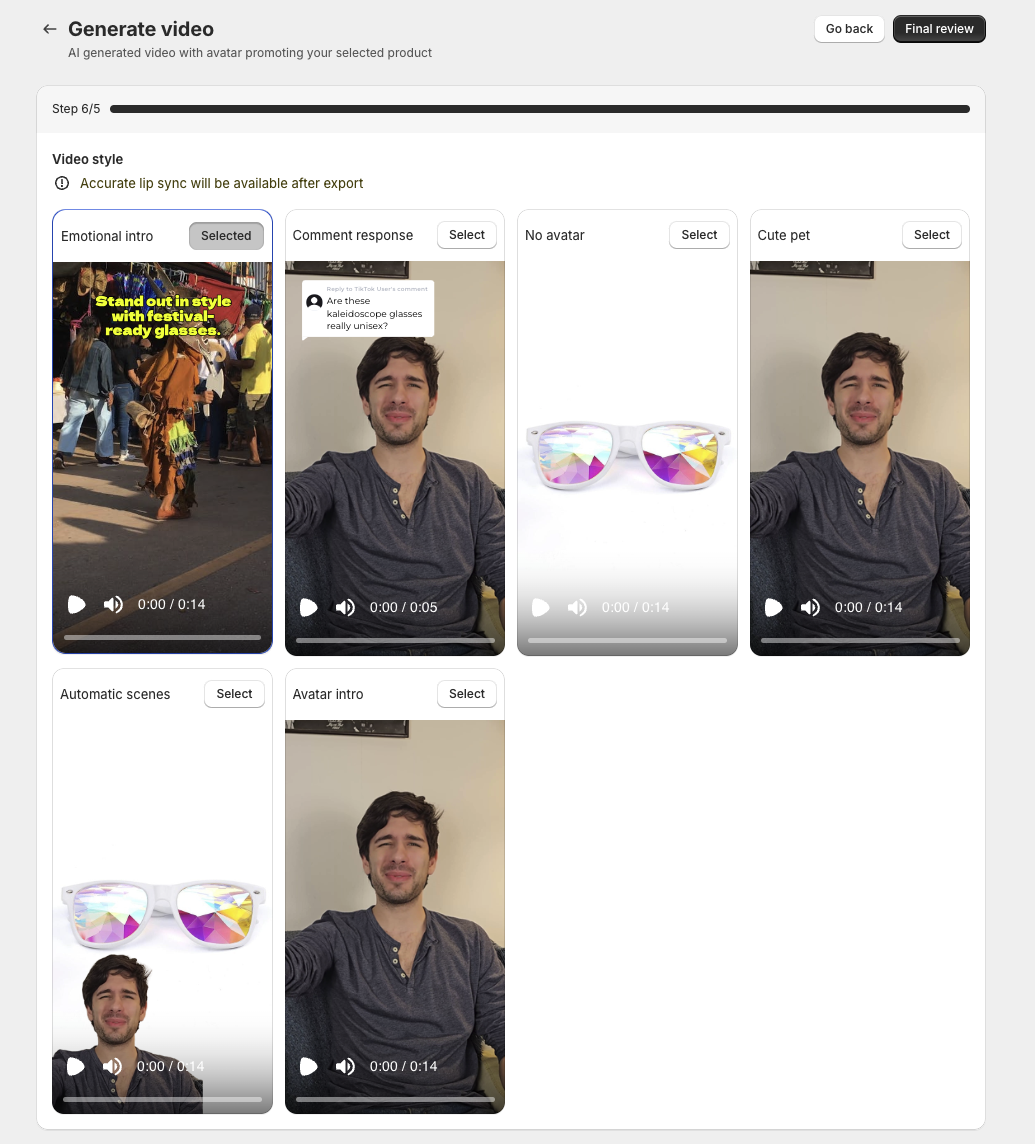
After you have generated the preview, you can select a video style from the available options.
You can watch each style and decide which one perfectly fits your vision. Note that in the previews shown in this step, the avatar speaking is not yet fully synced with your selected script, as you can still review and make changes afterward.
Once you have selected your style, click the "Final Review" button to proceed to the next step.
Final Review
This step provides a summary of the different options you have selected from the first step. You can go back to a specific step from here anytime, should you like to change it:
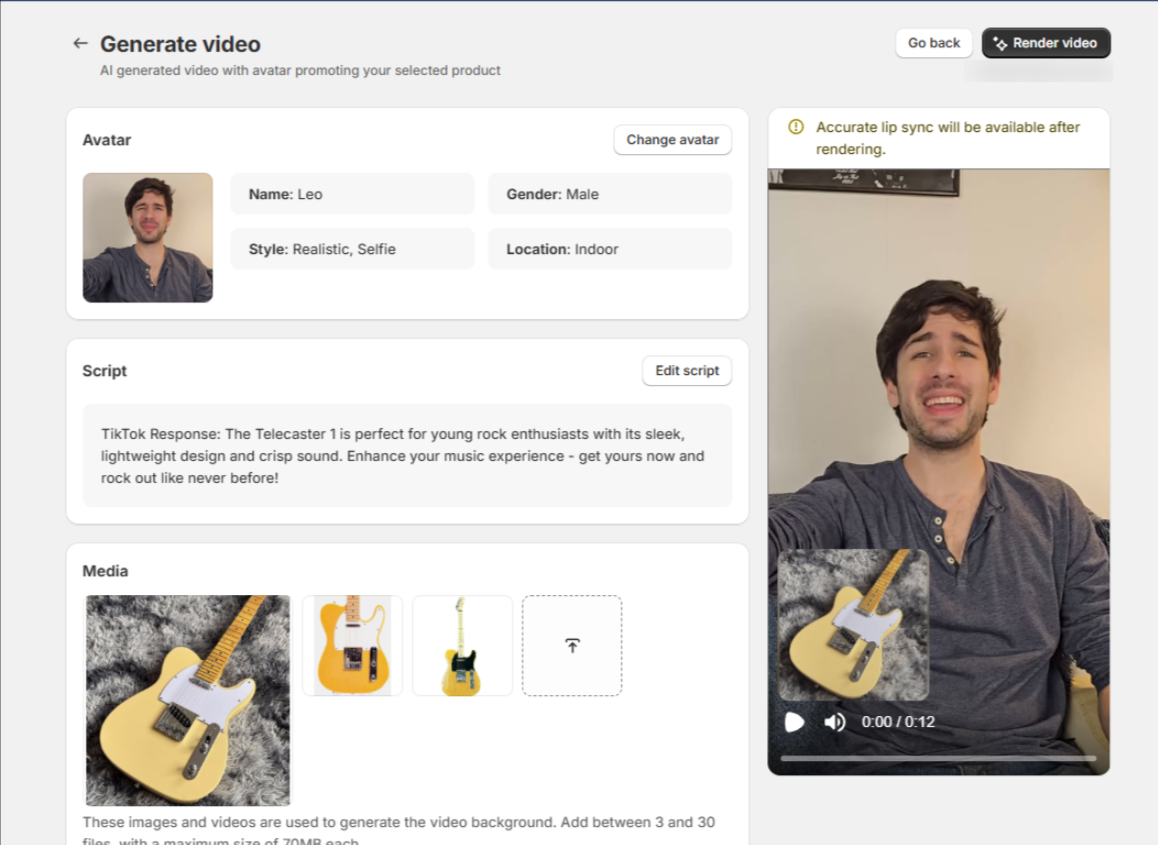
- Note: In the preview video, the lip sync will be inaccurate, but it will become accurate once the final video is rendered.
- Once you are satisfied with the different parameters set and are ready to download the final video, click the Render video button.
- Render the Video:
- The video will be rendered within minutes.
- You can download the video to your computer.
- The video will also be saved in the AI Avatar Video Ads dashboard for easy future access.
💡 Protip: You can leave at any step in the process—your progress will be saved as a draft, allowing you to continue where you left off later.
Note: Drafts are automatically deleted after 30 days.
For any issues or suggestions, feel free to reach out to our support team! 🎥✨
Content Guidelines
Prohibited Content
The following types of content are strictly forbidden under any circumstances:
- Any form of child exploitation;
- Pornography or explicit sexual material;
- Any depiction or endorsement of violence against people or animals;
- Hate speech, discrimination, or any content that incites harassment or threats based on race, religion, gender identity, age, nationality, sexual orientation, or any other characteristic;
- Promotion of illegal or unlawful activities, including drugs, hacking, or other criminal acts;
- Spreading misinformation, disinformation, or supporting conspiracy theories;
- Sharing private or confidential information without consent;
- Unauthorized legal, medical, or financial advice;
- Political campaigning or direct lobbying;
- Fraudulent, deceptive practices, including scams, spam, or intellectual property violations;
- Any other content we deem inappropriate or contrary to our values.
Moderation Process: Automated Screening
We deploy advanced automated tools that utilize machine learning to identify and flag potential violations within our platform.
Frequently Asked Questions [FAQs]
Why didn’t my video show up after using AI Avatar Video Ads?
The video rendering process typically takes less than 10 minutes. If your video doesn't appear within this time, try refreshing the Vitals app by reloading the page and navigating back to the AI Avatar Video Ads tool. Your video should display as finished. If the issue persists, feel free to contact our support team.
How does AI Avatar Video Ads charge me for video generation?
The All-in-One plan includes one free preview, once (it doesn't renew monthly). After that, generating a Preview using the entered parameters has the following costs (depending on selected duration):
- 15-second video - $4.99 USD
- 30-second video - $6.99 USD
- 45-second video - $9.99 USD.
- Note that the lip sync will be inaccurate in the preview video, but it will become accurate once the final video is rendered.
- By generating a preview, you can also go back and change the parameters of your video multiple times - you will not be charged again if another preview is generated in that same procedure.
- Once satisfied with your parameters, you can generate the final video by clicking the appropriate "Render Video" button, and does not have a separate charge.
To verify your charges:
- Go to Shopify admin > Settings > Billing.
- Check your most recent or upcoming bill for a breakdown of Vitals charges.
- Charges will reflect only for successfully generated videos created by AI Avatar Video Ads.
I have the Vitals app on my development store. Can I use this feature?
Since this feature needs an active payment method on the store, development stores would not be able to use it.