
Pre-orders on Shopify with Vitals: sell sold-out products before they arrive
Last updated on November 27, 2026
Yes, Vitals does pre-orders on Shopify. In Back in Stock & Pre-orders → Pre-orders you create an offer for sold-out or upcoming products. Shoppers pay the full price at checkout and get the product on the date you set. It is included in every paid Vitals plan, with no limit on offers or orders and no extra charge. The pre-order emails to your shoppers are free and do not count against your Back in Stock notification allowance.
Pre-orders at a glance
| Question | Answer |
|---|---|
| Payment | Full price at checkout, less any discount you set. Deposits and part payments are not available. |
| Which products | Specific products, products in collections, products with a tag, or all sold-out products. |
| Ship date | A date, a number of weeks after the order, a range of dates, or no date yet. |
| What shoppers see | A Pre-order badge, the ship date and a pre-order button on the product page, and a badge in the cart. |
| Your orders in Shopify | Each order gets the tag Pre-order (and Mixed pre-order if it has other items) and a fulfilment hold. |
| Release | When stock goes up in Shopify, Vitals releases waiting orders by itself, oldest first. |
| Where it works | Your online store. Point of Sale, draft orders, B2B orders and links that add a product straight to the cart sell as ordinary orders. |
| Emails | A pre-order confirmation, and a shipping update that you send yourself. Free. |
Set up a pre-order offer
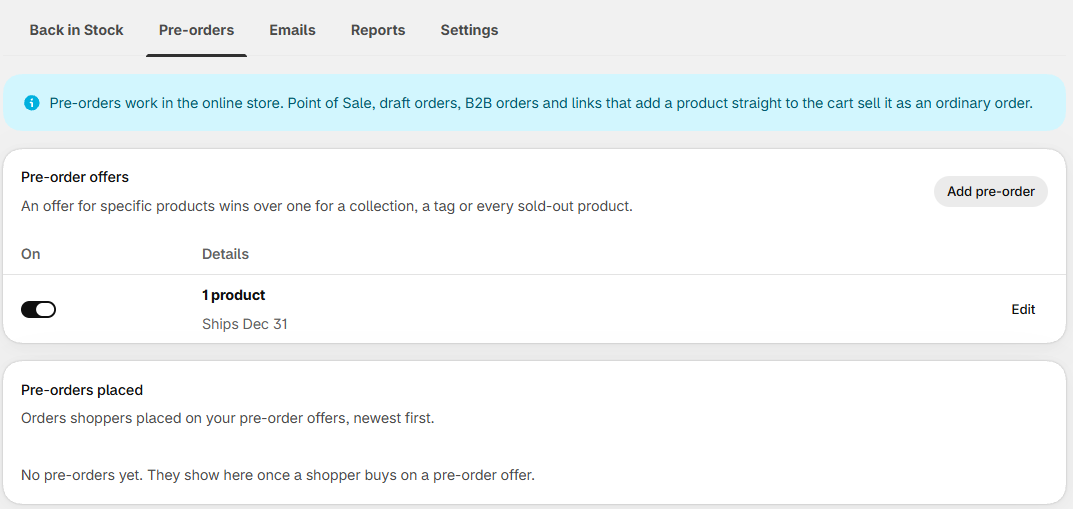
- Open Vitals and go to Back in Stock & Pre-orders → Pre-orders. In the Vitals app list it is called Back in Stock.
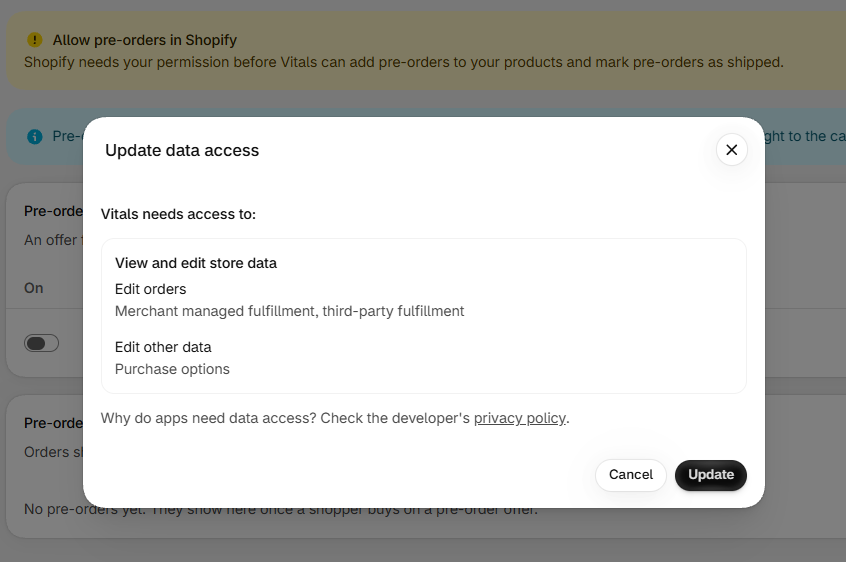
- The first time, click Allow access in the banner "Allow pre-orders in Shopify" and approve the window from Shopify. Vitals needs it to add pre-orders to your products and to hold and release orders. Without it, your offer is saved but does not reach your store.
- Click Add pre-order.
- Under Applies to, choose the products. Under Ship date, choose when they ship.
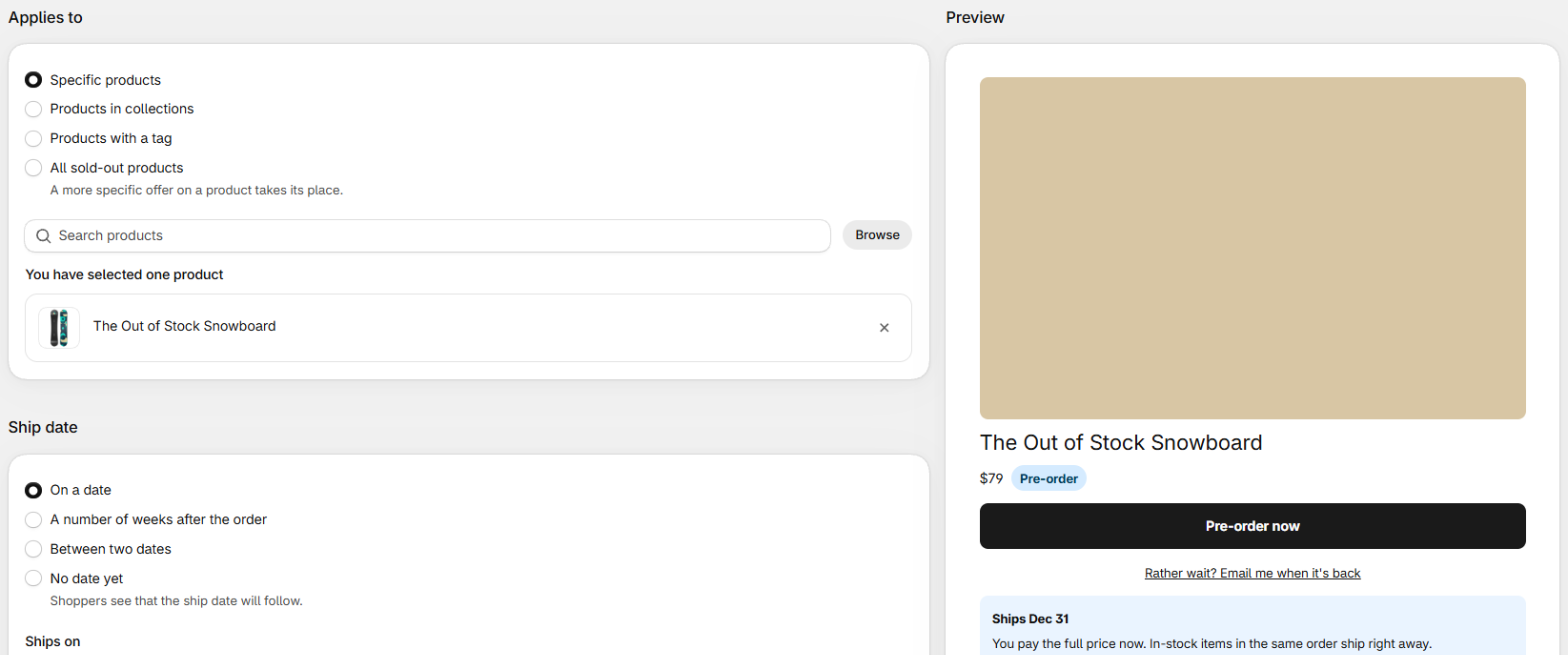
- Optional: add a discount, change the button text, and click Show options under More options to set a start and end date, the badge text, and whether shoppers must accept the pre-order terms.
- Save, then switch the offer On in the list. After a few minutes, shoppers see the pre-order badge and button on the product page.
If two offers cover the same product, the most specific one is used: products first, then collections, then a tag, then all sold-out products.
By default, Vitals turns on Continue selling when out of stock for the products in an offer, and turns it off again when the offer ends. If you prefer to manage this in Shopify, choose I'll manage it in Shopify under Selling at zero stock.
When a shopper pre-orders
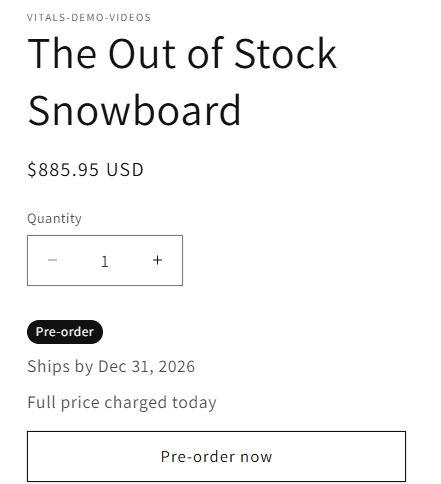
The shopper pays at checkout and gets a confirmation email. In Shopify, the order is tagged Pre-order and the pre-order items are held, so you do not ship them by mistake. If the order also has items that are in stock, it is tagged Mixed pre-order too, and you can ship the in-stock items right away.
When your stock arrives
Add the stock in Shopify. Vitals releases the waiting orders by itself, oldest first. If your stock covers only some of the orders, only those are released. Variants that Shopify does not track are not released automatically: open the offer, click More actions, choose Release early and click Continue.
Change the ship date, tell your shoppers, or cancel
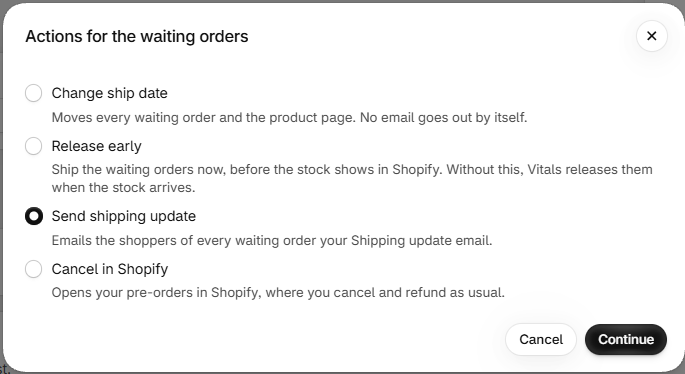
- Change the ship date: open the offer and click Change ship date. Waiting orders and the product page move to the new date together. Vitals does not email shoppers.
- Send a shipping update: open the offer, click More actions, choose Send shipping update and click Continue.
- Cancel a pre-order: cancel and refund it in Shopify. In the offer, More actions → Cancel in Shopify → Continue opens your pre-orders there.
Reports
Open Reports and choose Pre-orders to see pre-orders and the amount paid per variant. Export for your supplier downloads a file with one row per variant and ship date and no customer data.
Frequently asked questions
Does it cost extra? No. It is included in your Vitals plan.
Can I take a deposit? Not today. Shoppers pay the full price at checkout.
Can I limit how many units I pre-sell? Not today. There is no limit per product or size.
Why does my product still show Add to cart? Check that you clicked Allow access, that the offer is switched On, and that it is not set to start later. Wait a few minutes and reload. If the offer shows Couldn't update Shopify, click Allow access again.
Do I need to change my theme? No.
Still stuck?
Chat with our support team, we'll sort it out with you.