
Using the AI Product Page Generator
💡 Important update: If you've used the AI Product Page Generator before, here's what to know:
1. New pages now store content in product metafields (editable from Shopify admin > Products) instead of the Theme Editor. You can read more about this change below.
2.The AI Product Page Generator tool now has the option to generate product pages by first importing the products from AliExpress.
Your existing pages are unchanged.
The AI Product Page Generator creates high-converting product pages for your store using AI. We've recently updated how it works to make editing simpler and keep your store design consistent.
This article covers the requirements, how to generate a page, how the updated system works, and how to edit your AI-generated pages.
Requirements
In order for the AI Product Page Generator to work, your store needs to meet the following:
Supported themes:
Dawn, Refresh, Sense, Craft, Spotlight, Rise, Ride, Origin, Taste, Publisher, Trade, Colorblock, Crave, Studio, Debutify, Impulse, Prestige, Motion, Horizon, Savor, Vessel, Atelier, Heritage, Dwell, Ritual, Pitch, Fabric, Tinker
Product requirements:
- The product must have a description (it cannot be empty)
- The product must be published and have 3 or more product images
Note: Generating a product page consumes one AI credit. Your Vitals plan includes a fixed number of credits that replenish every 30 days.
How to Generate a Product Page
-
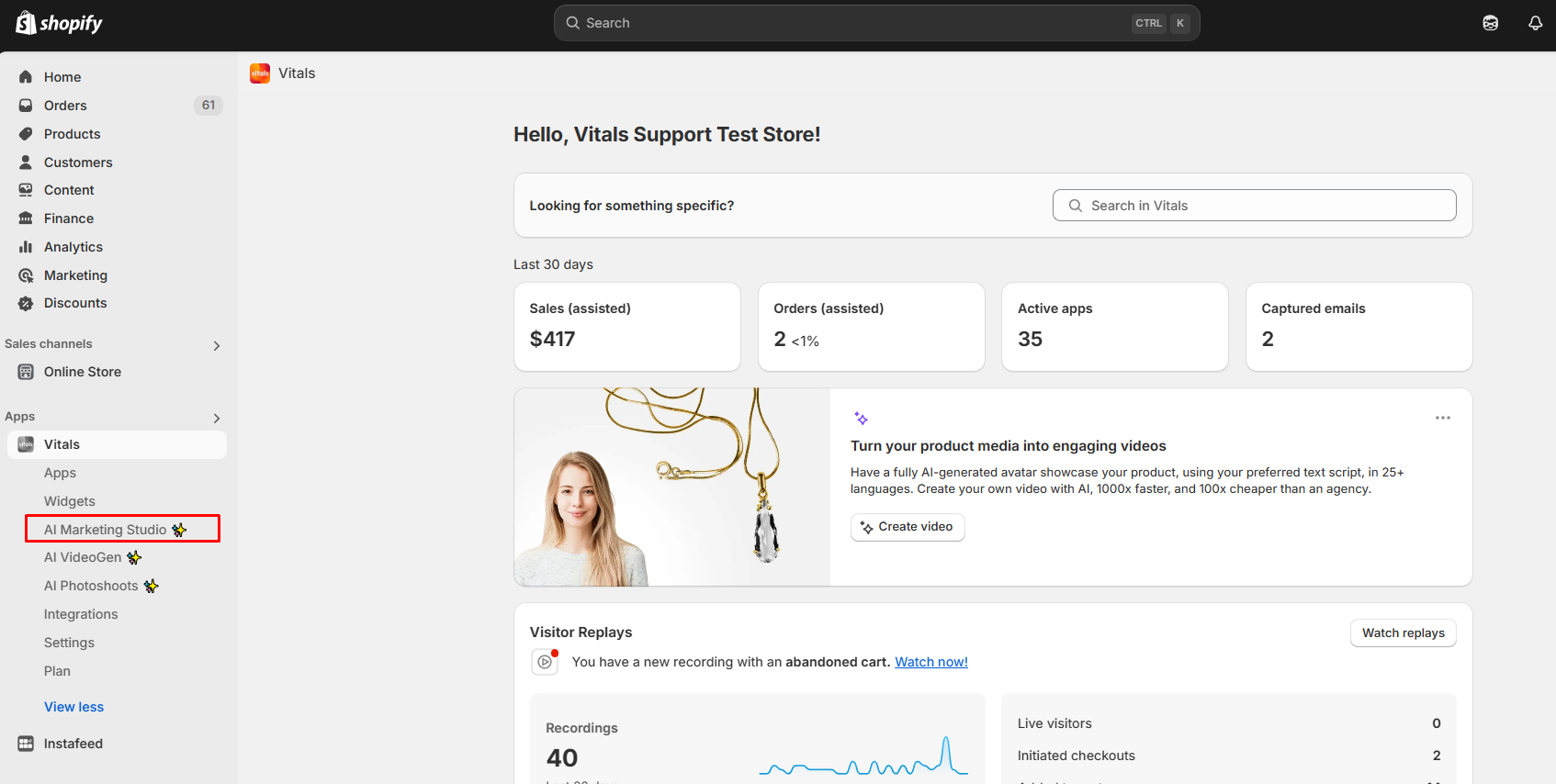
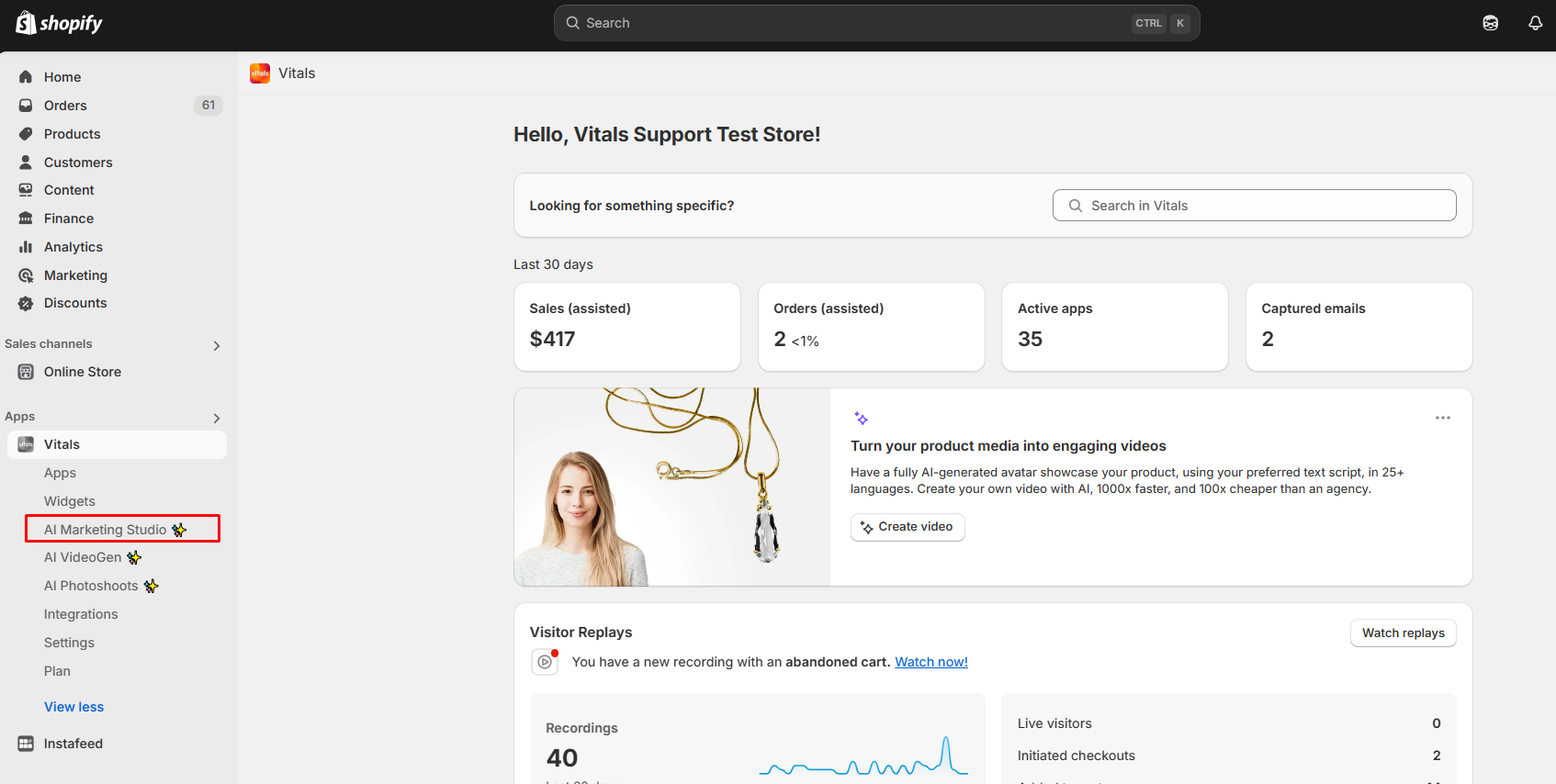
Open your Vitals dashboard and select AI Marketing Studio from the left sidebar.
-
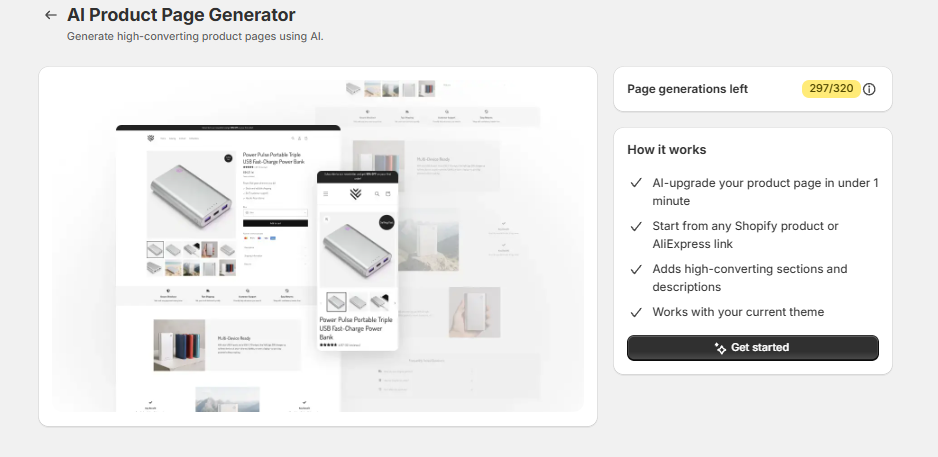
Find the AI Product Page Generator tool and click Generate Product Page.

-
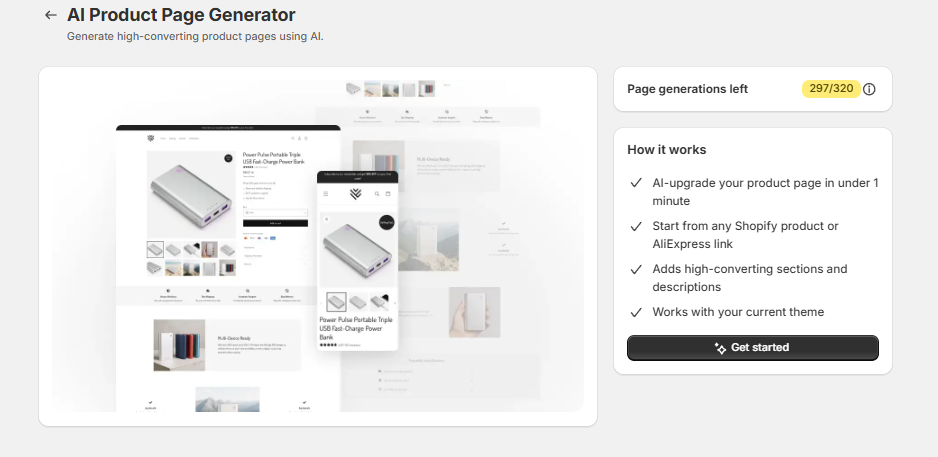
In the homepage of the AI Product Page Generator tool, select Get Started.
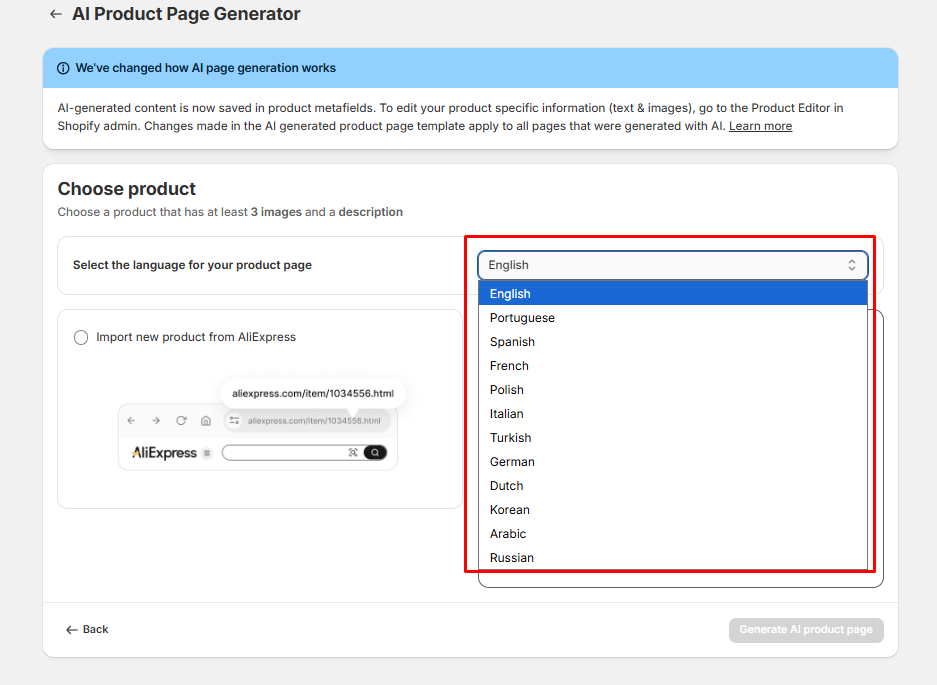
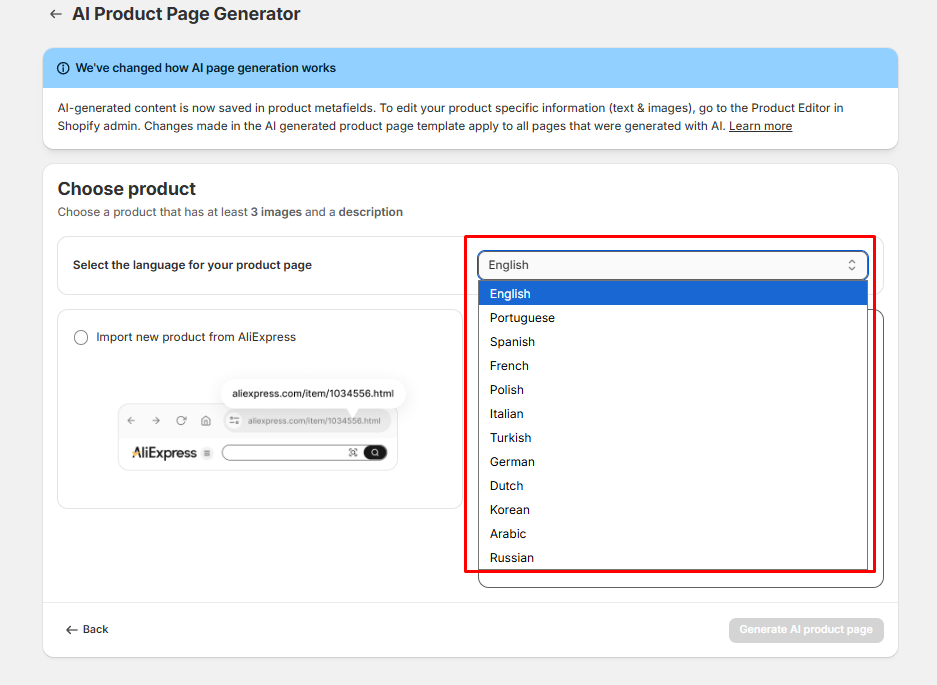
Choose the language for the generated page.
-
Supported languages: English, Portuguese, Spanish, French, Polish, Italian, Turkish, German, Dutch, Korean, Arabic, Russian
-
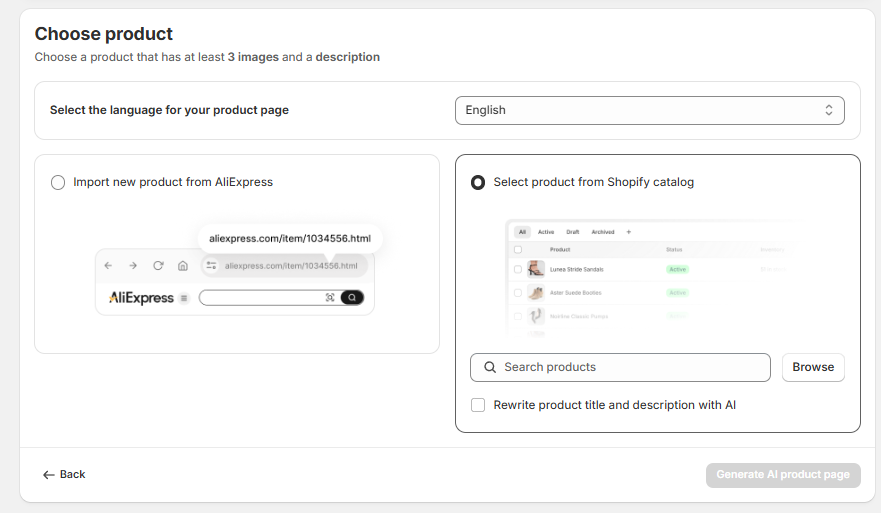
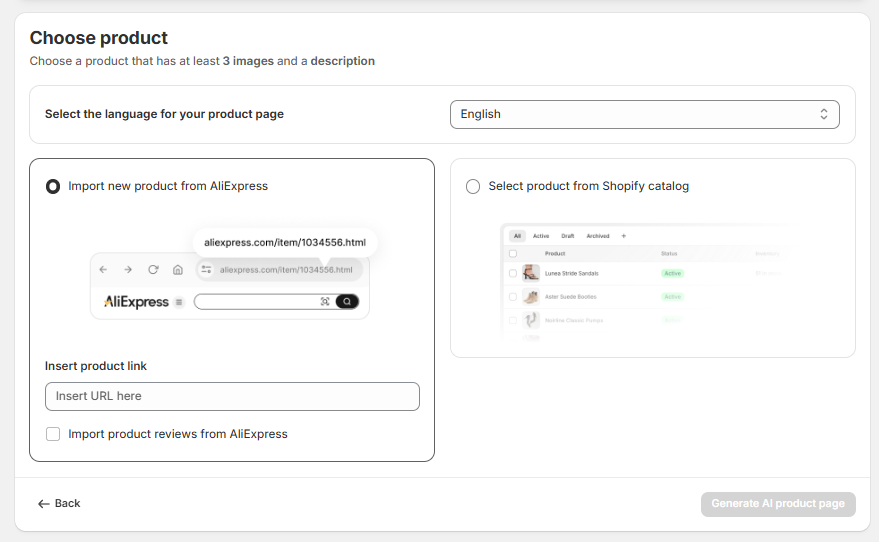
- [NEW] When generating a product page, you can choose between two options:
-
Select product from Shopify catalog — Pick an existing product from your store. Use the search bar to find it by name, or click Browse to view your full catalog. You can also check "Rewrite product title and description with AI" to have AI improve your existing copy.
-
Import new product from AliExpress — Paste an AliExpress product URL to import a new product. You can also check "Import product reviews from AliExpress" to bring over customer reviews.
-
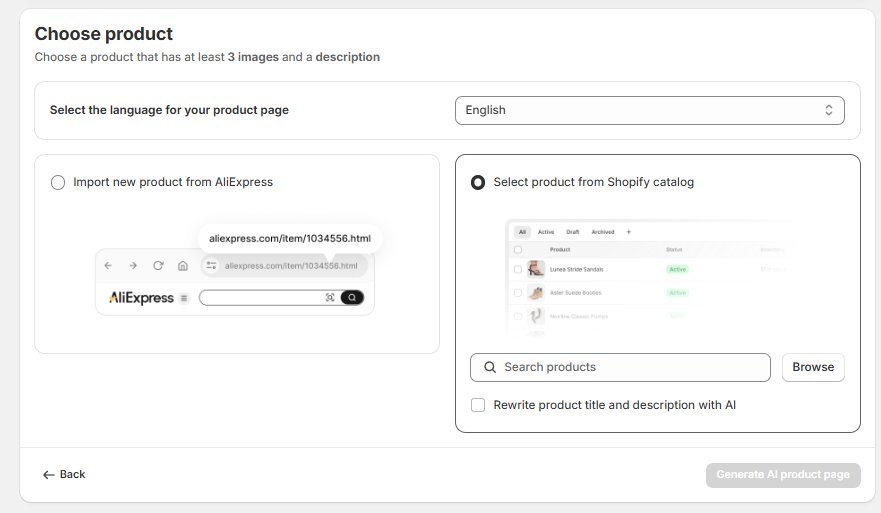
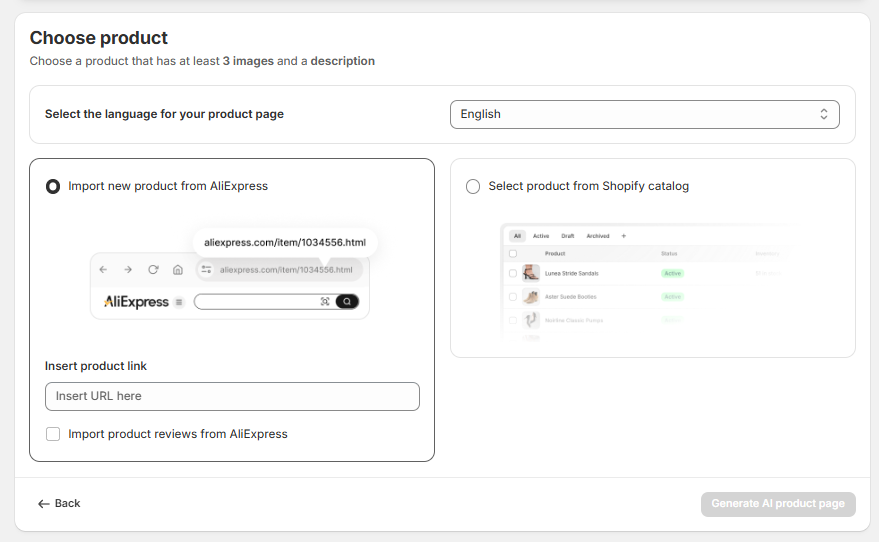
Note: Your product must have at least 3 images and a description for AI page generation to work.
-
Click Generate AI product page to start the AI generation process. It will then start generating the product page.
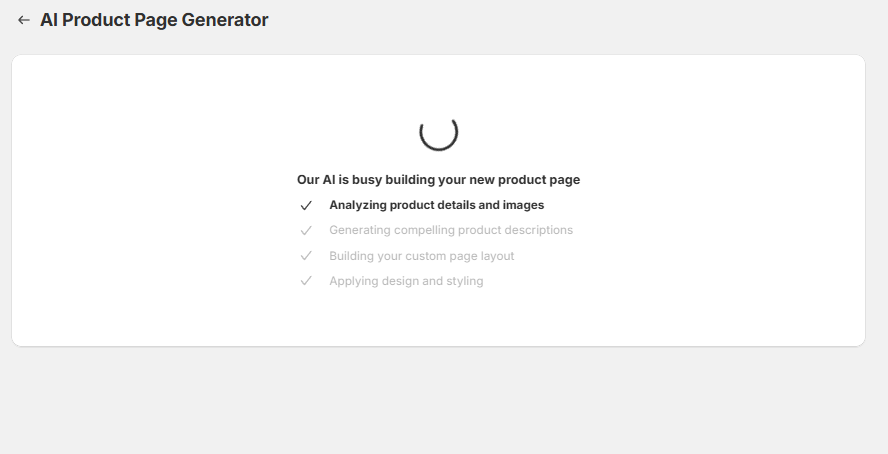
-
Once generation is complete, click Preview page to review the result in a new tab (opens in the Shopify Theme Editor).
If you're happy with the page, go back to the AI Product Page Generator and click Publish.
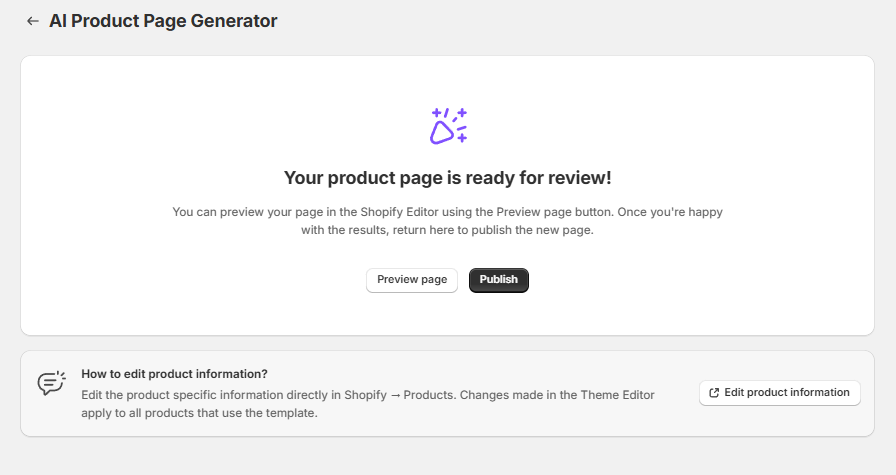
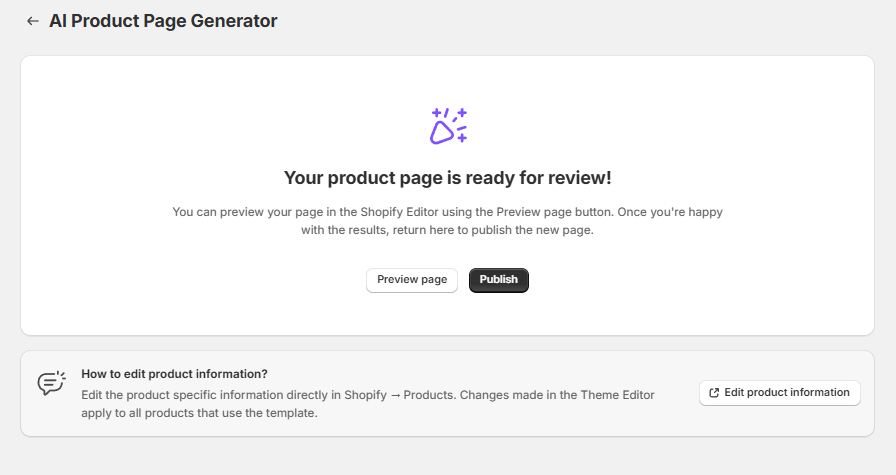
ℹ️ When you click Preview, the Theme Editor opens showing the specific product. This is for reviewing only. Do not make content edits (images, text) here — those changes will affect all AI-generated product pages.
If you want to change content for this product, do so from Shopify admin > Products > [Product] > Metafields after publishing.
-
If you click Publish, the product page will be automatically published to your live store.
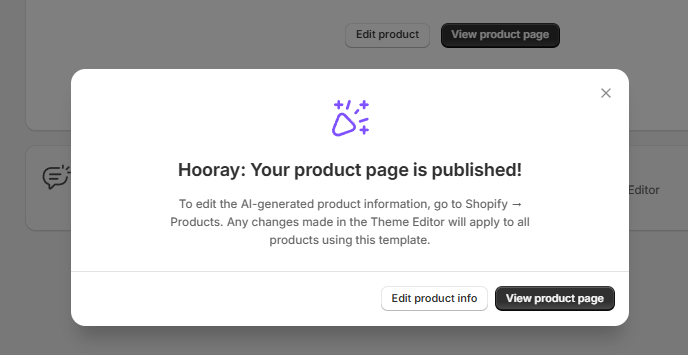
-
You also have an option to generate a new page afterward (in which you will start over):
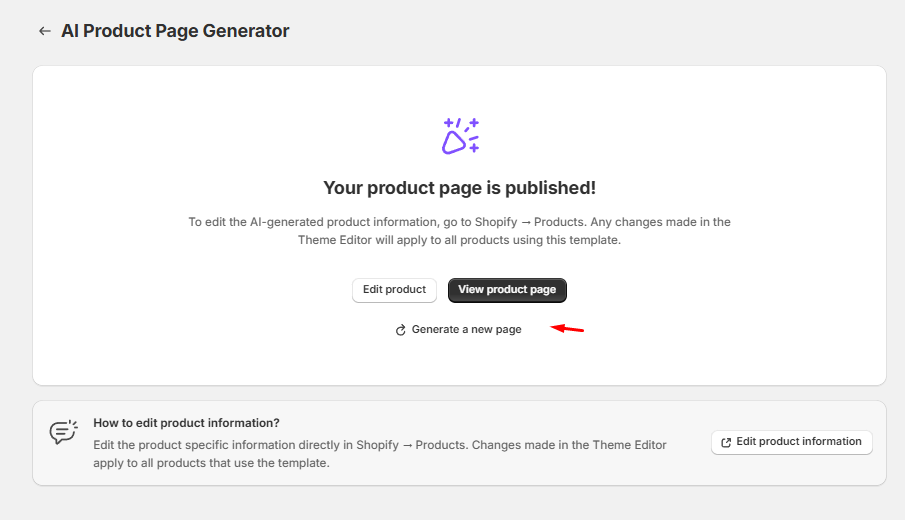
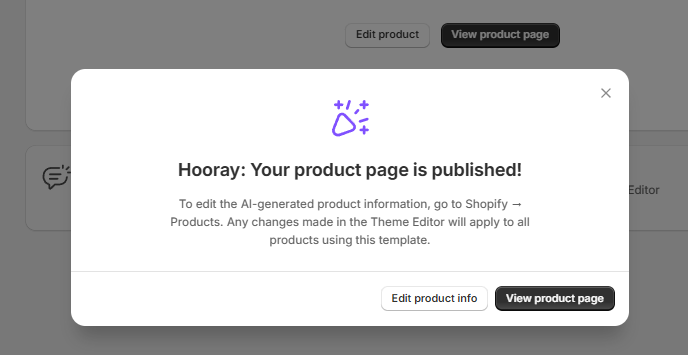
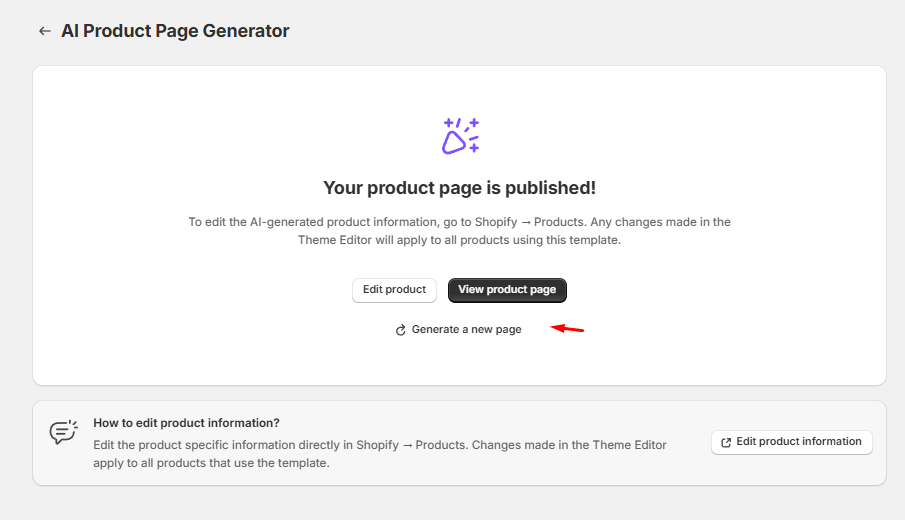
💡 Important update: If you've used the AI Product Page Generator before, here's what to know: new pages now store content in product metafields (editable from Shopify admin > Products) instead of the Theme Editor. You can read more about this change below.
Your existing pages are unchanged.
What Changed
|
|
Before | Now |
|---|---|---|
| Page layout | Each AI-generated page had its own individual layout | All AI-generated pages share one single template |
| Where product content is stored | Product-specific content (text, images) was embedded in the template | Product-specific content is saved in product metafields |
| Where you edit AI-generated product information | Shopify Theme Editor | Shopify Product Editor |
| Where you edit page layout and design | Shopify Theme Editor | Shopify Theme Editor |
How It Works Now
When you generate a product page with AI, two things happen:
- A product page template is created. This is a single template that controls the layout and design of your AI-generated pages. It lives in your Shopify theme.
- Product-specific content is saved to metafields. The AI-generated text, images, and section content for each product are stored as metafields on that product.
This means the template controls how every AI page looks, while the metafields control what each individual page says.
How to Edit Your AI-Generated Pages
Editing Product-Specific Content (Text and Images)
To change the AI-generated text or images for a specific product:
-
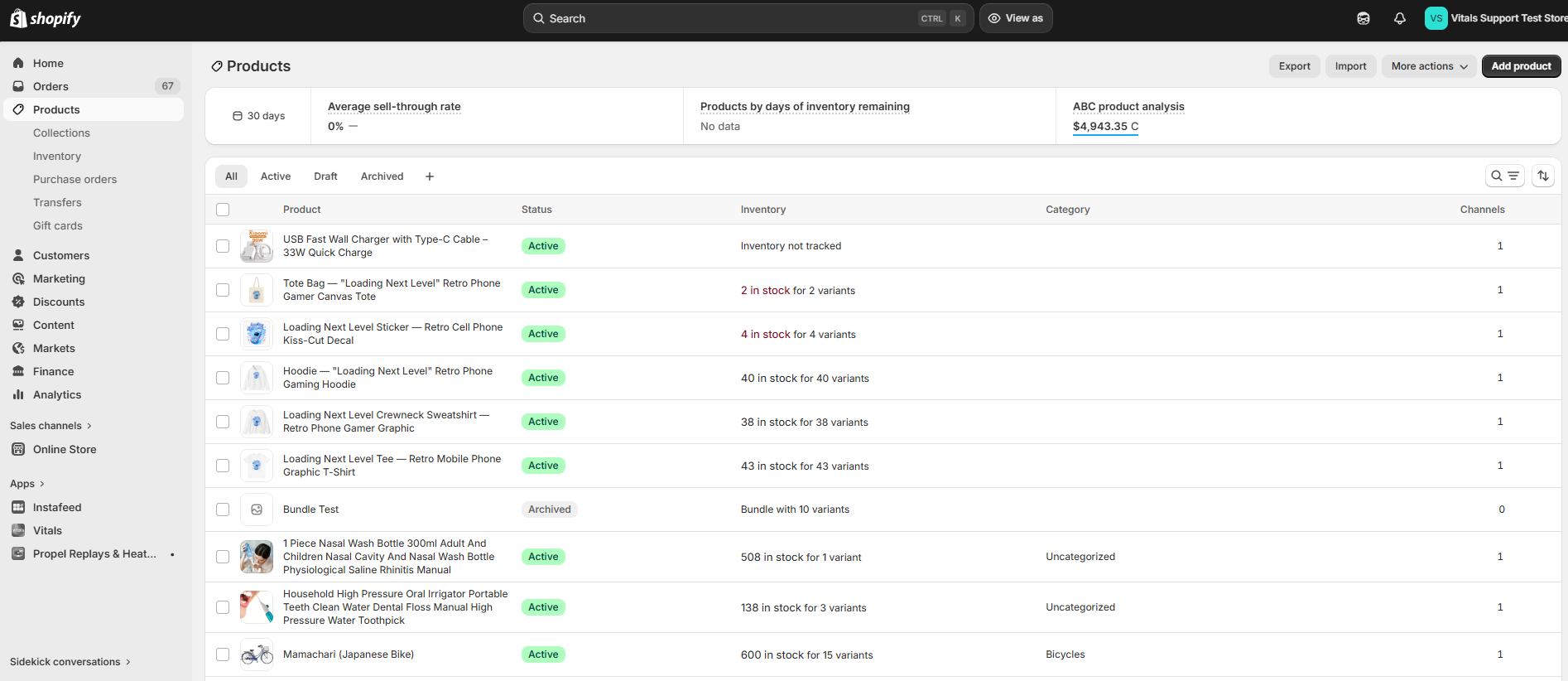
Go to Shopify admin > Products
-
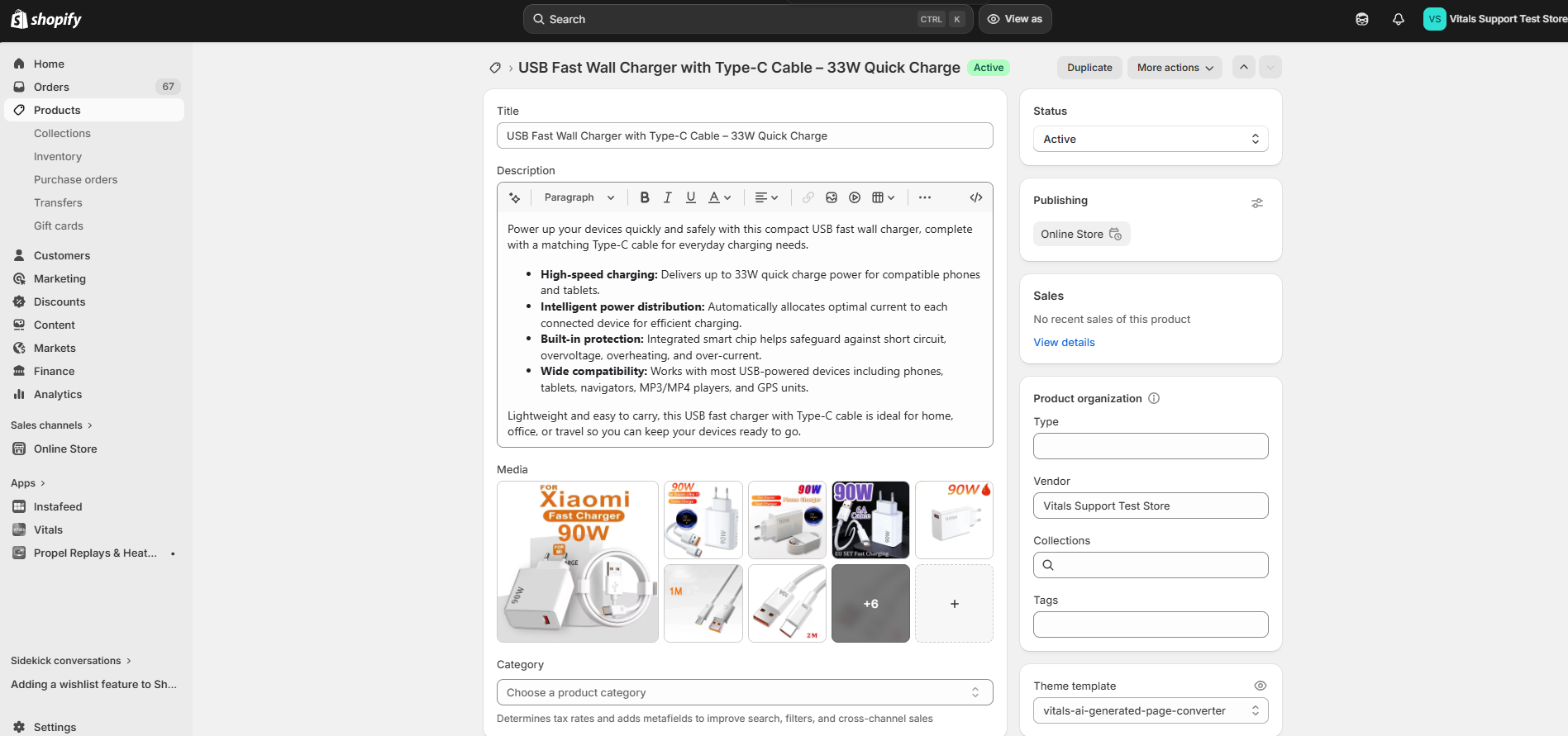
Select the product you want to edit
-
Scroll down to the Metafields section

- Edit the fields you want to change (e.g., headline, description, feature bullets, images)
- Click Save
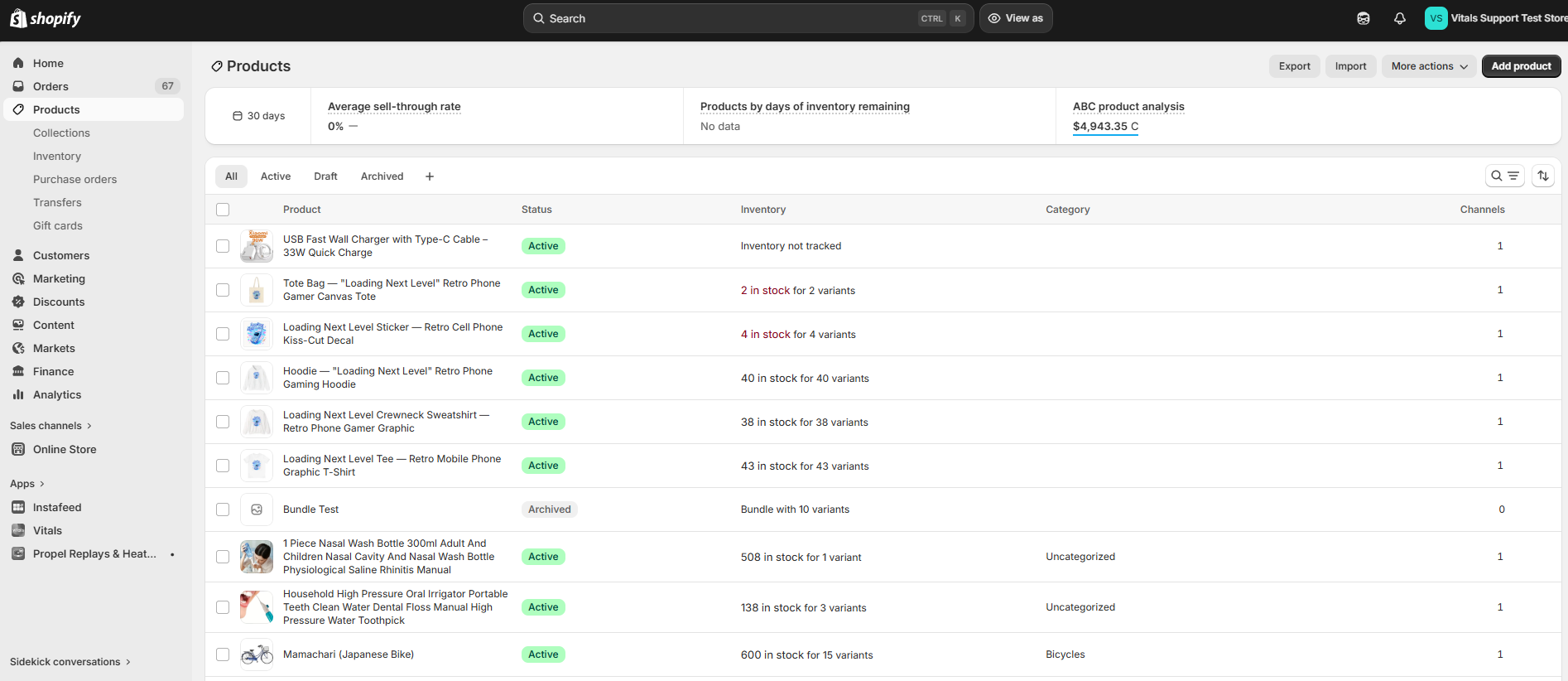
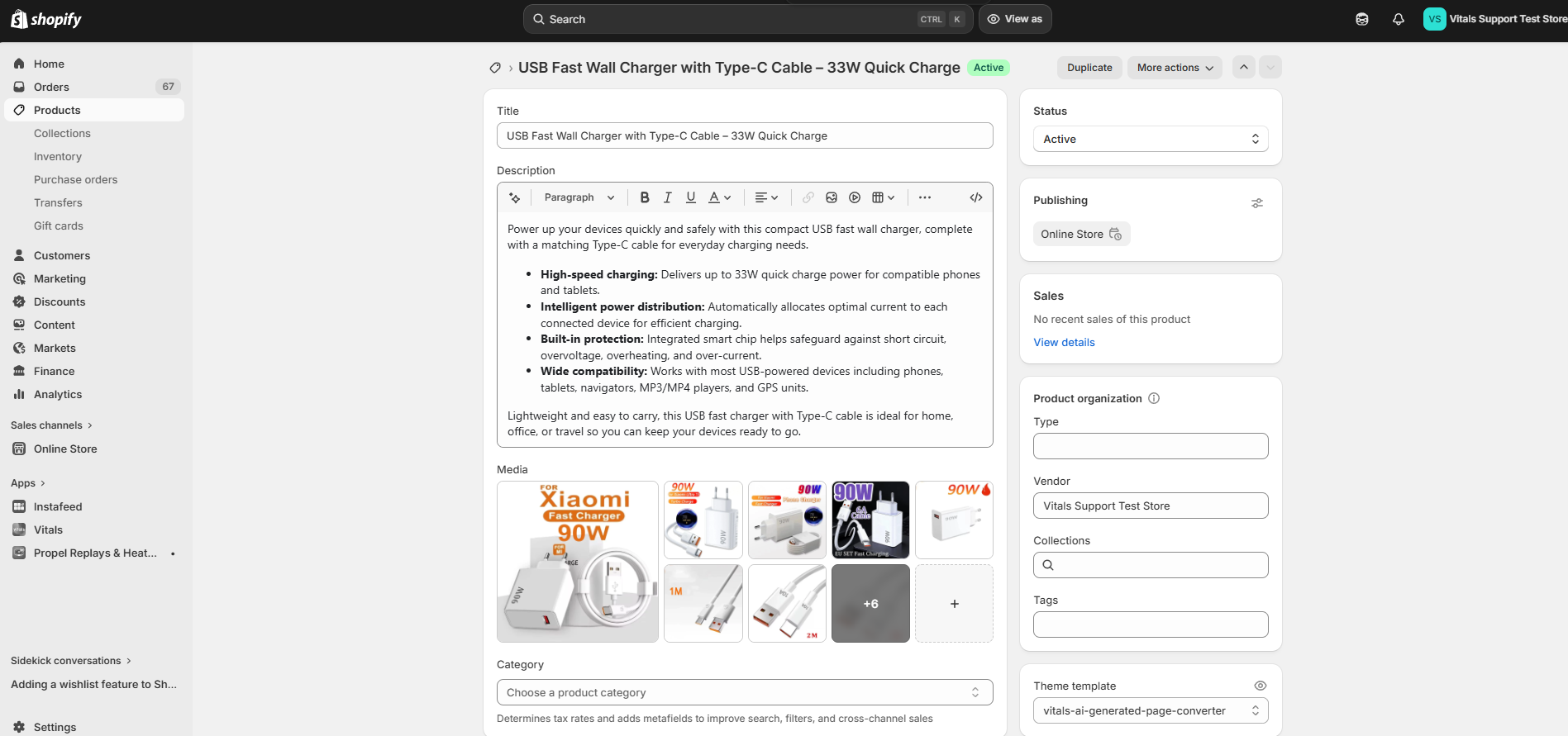
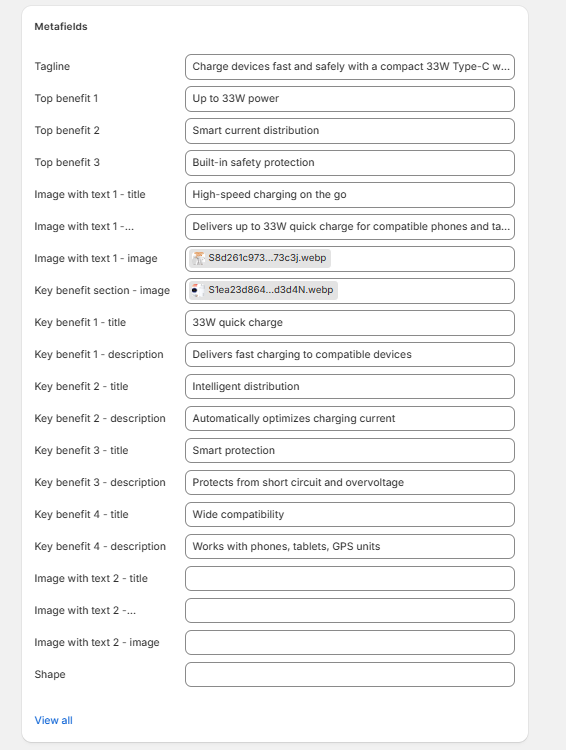
Your changes will appear on the live product page immediately.
ℹ️Each section on the generated page has a corresponding metafield.
For example, "Image with Text 1 - Image" controls the first Image & Text section (image on the left), while "Image with Text 2 - Image" controls the second one (image on the right). Make sure you're editing the correct metafield for the section you want to change.
Editing the Page Layout and Design
To change the overall layout or design of your AI-generated pages:
-
Go to Shopify admin > Online Store > Themes
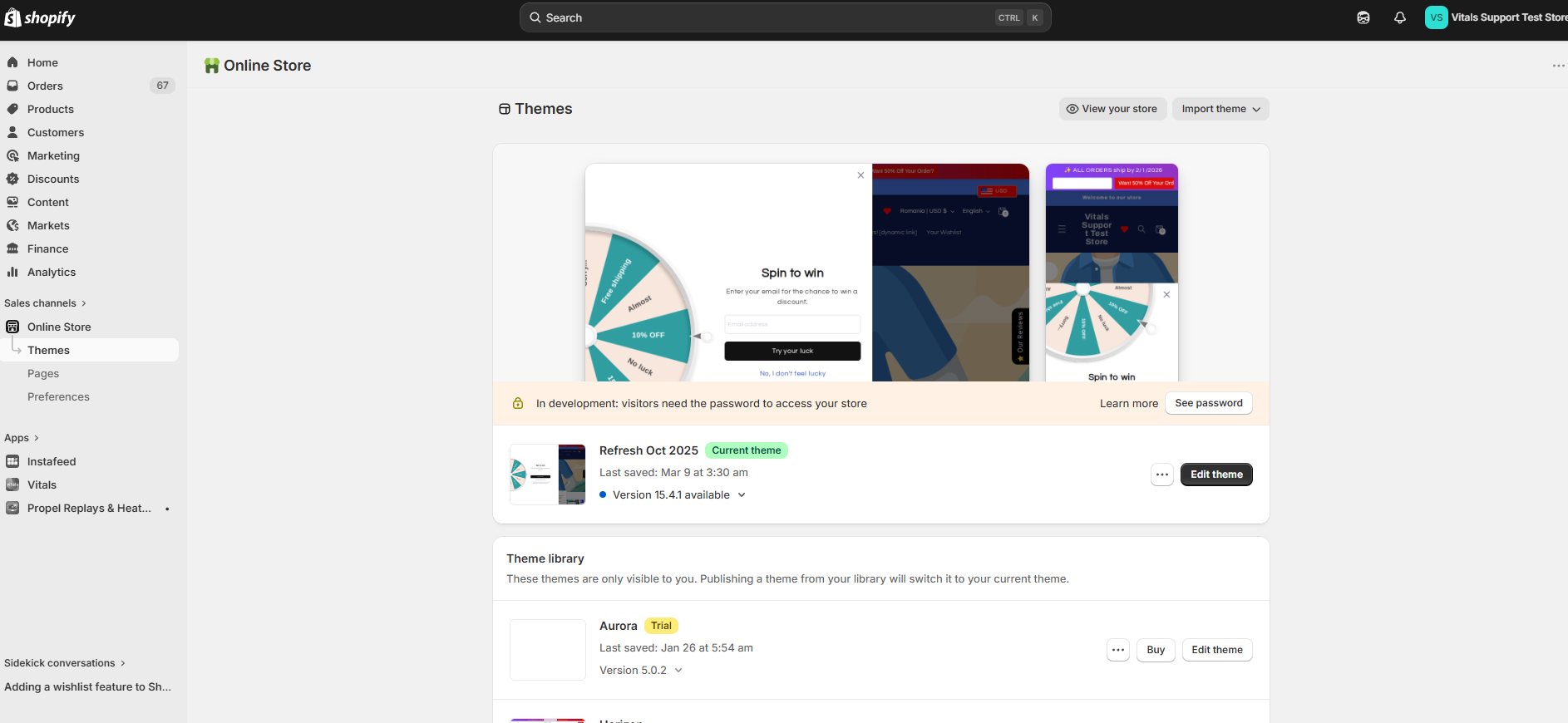
- Click Customize
-
Navigate to the AI-generated product page template
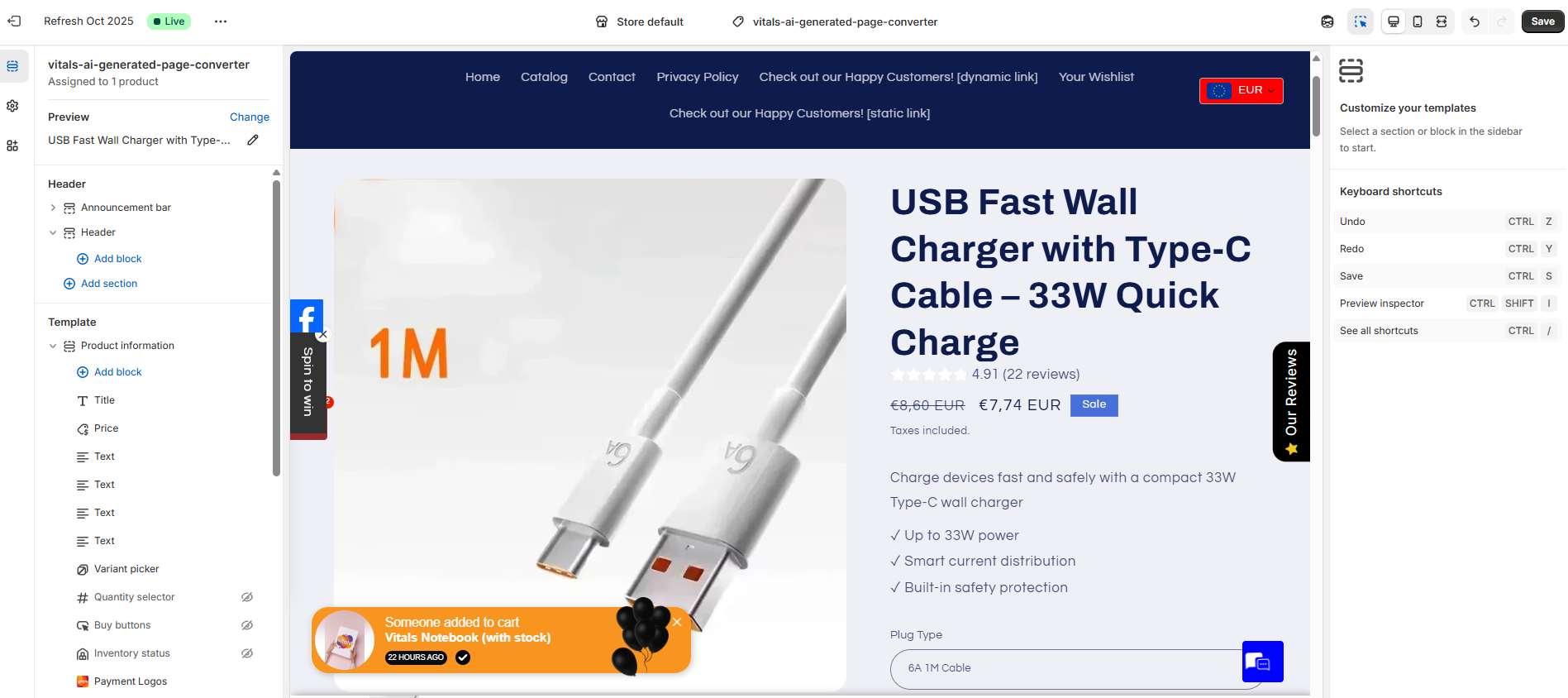
- Edit sections, reorder blocks, or adjust styling
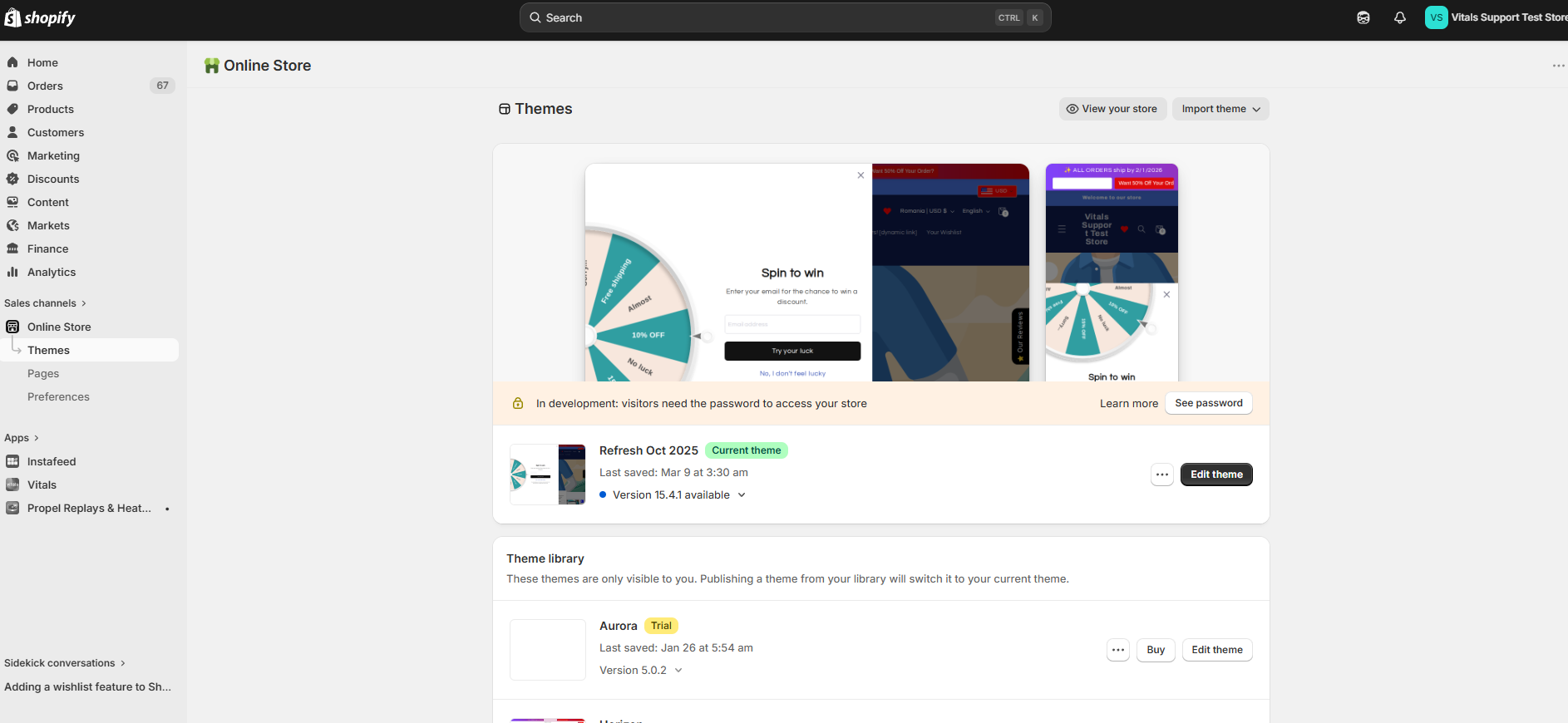
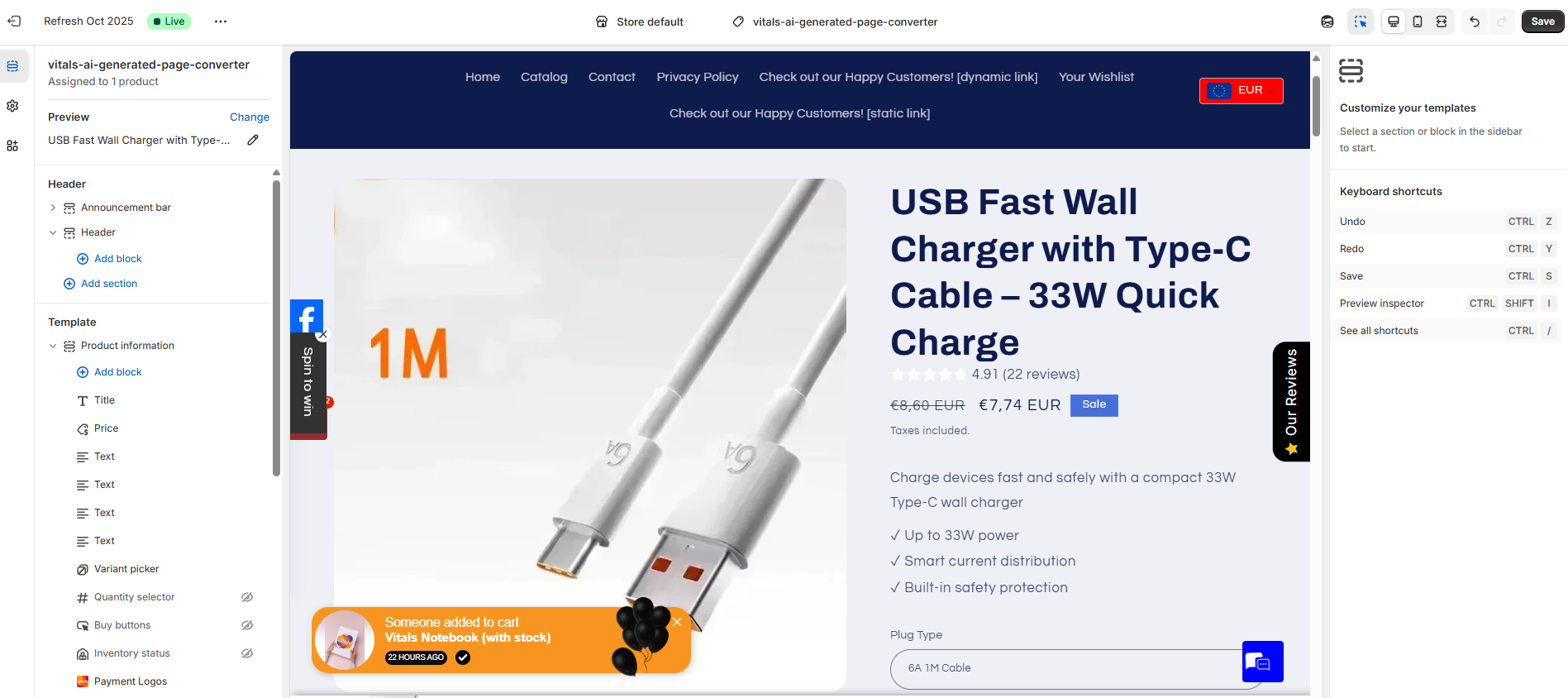
Note: Layout changes apply to all products using the AI-generated template, not just one.
Frequently Asked Questions
What happens to my existing AI-generated pages?
Nothing. Pages you generated before this update keep their own individual templates and continue to work as before. You can still edit them in the Theme Editor. Only new pages generated from now on will use the new shared template and metafields system.
What happens if I edit the template?
Any changes to the template affect all new AI-generated pages that use it. Your previously generated pages are not affected since they have their own separate templates.
Can I still use the Theme Editor?
Yes, but for layout and design changes to the shared template. Product-specific content (text, images) should be edited from the Product section (Shopify admin > Products) in the Shopify admin.
⚠️ Do not edit product-specific content (images, text) in the Theme Editor. Because all AI-generated pages share a single template, any image or text change you make in the Theme Editor will apply to every product using that template. To change content for a single product, always use the metafields on that product's page in Shopify admin.
What are metafields?
Metafields are custom data fields in Shopify that let you store extra information on products, collections, and other resources. The AI Product Page Generator uses metafields to store the AI-generated content for each product. You can view and edit them directly from the product page in your Shopify admin.
I edited something in the Theme Editor and it changed across all my AI-generated product pages. How do I fix this?
Because all AI-generated pages share one template, edits made in the Theme Editor apply to every product. To fix this, the dynamic source (metafield connection) for that section may need to be reconnected.
To reconnect the metafield, in your Shopify Theme Editor, select the element/section where the unwanted change happened. Once that is selected, look for its source in its Settings Sidebar and ensure that its source is connected to their corresponding metafield.
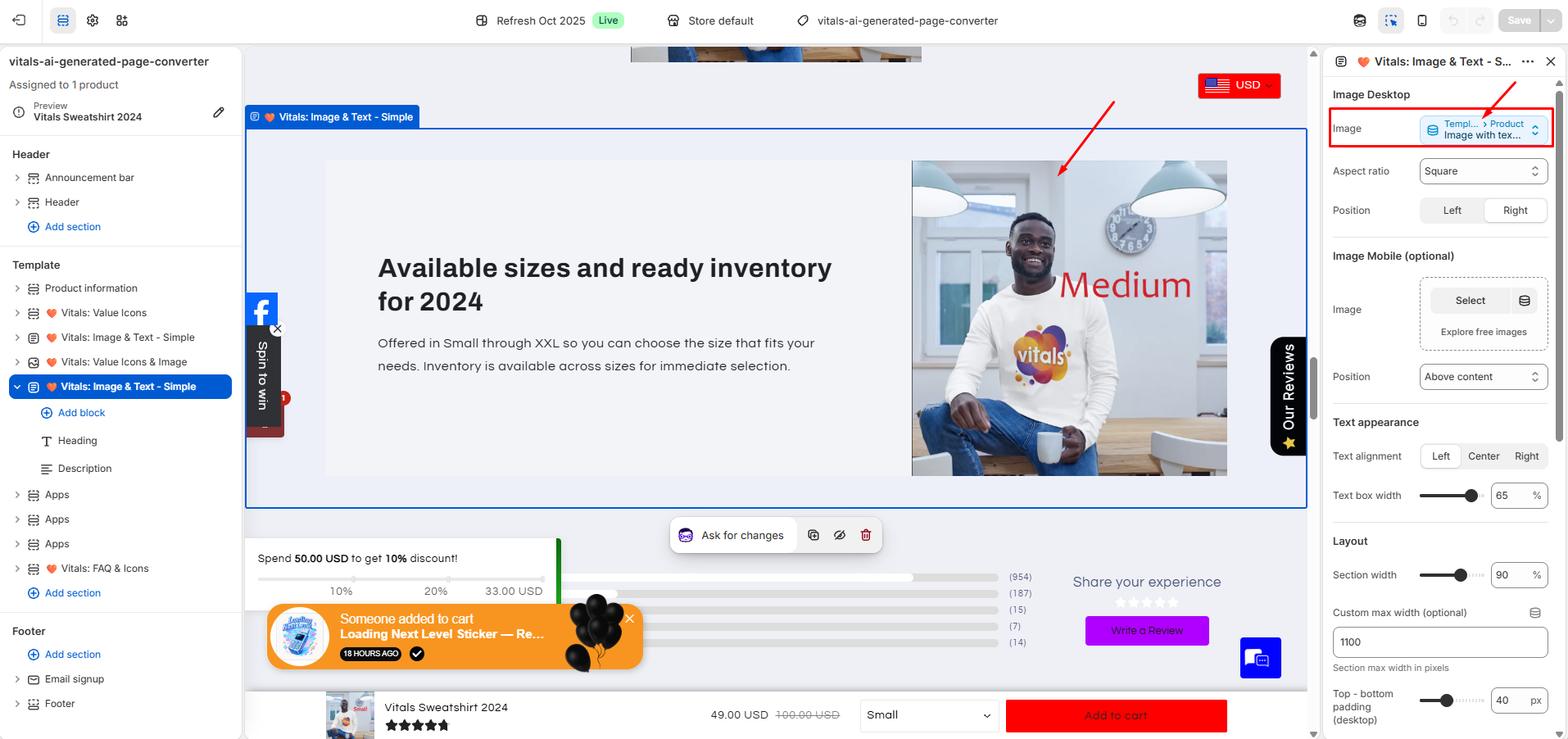
Going forward, always edit product-specific content from Shopify admin > Products > Metafields.
How do I revert a product to the default theme template?
Go to Shopify admin > Products, select the product, and change its template back to the default template in the Theme template section.
Can I generate multiple product pages at once?
No, the AI Product Page Generator can only generate one product page at a time.
When do my AI credits refill?
Your available credits replenish every 30-day cycle.
I changed themes and can no longer see AI Product Page Generator. Where did it go? If you switched to a theme that is not supported, the AI Product Page Generator will not be available. Switch to a supported theme to regain access.
How do I translate my AI-generated product page into another language?
You can use Shopify's Translate & Adapt app. Open the app, go to the Templates section, and look for the template name that contains "Vitals" and your product name. From there, you can provide translations for each language.
💡 Note: Not all sections might be translatable.
Need help? If you have questions or run into any issues, reach out to our support team. We're happy to help.